--- id: brandmark category: Brand title: Brandmark description: Logos/Brandmarks for Optum brands. design: 'https://www.figma.com/file/tk08Md4NBBVUPNHQYthmqp/Abyss-Web?type=design&node-id=0-21&mode=design&t=uWtmzWwvT2Kv5MMG-0' --- ```jsx import { Brandmark } from '@uhg-abyss/mobile'; ``` ```jsx sandbox { component: 'Brandmark', inputs: [ { prop: 'size', type: 'string', default: '$brandmark.sizing.lg' }, { prop: 'affiliate', type: 'select', options: [ { label: 'optum', value: 'optum' }, { label: 'optum_financial', value: 'optum_financial' }, { label: 'optum_frontier_therapies', value: 'optum_frontier_therapies' }, { label: 'optum_health-education', value: 'optum_health-education' }, { label: 'optum_now', value: 'optum_now' }, { label: 'optum_perks', value: 'optum_perks' }, { label: 'optum_prescription', value: 'optum_prescription' }, { label: 'optum_serve', value: 'optum_serve' }, { label: 'optum_store', value: 'optum_store' }, ], }, { prop: 'variant', type: 'select', options: [ { label: 'lockup', value: 'lockup' }, ] }, { prop: 'color', type: 'select', options: [ { label: 'white', value: 'white' }, { label: 'black', value: 'black' }, { label: 'orange', value: 'orange' }, ] }, ] } // Disclaimer: not all affiliate variant/color combinations are applicable, and inapplicable combinations will display as empty ``` ## Brand Use the `brand` property to adjust which brand is being selected. ```jsx live ``` ## Size Use the `size` property to adjust the size of the brandmark. ```jsx live ``` ## Affiliate Use the `affiliate` property to select the required brandmark affiliates. ```jsx live ``` ## Variant Use the `variant` property to select the required brandmark variants. ```jsx live ``` ## Color Use the `color` property to select available brandmark colors. ```jsx live ``` ```jsx render

Brandmarks

```
The source for these brandmarks can be found in the [Brandmark Library](https://brand.optum.com/content/wordmark-library-resources). You can use the search functionality to find the required brandmark. Brandmarks can be searched using their affiliates, variants or colors.
--- id: icon-brand category: Brand title: IconBrand description: Used to implement Brand icons and adapt their properties. design: https://www.figma.com/file/anZoHg026SyKJHWGJ7Vf4Q/Abyss-Icons?node-id=5%3A159&t=yumeSCoKoGQjs5PJ-0 --- ```jsx import { IconBrand } from '@uhg-abyss/mobile'; ``` ```jsx sandbox { component: 'IconBrand', inputs: [ { prop: 'size', type: 'string', }, { prop: 'variant', type: 'select', options: [ { label: 'one tone', value: 'onetone' }, { label: 'two tone', value: 'twotone' }, { label: 'one tone w/ dark circle', value: 'onetonedarkcircle' }, { label: 'two tone w/ dark circle', value: 'twotonedarkcircle' }, { label: 'two tone w/ light circle', value: 'twotonelightcircle' }, ], }, { prop: 'icon', type: 'string', }, ] } ``` ## Icons Use the `icon` property to adjust which icon is being selected. ```jsx live ``` ## Size Use the `size` property to adjust the size of an icon by setting it to a specific number, or using a token. The default is `$md`. Token sizes: `$icon-brand.sizing.xs`: 40 `$icon-brand.sizing.sm`: 64 `$icon-brand.sizing.md`: 96 `$icon-brand.sizing.lg`: 112 `$icon-brand.sizing.xl`: 136 ```jsx live ``` ## Brand Icon Variants Use the `variant` property to change the style of Brand icons. Available variants are `twotonedarkcircle`, `twotonelightcircle`, `twotone`, `onetonedarkcircle`, and `onetone`. The default variant is `twotonedarkcircle`. ```jsx live onetonedarkcircle twotonedarkcircle twotonelightcircle onetone twotone ``` ```jsx render

Brand Icons

```
Abyss uses branded iconography iconography that is designed to aid wayfinding, draw attention, and support messaging. The source for these design icons can be found in the [Brand Icons Library](https://brand.uhc.com/content/iconography).
--- id: icon-custom category: Brand title: IconCustom description: Used to implement custom icons and adapt their properties. design: https://www.figma.com/file/anZoHg026SyKJHWGJ7Vf4Q/Abyss-Icons?node-id=5%3A159&t=yumeSCoKoGQjs5PJ-0 --- ```jsx import { IconCustom } from '@uhg-abyss/mobile'; ``` ```jsx sandbox { component: 'IconCustom', inputs: [ { prop: 'size', type: 'string', }, { prop: 'variant', type: 'select', options: [ { label: 'light', value: 'light' }, { label: 'lightactive', value: 'lightactive' }, ], }, { prop: 'icon', type: 'string', }, ] } ``` ## Size Use the `size` property to adjust the size of an icon by setting it to a specific number or token. The default size is set to 24. Token sizes: `$xs`: 16 `$sm`: 20 `$md`: 24 `$lg`: 40 `$xl`: 48 ```jsx live ``` ## Variants Use the `variant` prop to change the style of the custom icons. The prop takes in either a `light` or `lightactive` value. The default is `light`. ```jsx live light lightactive ``` ## Brand Use the `brand` property to adjust which brands icons are being selected. Note that some of the icons unique to certain brands. The default is the theme brand, then falls back to `uhc`. ```jsx live ``` ## Active When placing an icon inside of a clickable element, the icon should be toggled between its normal and active state. ```jsx live {({ pressed }) => ( Home )} ``` ## Indicator The [indicator component](/mobile/ui/indicator) can be used as a wrapper to add a notification badge. ```jsx live ``` ```jsx render

Custom Icons

```
--- id: illustration-brand category: Media title: IllustrationBrand description: Used to implement Brand illustrations and adapt their properties. design: 'https://www.figma.com/file/34gRQMq2NxFgeRynjqd24C/Documentation-%7C-Abyss-Mobile?type=design&node-id=1218-19509&mode=design&t=eobYuZOIhhms55Vc-0' --- ```jsx import { IllustrationBrand } from '@uhg-abyss/mobile'; ``` ```jsx sandbox { component: 'IllustrationBrand', inputs: [ { prop: 'size', type: 'string', }, { prop: 'illustration', type: 'string', }, { prop: 'variant', type: 'select', options: [ { label: 1, value: 1 }, { label: 2, value: 2 }, ], }, { prop: 'color', type: 'select', options: [ { label: 'primary', value: 'primary' }, { label: 'pacific', value: 'pacific' }, { label: 'white', value: 'white' }, ] }, ] } // Disclaimer: not all brand color combinations or variants are applicable, and inapplicable combinations will display as empty ``` ## Brand Use the `brand` property to adjust which brand is being selected. ```jsx live ``` ## Size Use the `size` property to adjust the size of the illustration. ```jsx live ``` ```jsx render

Illustration Source

```
The source for these illustrations can be found in the brand libraries.

[UnitedHealthCare Library](https://unitedhealthcare.gettyimages.com/s/3f79xfhwgtcsc8t3t79hfc9)
[Optum Library](https://brand.optum.com/content/illustration-library-resources)

You can use the search functionality to find the required illustration. Illustrations can be searched using their title, variants or colors.

--- id: tokens title: Tokens category: Brand --- ## Overview Design tokens are the visual sub-atom variables of a design system. They contain UI data such as colors, border width, elevation, and even motion. They are used in the place of hard-coded values such as hex codes or pixels to maintain scalability and consistency. Think about them as recipe ingredients - you could add chocolate to a salad, but it won't be very tasty. You would only consider what is a standard salad ingredient - it's the same with tokens, they are a limited set of options that make sense for our product. **Further reading:**
[Nathan Curtis on Tokens in design systems](https://medium.com/eightshapes-llc/tokens-in-design-systems-25dd82d58421). ### Token Hierarchy Abyss uses a 3-tier token system: - Core tier - the WHAT or the OPTIONS: contains primitive values, with no specific meaning - the name of the token and its raw value (HEX code for colors, and numbers for borders, corner radius, opacity, etc.) - Semantic tier - the HOW or the DECISIONS: communicates design decisions on the exact usage of a Core token system-wide. - Brand tokens - shorthand tokens to define common colors used throughout Abyss. ### Using Tokens Before you can consume Abyss tokens, your project must be configured with our [themeProvider](/mobile/ui/theme-provider). This will allow you to access the tokens in your project. Tokens are used in place of hard-coded values such as hex codes or pixels. To use a token, you can reference it in your code using the `$` symbol followed by the token name. All Abyss components can accept tokens, when they are passed in using the `style`, or [styles](/mobile/developers/style-customization) prop. Non-Abyss components can use the [tokenize](/mobile/tools/tokenize) function to accept tokens. #### Styled Function To create a `View` component with a background color of `$core.color.brand.100`, you can leverage our [styled function](/mobile/tools/styled) and do the following: ```jsx sandbox () => { const Example = styled('View', { backgroundColor: '$core.color.brand.100', height: 100, width: 100, }); return ; }; ``` #### useToken hook Alternatively, you can use our [useToken Hook](/mobile/hooks/use-token) to directly access the value of a token. This is useful when you need the value of multiple tokens. ```jsx sandbox () => { const getColorToken = useToken('colors'); const green = getColorToken('$core.color.green.100'); const red = getColorToken('$core.color.red.100'); return ( <> ); }; ``` #### Tokenize Function Our [tokenize](/mobile/tools/tokenize) function is useful for mapping any non-Abyss component's props to accept Abyss tokens. ```jsx live const TokenizedTouchableHighlight = tokenize(TouchableHighlight, { underlayColor: 'colors', }); render(() => { return ( {}} accessibilityRole="button" > Press Me ); }); ``` #### Useful Links - [Custom Theme Tutorial](/mobile/developers/tutorials/custom-themes/): This tutorial will guide you through creating a custom Abyss theme for your project. - [createTheme Function](/mobile/tools/create-theme): This tool allows you to create and modify themes to fit your design needs. - [Theme Provider](/mobile/ui/theme-provider): Provider that passes the theme object down the component tree giving your project access to Abyss tokens. - [styled Function](/mobile/tools/styled): Tool that allows you to create styled components. - [useToken Hook](/mobile/hooks/use-token): Hook that allows you to access the value of a token in your project. - [tokenize](/mobile/tools/tokenize): Function that allows you to map a component's props to accept Abyss tokens.
## Core Tokens Below is a list of core tokens used throughout Abyss, These are split into the categories `color`, `border-width`, `border-radius`, `opacity`, `spacing`, `sizing`. _**Note:** Click on the token row to copy the token to your clipboard._ #### Border Width Tokens `border-width` tokens are used to define the `borderWidth` on components. ```jsx const Example = styled('View', { borderWidth: '$core.border-width.md', }); ``` #### Border Radius Tokens `border-radius` tokens are used to define the `borderRadius` on components. ```jsx const Example = styled('View', { borderRadius: '$core.border-radius.md', }); ``` --- #### Opacity Tokens `opacity` tokens are used to define the opacity of a component. ```jsx const Example = styled('View', { opacity: '$core.opacity.md', }); ``` --- #### Spacing Tokens `spacing` tokens define the space between components. Generally, these are used for the `padding`, `margin`, or `gap` of components. ```jsx const Example = styled('View', { padding: '$core.spacing.200', }); ``` --- #### Sizing Tokens `sizing` tokens define the size of components. Generally, these will be used to define the `width` or `height`. ```jsx const Example = styled('View', { width: '$core.sizing.600', height: '$core.sizing.600', }); ``` --- #### Color Tokens `color` tokens are used to define the color of components. ```jsx const Example = styled('View', { backgroundColor: '$core.color.brand.100', }); ```

Semantic tokens

**Note:** Click on the desired token to copy it to your clipboard.
--- id: brandmark category: Brand title: Brandmark description: Logos/Brandmarks for UHC brands. design: 'https://www.figma.com/file/tk08Md4NBBVUPNHQYthmqp/Abyss-Web?type=design&node-id=0-21&mode=design&t=uWtmzWwvT2Kv5MMG-0' --- ```jsx import { Brandmark } from '@uhg-abyss/mobile'; ``` ```jsx sandbox { component: 'Brandmark', inputs: [ { prop: 'size', type: 'string', }, { prop: 'affiliate', type: 'select', options: [ { label: 'aarp_extra_assurance_benefits', value: 'aarp_extra_assurance_benefits' }, { label: 'aarp_medicare_advantage_walgreens', value: 'aarp_medicare_advantage_walgreens' }, { label: 'aarp_medicare_advantage', value: 'aarp_medicare_advantage' }, { label: 'aarp_medicare_plans', value: 'aarp_medicare_plans' }, { label: 'aarp_medicare_prescription', value: 'aarp_medicare_prescription' }, { label: 'aarp_medicare_prescription_walgreens', value: 'aarp_medicare_prescription_walgreens' }, { label: 'aarp_medicare_supplement', value: 'aarp_medicare_supplement' }, { label: 'aarp_supplemental_personal_health', value: 'aarp_supplemental_personal_health' }, { label: 'community_plan', value: 'community_plan' }, { label: 'dental', value: 'dental' }, { label: 'dual_complete', value: 'dual_complete' }, { label: 'global', value: 'global' }, { label: 'hearing', value: 'hearing' }, { label: 'medicare_advantage', value: 'medicare_advantage' }, { label: 'group_medicare_advantage', value: 'group_medicare_advantage' }, { label: 'medicare_plans', value: 'medicare_plans' }, { label: 'medicare_solutions', value: 'medicare_solutions' }, { label: 'oxford', value: 'oxford' }, { label: 'student_resources', value: 'student_resources' }, { label: 'uhc', value: 'uhc' }, { label: 'vision', value: 'vision' }, ], }, { prop: 'variant', type: 'select', options: [ { label: 'lockup', value: 'lockup' }, { label: 'lockup_horizontal', value: 'lockup_horizontal' }, { label: 'u_mark', value: 'u_mark' }, { label: 'u_mark_horizontal', value: 'u_mark_horizontal' }, { label: 'monogram', value: 'monogram' }, { label: 'stacked_wordmark', value: 'stacked_wordmark' }, { label: 'wordmark', value: 'wordmark' }, ] }, { prop: 'color', type: 'select', options: [ { label: 'red', value: 'red' }, { label: 'white', value: 'white' }, { label: 'black', value: 'black' }, { label: 'blue', value: 'blue' }, { label: 'full', value: 'full' }, ] }, ] } // Disclaimer: not all affiliate variant/color combinations are applicable, and inapplicable combinations will display as empty ``` ## Brand Use the `brand` property to adjust which brand is being selected. ```jsx live ``` ## Size Use the `size` property to adjust the size of the brandmark. ```jsx live ``` ## Affiliate Use the `affiliate` property to select the required brandmark affiliates. ```jsx live ``` ## Variant Use the `variant` property to select the required brandmark variants. ```jsx live ``` ## Color Use the `color` property to select available brandmark colors. ```jsx live ``` ```jsx render

Brandmarks

```
The source for these brandmarks can be found in the [Brandmark Library](https://brand.uhc.com/content/logo-brandmark-library). You can use the search functionality to find the required brandmark. Brandmarks can be searched using their affiliates, variants or colors.
--- id: icon-brand category: Brand title: IconBrand description: Used to implement Brand icons and adapt their properties. design: https://www.figma.com/file/anZoHg026SyKJHWGJ7Vf4Q/Abyss-Icons?node-id=5%3A159&t=yumeSCoKoGQjs5PJ-0 --- ```jsx import { IconBrand } from '@uhg-abyss/mobile'; ``` ```jsx sandbox { component: 'IconBrand', inputs: [ { prop: 'size', type: 'string', }, { prop: 'variant', type: 'select', options: [ { label: 'one tone', value: 'onetone' }, { label: 'two tone', value: 'twotone' }, { label: 'one tone w/ dark circle', value: 'onetonedarkcircle' }, { label: 'two tone w/ dark circle', value: 'twotonedarkcircle' }, { label: 'two tone w/ light circle', value: 'twotonelightcircle' }, ], }, { prop: 'icon', type: 'string', }, ] } ``` ## Icons Use the `icon` property to adjust which icon is being selected. ```jsx live ``` ## Size Use the `size` property to adjust the size of an icon by setting it to a specific number, or using a token. The default is `$md`. Token sizes: `$icon-brand.sizing.xs`: 40 `$icon-brand.sizing.sm`: 64 `$icon-brand.sizing.md`: 96 `$icon-brand.sizing.lg`: 112 `$icon-brand.sizing.xl`: 136 ```jsx live ``` ## Brand Icon Variants Use the `variant` property to change the style of Brand icons. Available variants are `twotonedarkcircle`, `twotonelightcircle`, `twotone`, `onetonedarkcircle`, and `onetone`. The default variant is `twotonedarkcircle`. ```jsx live onetonedarkcircle twotonedarkcircle twotonelightcircle onetone twotone ``` ```jsx render

Brand Icons

```
Abyss uses branded iconography that is designed to aid way-finding, draw attention, and support messaging. The source for these design icons can be found in the [Brand Icons Library](https://brand.uhc.com/content/iconography).
## Dynamic Type Brand icons do not scale. When using IconBrand, the `disabledScaling` prop should be set to `true`.
--- id: icon-custom category: Brand title: IconCustom description: Used to implement custom icons and adapt their properties. design: https://www.figma.com/file/anZoHg026SyKJHWGJ7Vf4Q/Abyss-Icons?node-id=5%3A159&t=yumeSCoKoGQjs5PJ-0 --- ```jsx import { IconCustom } from '@uhg-abyss/mobile'; ``` ```jsx sandbox { component: 'IconCustom', inputs: [ { prop: 'size', type: 'string', }, { prop: 'variant', type: 'select', options: [ { label: 'light', value: 'light' }, { label: 'lightactive', value: 'lightactive' }, ], }, { prop: 'icon', type: 'string', }, ] } ``` ## Size Use the `size` property to adjust the size of an icon by setting it to a specific number or token. The default size is set to 24. Token sizes: `$xs`: 16 `$sm`: 20 `$md`: 24 `$lg`: 40 `$xl`: 48 ```jsx live ``` ## Variants Use the `variant` prop to change the style of the custom icons. The prop takes in a `light` and `dark` value, as well as `lightactive` and `darkactive` counterparts. The default is `light`. ```jsx live light lightactive dark darkactive ``` ## Brand Use the `brand` property to adjust which brands icons are being selected. Note that some of the icons unique to certain brands. The default is the theme brand, then falls back to `uhc`. ```jsx live ``` ## Active When placing an icon inside of a clickable element, the icon should be toggled between its normal and active state. ```jsx live {({ pressed }) => ( Home )} ``` ## Indicator The [indicator component](/mobile/ui/indicator) can be used as a wrapper to add a notification badge. ```jsx live ``` ```jsx render

Custom Icons

```
--- id: illustrated-icon-brand slug: /mobile/brand/uhc/illustrated-icon-brand category: Brand title: IllustratedIconBrand description: Used to implement UHC brand illustrated icons and adapt their properties. sourceIsTS: true --- ```jsx import { IllustratedIconBrand } from '@uhg-abyss/mobile'; ``` ```tsx sandbox { component: 'IllustratedIconBrand', inputs: [ { prop: 'icon', type: 'string', }, { prop: 'size', type: 'string', }, { prop: 'color', type: 'select', options: [ { label: 'none', value: undefined }, { label: 'gold', value: 'gold' }, { label: 'orange', value: 'orange' }, { label: 'multicolor', value: 'multicolor' }, ] }, ], } // Disclaimer: Not all icon/color combinations are applicable; inapplicable combinations will display as empty ``` ## Size Use the `size` property to adjust the width of the illustrated icon. The default value is `100`. The height of the illustration will scale proportionally to the width. ```tsx live ``` ## Color Use the `color` property to select available illustrated icon colors. The available colors are `"gold"`, `"orange"`, and `"multicolor"`. **Note:** Not all illustrated icons have any color variants. In such cases, omit the `color` prop; otherwise, the icon will not display. ```tsx live ```

Screen Reader Support

Illustrated icons are intended to be used as [decorative images](https://www.w3.org/WAI/tutorials/images/decorative/) and as such, are ignored by screen readers by default. However, should a case arise in which an illustrated icon needs to be accessible, use the `accessibilityLabel` prop to provide accessible text to the image. This text should be descriptive enough to convey the meaning of the illustrated icon. ```tsx live ```
```jsx render

Illustrated Icon Source

```
The source for these illustrated icons can be found in the brand libraries.

[UnitedHealthCare Library](https://unitedhealthcare.gettyimages.com/s/3f79xfhwgtcsc8t3t79hfc9)

You can use the search functionality to find the required illustrated icons. Icons can be searched using their title or colors.
--- id: illustration-brand category: Brand title: IllustrationBrand description: Used to implement Brand illustrations and adapt their properties. design: 'https://www.figma.com/file/34gRQMq2NxFgeRynjqd24C/Documentation-%7C-Abyss-Mobile?type=design&node-id=1218-19509&mode=design&t=eobYuZOIhhms55Vc-0' --- ```jsx import { IllustrationBrand } from '@uhg-abyss/mobile'; ``` ```jsx sandbox { component: 'IllustrationBrand', inputs: [ { prop: 'size', type: 'string', }, { prop: 'illustration', type: 'string', }, { prop: 'variant', type: 'select', options: [ { label: '1', value: '1' }, { label: '2', value: '2' }, ], }, { prop: 'color', type: 'select', options: [ { label: 'primary', value: 'primary' }, { label: 'pacific', value: 'pacific' }, { label: 'white', value: 'white' }, ] }, ] } // Disclaimer: not all brand color combinations or variants are applicable, and inapplicable combinations will display as empty ``` ## Brand Use the `brand` property to adjust which brand is being selected. ```jsx live ``` ## Size Use the `size` property to adjust the size of the illustration. ```jsx live ``` ## Color Use the `color` property to select available illustration colors. ```jsx live ``` ## Variant Some UHC illustrations have multiple variants of accent colors on the same background color. Use the `variant` prop to select the color combination. ```jsx live ``` ```jsx render

Illustration Source

```
The source for these illustrations can be found in the brand libraries.

[UnitedHealthCare Library](https://unitedhealthcare.gettyimages.com/s/3f79xfhwgtcsc8t3t79hfc9)
[Optum Library](https://brand.optum.com/content/illustration-library-resources)

You can use the search functionality to find the required illustration. Illustrations can be searched using their title, variants or colors.

--- id: tokens title: Tokens category: Brand --- ## Overview Design tokens are the visual sub-atom variables of a design system. They contain UI data such as colors, border width, elevation, and even motion. They are used in the place of hard-coded values such as hex codes or pixels to maintain scalability and consistency. Think about them as recipe ingredients - you could add chocolate to a salad, but it won't be very tasty. You would only consider what is a standard salad ingredient - it's the same with tokens, they are a limited set of options that make sense for our product. **Further reading:**
[Nathan Curtis on Tokens in design systems](https://medium.com/eightshapes-llc/tokens-in-design-systems-25dd82d58421). ### Token Hierarchy Abyss uses a 3-tier token system: - Core tier - the WHAT or the OPTIONS: contains primitive values, with no specific meaning - the name of the token and its raw value (HEX code for colors, and numbers for borders, corner radius, opacity, etc.) - Semantic tier - the HOW or the DECISIONS: communicates design decisions on the exact usage of a Core token system-wide. ### Using Tokens Before you can consume Abyss tokens, your project must be configured with our [themeProvider](/mobile/ui/theme-provider). This will allow you to access the tokens in your project. Tokens are used in place of hard-coded values such as hex codes or pixels. To use a token, you can reference it in your code using the `$` symbol followed by the token name. All Abyss components can accept tokens, when they are passed in using the `style`, or [styles](/mobile/developers/style-customization) prop. Non-Abyss components can use the [tokenize](/mobile/tools/tokenize) function to accept tokens. #### Styled Function To create a `View` component with a background color of `$core.color.brand.100`, you can leverage our [styled function](/mobile/tools/styled) and do the following: ```jsx sandbox () => { const Example = styled('View', { backgroundColor: '$core.color.brand.100', height: 100, width: 100, }); return ; }; ``` #### useToken hook Alternatively, you can use our [useToken Hook](/mobile/hooks/use-token) to directly access the value of a token. This is useful when you need the value of multiple tokens. ```jsx sandbox () => { const getColorToken = useToken('colors'); const green = getColorToken('$core.color.green.100'); const red = getColorToken('$core.color.red.100'); return ( <> ); }; ``` #### Tokenize Function Our [tokenize](/mobile/tools/tokenize) function is useful for mapping any non-Abyss component's props to accept Abyss tokens. ```jsx live const TokenizedTouchableHighlight = tokenize(TouchableHighlight, { underlayColor: 'colors', }); render(() => { return ( {}} accessibilityRole="button" > Press Me ); }); ``` #### Useful Links - [Custom Theme Tutorial](/mobile/developers/tutorials/custom-themes/): This tutorial will guide you through creating a custom Abyss theme for your project. - [createTheme Function](/mobile/tools/create-theme): This tool allows you to create and modify themes to fit your design needs. - [Theme Provider](/mobile/ui/theme-provider): Provider that passes the theme object down the component tree giving your project access to Abyss tokens. - [styled Function](/mobile/tools/styled): Tool that allows you to create styled components. - [useToken Hook](/mobile/hooks/use-token): Hook that allows you to access the value of a token in your project. - [tokenize](/mobile/tools/tokenize): Function that allows you to map a component's props to accept Abyss tokens.
## Core Tokens Below is a list of core tokens used throughout Abyss, These are split into the categories `color`, `border-width`, `border-radius`, `opacity`, `spacing`, `sizing`. _**Note:** Click on the token row to copy the token to your clipboard._ #### Border Width Tokens `border-width` tokens are used to define the `borderWidth` on components. ```jsx const Example = styled('View', { borderWidth: '$core.border-width.md', }); ``` #### Border Radius Tokens `border-radius` tokens are used to define the `borderRadius` on components. ```jsx const Example = styled('View', { borderRadius: '$core.border-radius.md', }); ``` --- #### Opacity Tokens `opacity` tokens are used to define the opacity of a component. ```jsx const Example = styled('View', { opacity: '$core.opacity.md', }); ``` --- #### Spacing Tokens `spacing` tokens define the space between components. Generally, these are used for the `padding`, `margin`, or `gap` of components. ```jsx const Example = styled('View', { padding: '$core.spacing.200', }); ``` --- #### Sizing Tokens `sizing` tokens define the size of components. Generally, these will be used to define the `width` or `height`. ```jsx const Example = styled('View', { width: '$core.sizing.600', height: '$core.sizing.600', }); ``` --- #### Color Tokens `color` tokens are used to define the color of components. ```jsx const Example = styled('View', { backgroundColor: '$core.color.brand.100', }); ```

Semantic tokens

**Note:** Click on the desired token to copy it to your clipboard.
--- id: typography title: Typography category: Brand description: Typography for UHC brands --- ## Overview Typography is the art and technique of arranging type to make written language legible. In the Abyss library, [Heading](/mobile/ui/heading) and [Text](/mobile/ui/text) dive into the detail behind text formatting for UHC branding. More in depth guidance on typography can be found below and in the [UHC Brand Page](https://brand.uhc.com/typography). ## Setting Global Fonts Fonts can be set globally throughout an application by using the createTheme function in conjunction with the ThemeProvider component. The second argument of createTheme function allows you to extend the base theme. Below is an example of setting a token named `customFont`. ```jsx import { ThemeProvider } from '@uhg-abyss/mobile'; import { createTheme } from '@uhg-abyss/mobile'; const theme = createTheme('uhc', { theme: { fonts: { customFont: 'RobotoFlex', }, }, }); const App = () => { return ...; }; ``` This would allow you to consume the font as a token globally. ```jsx Filler Text ``` There are 2 tokens that are reserved for consumer usage: `$text` and `$heading`. Setting the tokens for these two will set the default font for the Text and Heading components globally. If no font is set, the Text and Heading components will default to the system font. ```jsx import { ThemeProvider } from '@uhg-abyss/mobile'; import { createTheme } from '@uhg-abyss/mobile'; const theme = createTheme('uhc', { theme: { fonts: { heading: 'UHCSerif', text: 'UHCSans', }, }, }); const App = () => { return ...; }; ``` ## Headings Headings identify chunks of related content on a page and establish the hierarchy showing how those chunks of content relate to each other. If someone reads only the headings on a page, they will get a general understanding of the information presented. HTML defines six heading levels: H1 to H6. H1 identifies an entire page, or overall topic, and is the most important level. There should only be 1 H1 per page. Find further documentation in the [Heading](/mobile/ui/heading) component. ```jsx render H | 1 | SemiBold H | 2 | SemiBold H | 3 | SemiBold H | 4 | SemiBold H | 5 | Bold H | 6 | Heavy ``` #### Recommendations IMPORTANT: For way-finding, every page must have an H1 available (especially for screen readers) that describes the main purpose of the page such as “Claims & Benefits” --- ## Body Copy Text SF Pro is our primary iOS typeface and Roboto is our primary Android typeface for body copy. All weights are available in italics. Regular copy is the default style for the majority of text on pages. Small copy is the secondary style for context on pages and is used for secondary text styles, as well as footnotes and legal messaging or less important content. Find further documentation in the [Text Component](/web/ui/text). ```jsx render () => { const lorem = 'Lorem ipsum dolor sit amet, consectetur adipisicing elit, sed do eiusmod tempor incididunt. Lorem ipsum dolor sit amet, consectetur adipisicing elit, sed do eiusmod tempor incididunt. Lorem ipsum dolor sit amet, consectetur adipisicing elit, sed do eiusmod tempor incididunt.'; return ( P | LG | SemiBold {lorem} P | LG | Regular {lorem} P | MD | Bold {lorem} P | MD | SemiBold {lorem} P | MD | Regular {lorem} P | SM | Heavy {lorem} P | SM | Bold {lorem} P | SM | SemiBold {lorem} P | SM | Regular {lorem} P | XS | Bold {lorem} P | XS | SemiBold {lorem} P | XS | Medium {lorem} P | 2XS | SemiBold {lorem} P | 2XS | Medium {lorem} ); }; ``` --- id: brandmark category: Brand title: Brandmark description: Logos/Brandmarks for UHG brands. design: 'https://www.figma.com/file/tk08Md4NBBVUPNHQYthmqp/Abyss-Web?type=design&node-id=0-21&mode=design&t=uWtmzWwvT2Kv5MMG-0' --- ```jsx import { Brandmark } from '@uhg-abyss/mobile'; ``` ```jsx sandbox { component: 'Brandmark', inputs: [ { prop: 'size', type: 'string', default: '$brandmark.sizing.lg' }, { prop: 'affiliate', type: 'select', options: [ { label: 'uhg', value: 'uhg' }, ], }, { prop: 'variant', type: 'select', options: [ { label: 'lockup', value: 'lockup' }, ] }, { prop: 'color', type: 'select', options: [ { label: 'blue', value: 'blue' }, { label: 'black', value: 'black' }, { label: 'white', value: 'white' }, ] }, ] } // Disclaimer: not all affiliate variant/color combinations are applicable, and inapplicable combinations will display as empty ``` ## Brand Use the `brand` property to adjust which brand is being selected. ```jsx live ``` ## Size Use the `size` property to adjust the size of the brandmark. ```jsx live ``` ## Variant Use the `variant` property to select the required brandmark variants. ```jsx live ``` ## Color Use the `color` property to select available brandmark colors. ```jsx live ``` ```jsx render

Brandmarks

```
You can use the search functionality to find the required brandmark. Brandmarks can be searched using their affiliates, variants or colors.
--- id: flat-list category: Core title: FlatList description: A performant interface for rendering basic flat lists. sourceIsTS: true --- ## Usage The `FlatList` component is a high-performance list component that efficiently renders only the items currently visible on the screen, regardless of the size of the data set. It is ideal for rendering basic, flat lists and supports the most handy features like: - Full tokenization support. - Fully cross-platform. - Optional horizontal mode. - Configurable viewability callbacks. - Header support. - Footer support. - Separator support. - Pull to Refresh. - Scroll loading. - ScrollToIndex support. - Multiple column support. _If you need section support, consider using the [SectionList](/mobile/core/section-list) component._ ```jsx live const data = [ { id: 'bd7acbea-c1b1-46c2-aed5-3ad53abb28ba', title: 'One', }, { id: '3ac68afc-c605-48d3-a4f8-fbd91aa97f63', title: 'Two', }, { id: '58694a0f-3da1-471f-bd96-145571e29d72', title: 'Three', }, { id: '9b7acbea-c1b1-46c2-aed5-3ad53abb28ba', title: 'Four', }, { id: '8ac68afc-c605-48d3-a4f8-fbd91aa97f63', title: 'Five', }, { id: '78694a0f-3da1-471f-bd96-145571e29d72', title: 'Six', }, { id: '6b7acbea-c1b1-46c2-aed5-3ad53abb28ba', title: 'Seven', }, { id: '5ac68afc-c605-48d3-a4f8-fbd91aa97f63', title: 'Eight', }, ]; const ItemWrapper = styled('View', { width: '50%', padding: '$semantic.spacing.lg', }); const ItemContainer = styled('View', { backgroundColor: '$semantic.color.surface.container.emphasis.3', padding: '$semantic.spacing.lg', borderWidth: 4, borderColor: '$semantic.color.border.status.saturated.info', alignItems: 'center', borderRadius: '$semantic.border-radius.container.main', }); const Category = styled('View', { height: 50, alignItems: 'center', justifyContent: 'center', }); const Item = ({ title }) => { return ( {title} ); }; render(() => { return ( { return ; }} keyExtractor={(item) => { return item.id; }} numColumns={2} ListHeaderComponent={ FlatList Header } ListHeaderComponentStyle={{ backgroundColor: '$semantic.color.surface.container.primary', borderColor: '$semantic.color.border.status.saturated.info', borderWidth: 6, marginHorizontal: '$semantic.spacing.lg', borderRadius: '$semantic.border-radius.container.main', }} columnWrapperStyle={{ borderWidth: 6, borderColor: '$semantic.color.border.status.saturated.info', marginVertical: '$semantic.spacing.xs', backgroundColor: '$semantic.color.surface.container.primary', borderRadius: '$semantic.border-radius.container.main', }} contentContainerStyle={{ backgroundColor: '$semantic.color.surface.container.tertiary', padding: '$semantic.spacing.lg', }} ListFooterComponentStyle={{ backgroundColor: '$semantic.color.surface.container.primary', borderColor: '$semantic.color.border.status.saturated.info', borderWidth: 6, marginHorizontal: '$semantic.spacing.lg', borderRadius: '$semantic.border-radius.container.main', }} ListFooterComponent={ FlatList Footer } /> ); }); ``` ### Best Practices - **Use Memoization:** Use [React.memo()](https://react.dev/reference/react/memo) to avoid unnecessary re-renders of list items. - **Pagination:** For large datasets, implement pagination with `onEndReached` to load additional data dynamically. - **Key Extraction:** Ensure `keyExtractor` returns a unique and stable key to avoid performance degradation caused by reordering or re-rendering items unnecessarily. ## Considerations _`FlatList` is a convenience wrapper around [VirtualizedList](/mobile/core/virtualized-list), and thus inherits its props (as well as those of [ScrollView](/mobile/core/scroll-view)) that aren't explicitly listed here, along with the following caveats:_ - **Internal State:** Internal state is not preserved when content scrolls out of the render window. Ensure all your data is captured in the item data or external stores like Flux, Redux, or Relay. - **Prop Updates:** This is a `PureComponent` meaning it will not re-render if props remain shallow-equal. Make sure that everything your `renderItem` function depends on is passed as a prop (e.g. `extraData`) that is not `===` after updates, otherwise your UI may not update on changes. This includes the `data` prop and parent component state. - **Item Rendering:** In order to constrain memory and enable smooth scrolling, content is rendered asynchronously offscreen. This means it's possible to scroll faster than the fill rate and momentarily see blank content. This is a tradeoff that can be adjusted to suit the needs of each application. - **Key Management:** By default, the list looks for a `key` prop on each item and uses that for the React key. Alternatively, you can provide a custom `keyExtractor` prop. ### Accessibility Considerations - **Screen Reader Support:** Ensure that list items have accessible labels and descriptions, especially if they contain interactive elements. - **Focus Management:** When dynamically loading data, manage focus properly so users can navigate the list without losing track of their position. ### Performance Considerations - **Windowing:** Use `initialNumToRender` and `maxToRenderPerBatch` props to control how many items are rendered initially and in each batch to avoid overloading the UI with too many items at once. - **Recycling Cells:** Consider using `CellRenderComponent` to recycle rendered items and improve rendering performance for large lists. - **Avoid Excessive Renders:** Leverage `shouldComponentUpdate` to prevent unnecessary renders of list items. ', description: 'Object or array of objects defining the style of the FlatList component with design tokens', }, { name: 'hitSlop', type: 'Insets', description: 'This defines how far a touch event can start away from the FlatList', }, { name: 'contentContainerStyle', type: 'Abyss.Style<"View">', description: 'Object or array of objects defining the style of the content container within the FlatList component with design tokens. These styles will be applied to the FlatList content container which wraps all of the child views', }, { name: 'contentInset', type: 'Insets', description: 'The amount by which the FlatList content is inset from the edges of the FlatList', }, { name: 'endFillColor', type: 'Abyss.Color', description: 'The color of the background of the list when there are not enough items to fill the content', }, { name: 'ListFooterComponentStyle', type: 'Abyss.Style<"View">', description: 'Styling for internal View for ListFooterComponent. Accepts an object or array of objects which defines the style of the ListFooterComponent within the FlatList component with design tokens', }, { name: 'ListHeaderComponentStyle', type: 'Abyss.Style<"View">', description: 'Styling for internal View for ListHeaderComponent. Accepts an object or array of objects which defines the style of the ListFooterComponent within the FlatList component with design tokens', }, { name: 'columnWrapperStyle', type: 'Abyss.Style<"View">', description: 'Optional custom style for multi-item rows generated when `numColumns > 1`. Accepts an object or array of objects which defines the style of the column wrapper within the FlatList component with design tokens', }, ]} /> --- id: image category: Core title: Image description: Displays different types of images, including network images, static resources, temporary local images, and images from local disk, such as the camera roll. sourceIsTS: true --- ```jsx import { Image } from '@uhg-abyss/mobile'; ``` ## Usage The Image component is a fundamental UI element that displays images in your application. This component is a customized extension of React Native's `Image` component, which is enhanced to fit seamlessly within our design system. It supports various image formats, allows for custom styling, and includes optimizations for loading performance. ```jsx render Note that for network and data images, you will need to manually specify the dimensions of your image! ```
```jsx live-expanded ``` You can also use the `style` prop with custom design tokens to style the image. ```jsx live ``` ## GIF and WebP support on Android When building your own native code, GIF and WebP are not supported by default on Android. You will need to add some optional modules in `android/app/build.gradle`, depending on the needs of your app. ``` dependencies { // If your app supports Android versions before Ice Cream Sandwich (API level 14) implementation 'com.facebook.fresco:animated-base-support:1.3.0' // For animated GIF support implementation 'com.facebook.fresco:animated-gif:3.1.3' // For WebP support, including animated WebP implementation 'com.facebook.fresco:animated-webp:3.1.3' implementation 'com.facebook.fresco:webpsupport:3.1.3' // For WebP support, without animations implementation 'com.facebook.fresco:webpsupport:3.1.3' } ``` ## Best Practices - **Use Accessibility Label:** Provide meaningful accessibility labels for accessibility. This is especially important for images that convey important information. - **Optimize Images:** Use appropriately sized images to reduce load times and improve performance. Compress images and use formats that balance quality and file size. - **Minimize Re-Renders:** Avoid unnecessary re-renders of the Image component, especially for large or high-resolution images.
', description: 'Object or array of objects defining the style of the Image component with design tokens.', }, { name: 'capInsets', type: 'Insets', description: 'When the image is resized, the corners of the size specified by `capInsets` will stay a fixed size, but the center content and borders of the image will not be stretched.', }, { name: 'height', type: 'Abyss.Size', description: 'Height of the image.', }, { name: 'width', type: 'Abyss.Size', description: 'Width of the image.', }, { name: 'tintColor', type: 'Abyss.Color', description: 'Changes the color of all non-transparent pixels to the `tintColor`.', }, ]} />
--- id: image-background category: Core title: ImageBackground description: Display an image as the background of another component. sourceIsTS: true --- ```jsx import { ImageBackground } from '@uhg-abyss/mobile'; ``` ## Usage A common feature request from developers familiar with the web is a `background-image`. To handle this use case, you can use the `ImageBackground` component, which has the same props as `Image`, and add whatever children to it you would like to layer on top of it. The `ImageBackground` component is a specialized container that displays an image as the background of a view. This component is an enhancement of React Native's core `ImageBackground`, tailored to integrate seamlessly with our design system. ## Example ```jsx live Inside ``` ## Resize Mode The `resizeMode` prop controls how the image is resized within the bounds set by the `style` prop. It can be one of the following values: ```jsx live () => { const [mode, setMode] = useState('cover'); const changeMode = (newMode) => { return () => setMode(newMode); }; const modes = ['cover', 'contain', 'stretch', 'repeat', 'center']; return ( Abyss {modes.map((m) => { return ( ); })} ); }; ``` ', description: 'Object or array of objects defining the style of the ImageBackground component with design tokens.', }, { name: 'capInsets', type: 'Insets', description: 'When the image is resized, the corners of the size specified by `capInsets` will stay a fixed size, but the center content and borders of the image will not be stretched.', }, { name: 'height', type: 'Abyss.Size', description: 'Height of the image.', }, { name: 'width', type: 'Abyss.Size', description: 'Width of the image.', }, { name: 'tintColor', type: 'Abyss.Color', description: 'Changes the color of all non-transparent pixels to the `tintColor`.', }, { name: 'imageStyle', type: 'Abyss.Style<"Image">', description: 'Object or array of objects defining the style of the Image component within the ImageBackground component with design tokens.', }, ]} /> --- id: keyboard-avoiding-view category: Core title: KeyboardAvoidingView description: Automatically adjust its height, position, or bottom padding based on the keyboard height to remain visible while the virtual keyboard is displayed. sourceIsTS: true --- ```jsx import { KeyboardAvoidingView } from '@uhg-abyss/mobile'; ``` ## Usage The `KeyboardAvoidingView` component is designed to automatically adjust the layout of your application when the on-screen keyboard appears, ensuring that the content remains visible and accessible to the user. This component extends the `KeyboardAvoidingView` core component present in React Native, while also supporting tokens in the `style`, `contentContainerStyle`, and `keyboardVerticalOffset` props. ```jsx () => { const [value, setValue] = useState(''); return ( Press the Input ); }; const styles = StyleSheet.create({ heading: { marginBottom: '$semantic.spacing.sm', }, innerView: { padding: 24, flex: 1, justifyContent: 'space-between', }, }); ``` ', description: 'Object or array of objects defining the style of the KeyboardAvoidingView component with design tokens.', }, { name: 'contentContainerStyle', type: 'Abyss.Style<"View">', description: 'Style object for the content container within the KeyboardAvoidingView.', }, { name: 'keyboardVerticalOffset', type: 'Abyss.Space', description: 'The distance between the keyboard and the view.', }, ]} /> --- id: keyboard-aware-scroll-view category: Core title: KeyboardAwareScrollView description: A ScrollView component that automatically handles keyboard appearance and scrolls to focused TextInput. sourceIsTS: true --- ```jsx import { KeyboardAwareScrollView } from '@uhg-abyss/mobile'; ``` ## Usage The `KeyboardAwareScrollView` component is a wrapper around [react-native-keyboard-aware-scroll-view's](https://github.com/APSL/react-native-keyboard-aware-scroll-view) `KeyboardAwareScrollView` component that automatically adjusts its content when the keyboard appears. It's particularly useful for forms and other input-heavy screens where you want to ensure that the focused input remains visible when the keyboard is shown. ```jsx () => { const [value1, setValue1] = useState(''); const [value2, setValue2] = useState(''); return ( Form Example ); }; ``` ## Platform Differences - On iOS, the component uses `react-native-keyboard-aware-scroll-view` which provides smooth keyboard handling. - On Android, it falls back to the native `ScrollView` with basic keyboard handling. --- id: pressable category: Core title: Pressable description: A pressable component wrapper that can be used to provide touch feedback. sourceIsTS: true --- ## Usage Pressable is a Core Component that can detect various stages of press interactions on any of its defined children. ```jsx I'm pressable! ``` ### How It Works **On an element wrapped by Pressable:** - [onPressIn](https://reactnative.dev/docs/pressable#onpressin) is called when a press is activated. - [onPressOut](https://reactnative.dev/docs/pressable#onpressout) is called when the press gesture is deactivated. **After onPressIn, the user will either:** - Remove their finger, triggering [onPressOut](https://reactnative.dev/docs/pressable#onpressout) followed by [onPress](https://reactnative.dev/docs/pressable#onpress). - Hold their finger longer than 500 milliseconds before removing it, [onLongPress](https://reactnative.dev/docs/pressable#onlongpress) is triggered. _([onPressOut](https://reactnative.dev/docs/pressable#onpressout) will still fire when they remove their finger)_.
Diagram of the onPress events in sequence. Diagram from React Native Documentation
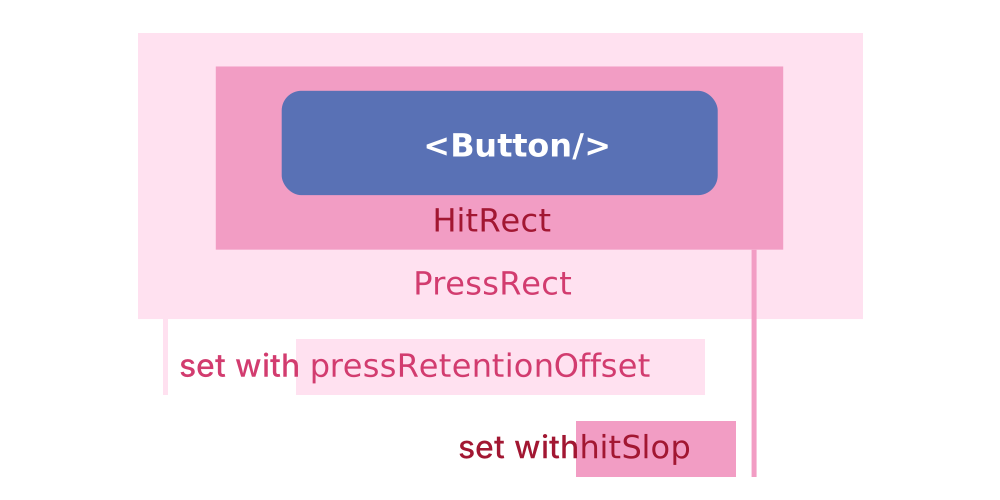
```jsx render The touch area never extends past the parent view bounds and the Z-index of sibling views always takes precedence if a touch hits two overlapping views. ``` ### HitRect & HitSlop Fingers are not the most precise instruments, and it is common for users to accidentally activate the wrong element or miss the activation area. To help, `Pressable` has an optional `HitRect` you can use to define how far a touch can register away from the wrapped element. Presses can start anywhere within a `HitRect`. `PressRect` allows presses to move beyond the element and its `HitRect` while maintaining activation and being eligible for a "press"—think of sliding your finger slowly away from a button you're pressing down on.
Diagram of the onPress events in sequence. Diagram from React Native Documentation
_You can set `HitRect` with `hitSlop` and set `PressRect` with `pressRetentionOffset`_. ```jsx render Pressable uses React Native's Pressability API. For more information around the state machine flow of Pressability and how it works, check out the implementation for Pressability . ``` ### Styling The `style` prop can be a function, an array of objects, or an object that defines the style of the `Pressable` component with design tokens. When using a function, the function will receive the `pressed` state as an argument. Additionally, the `children` prop can be a function that receives the `pressed` state as an argument or a React element. ```jsx live { return { width: 125, height: 125, borderWidth: pressed ? 10 : 4, borderRadius: '$core.border-radius.xl', borderColor: pressed ? '$semantic.color.border.status.subtle.success' : '$semantic.color.border.status.subtle.error', backgroundColor: pressed ? '$semantic.color.surface.container.status.success.tint' : '$semantic.color.surface.container.status.error.tint', margin: '$semantic.spacing.lg', padding: '$semantic.spacing.sm', alignItems: 'center', justifyContent: 'center', }; }} onPress={() => console.log('onPress Called!')} onPressIn={() => console.log('onPressIn Called!')} onPressOut={() => console.log('onPressOut Called!')} onLongPress={() => console.log('onLongPress Called!')} > {({ pressed }) => ( {pressed ? 'Release Me' : 'Press Me'} )} ``` ### Best Practices - **Press Feedback:** Always provide clear visual feedback (like color changes or animations) to indicate the element has been pressed. - **Hit Slop:** Use the `hitSlop` prop to extend the touchable area if needed, especially for smaller elements. - **Optimize Press Timing**: Use `onPressIn` and `onPressOut` wisely to handle animations or delays without affecting user experience. ## Accessibility Considerations - **Pressable Texts:** Ensure that the label of the pressable is descriptive for screen readers. - **Feedback for Press**: Make sure the visual feedback is discernible for all users, including those with visual impairments. - **Keyboard Navigation:** Ensure that pressable components are focusable and navigable with a keyboard.
', description: 'Object or array of objects defining the style of the Pressable component with design tokens', }, { name: 'hitSlop', type: 'Inset | Insets', description: 'This defines how far a touch event can start away from the view.', }, { name: 'pressRetentionOffset', type: 'Inset | Insets', description: 'Additional distance outside of this view in which a touch is considered a press before `onPressOut` is triggered.', }, ]} />
--- id: refresh-control category: Core title: RefreshControl description: A standard control that can initiate the refreshing of a scroll view's contents sourceIsTS: true --- ```jsx import { RefreshControl } from '@uhg-abyss/mobile'; ``` ## Usage The `RefreshControl` component is used to implement pull-to-refresh functionality in scrollable views, such as `ScrollView`, `FlatList`, or `SectionList`. This component is a customized version of React Native's core RefreshControl, offering enhanced styling, animations, and better integration with our design system. ```jsx render Note: refreshing is a controlled prop, which is why it needs to be set to true in the onRefresh function otherwise the refresh indicator will stop immediately. ```
```jsx () => { const [refreshing, setRefreshing] = useState(false); const onRefresh = useCallback(() => { setRefreshing(true); setTimeout(() => { setRefreshing(false); }, 4500); }, []); return ( } > Pull down to see RefreshControl indicator ); }; ```
', description: 'Object or array of objects defining the style of the RefreshControl component', }, { name: 'colors', type: 'Abyss.Color[]', description: 'The colors (at least one) that will be used to draw the refresh indicator', }, { name: 'progressBackgroundColor', type: 'Abyss.Color', description: 'The background color of the refresh indicator', }, { name: 'tintColor', type: 'Abyss.Color', description: 'The tint color of the refresh indicator', }, { name: 'titleColor', type: 'string', description: 'The color of the refresh indicator title', }, { name: 'progressViewOffset', type: 'number', description: 'The distance between the refresh indicator and the top of the view', }, ]} />
--- id: safe-area-view category: Core title: SafeAreaView description: Render content within the safe area boundaries of a device. sourceIsTS: true --- ```jsx import { SafeAreaView } from '@uhg-abyss/mobile'; ``` ## Usage The purpose of `SafeAreaView` is to render content within the safe area boundaries of a device. The Abyss SafeAreaView is built on top of the SafeAreaView component provided by the [react-native-safe-area-context](https://github.com/AppAndFlow/react-native-safe-area-context) library. Please install the library in your project to use the Abyss SafeAreaView component. If the library is not installed, the Abyss SafeAreaView will fallback to the React Native SafeAreaView component. `SafeAreaView` renders nested content and automatically applies padding to reflect the portion of the view that is not covered by navigation bars, tab bars, toolbars, and other ancestor views. Moreover, and most importantly, Safe Area's paddings reflect the physical limitation of the screen, such as rounded corners or camera notches (i.e. the sensor housing area on iPhone 13). ## Edges You can set the edges to apply the safe area insets to by using the `edges` prop. For example if you don't want insets to apply to the top edge because the view does not touch the top of the screen you can use: ```jsx ... ``` Optionally it can be set to an object `{ top?: EdgeMode, right?: EdgeMode, bottom?: EdgeMode, left?: EdgeMode }` where `EdgeMode = 'off' | 'additive' | 'maximum'`. Additive is a default mode and is the same as passing and edge in the array: `finalPadding = safeArea + padding`. Maximum mode will use safe area inset or padding/margin (depends on mode) if safe area is less: `finalPadding = max(safeArea, padding)`. For example if you want a floating UI element that should be at the bottom safe area edge on devices with safe area or 24px from the bottom of the screen on devices without safe area or if safe area is less than 24px: ```jsx ... ``` ## Example ```jsx This is a SafeAreaView that avoids the Status Bar This is a SafeAreaView that avoids the Home Bar ``` ```jsx render:phone-dark const PhoneContainer = styled('View', { justifyContent: 'space-between', width: '100%', }); const PaddedView = styled('View', { paddingHorizontal: '$semantic.spacing.lg', backgroundColor: '$core.color.brand.100', width: '100%', variants: { placement: { top: { paddingTop: 40, paddingBottom: '$semantic.spacing.lg', }, bottom: { paddingBottom: 28, paddingTop: '$semantic.spacing.lg', }, }, }, }); const Label = styled('Text', { color: '$semantic.color.text.body.alt', fontSize: '$semantic.spacing.lg', textAlign: 'center', }); render(() => { return ( ); }); ``` ', description: 'Object or array of objects defining the style of the SafeAreaView component with design tokens.', }, { name: 'edges', type: 'Array<"top" | "right" | "bottom" | "left"> | { top?: EdgeMode, right?: EdgeMode, bottom?: EdgeMode, left?: EdgeMode }', description: 'Defines which edges of the SafeAreaView should apply safe area insets to. See the Edges section for more details.', }, ]} /> --- id: scroll-view category: Core title: ScrollView description: A generic scrolling container that can host multiple components and views. sourceIsTS: true --- ## Usage The `ScrollView` component is a scrollable container that can hold a variety of elements, enabling vertical or horizontal scrolling. This customized version of React Native's [ScrollView](https://reactnative.dev/docs/scrollview) component integrates Abyss design tokens and performance optimizations for a smooth and responsive experience. ```jsx live Scroll Me Lorem ipsum odor amet, consectetuer adipiscing elit. Elit lacinia torquent et mauris habitasse netus efficitur aenean aptent. Finibus posuere maximus tortor, nisi bibendum ultricies. Tellus integer eu commodo sed pharetra mauris quam potenti mauris. Convallis nisl auctor risus mattis id. Himenaeos turpis egestas consequat tortor aliquam, dictumst integer volutpat eu. Quis leo ex parturient arcu sagittis. Et nostra platea vestibulum bibendum pharetra accumsan semper cursus. {'\n'} {'\n'} Dictum porttitor penatibus auctor nisl; sem porttitor curae quisque. Ipsum accumsan eu vestibulum ligula, vehicula integer. Nunc varius massa placerat conubia mus magna. Aliquet eleifend porttitor porta mattis consectetur habitasse at fringilla. Odio aptent aliquam sociosqu justo egestas adipiscing ac conubia. Bibendum ultrices commodo ante mus mollis netus. {'\n'} {'\n'} Bibendum taciti habitant ridiculus scelerisque aliquam varius lacus maximus. Efficitur facilisis parturient auctor accumsan nascetur ad phasellus lectus. Lacinia natoque conubia convallis habitant mauris eleifend. Turpis consectetur tempor egestas taciti; venenatis cursus? Cursus congue adipiscing purus neque vitae nibh? Risus accumsan ullamcorper velit eros tellus curae. Interdum nascetur morbi; pharetra id venenatis volutpat potenti. Convallis senectus praesent lectus nisi eget justo vitae. Venenatis ornare sociosqu euismod feugiat integer. Curae odio massa purus eu facilisis laoreet. {'\n'} {'\n'} Lectus curabitur scelerisque mus auctor nascetur iaculis ante risus. Tristique conubia nisl inceptos bibendum pellentesque. Eleifend imperdiet gravida pellentesque hendrerit eget dignissim magnis varius augue. Curabitur proin porttitor molestie gravida amet praesent et fringilla. Ante etiam at gravida efficitur cubilia rutrum torquent adipiscing. Parturient bibendum id convallis torquent venenatis. Lacinia primis leo nullam tincidunt consectetur quisque. Elementum tristique quis magnis ornare molestie venenatis. Sollicitudin netus class rutrum proin; curabitur facilisis convallis pretium sollicitudin. Feugiat volutpat eget arcu convallis ultricies id. ``` ### ScrollView vs FlatList `ScrollView` renders all its child components all at once, even if the component is not in view. This can negatively affect the performance of the app by requiring more processing power and memory usage when rendering a large number of items. This is where [FlatList](/mobile/core/flat-list) comes into play. `FlatList` renders items lazily, before they appear on screen. It also removes items that scroll off-screen to save memory and processing time. `FlatList` is also handy if you want to render separators between your items, multiple columns, infinite scrolling, or any number of other features it supports out of the box. ### Best Practices - **Minimize Overdraw:** Use a background color to avoid unnecessary redrawing of background elements. - **Limit Scrollable Content:** Avoid putting too many elements inside a `ScrollView`. If the content grows large, consider using a `FlatList` or `SectionList` for better performance. - **Optimize Images:** When scrolling with images, ensure they are properly sized and optimized to prevent memory issues. ## Considerations - **Bounded Height:** The `ScrollView` must have a bounded height, since they contain children with unbound-heights. - To set the height of a `ScrollView`, either define a height directly (discouraged) or make sure the parent Components have bounded height. - **Nested Responders:** `ScrollView` does not yet support preventing touch gestures on its children from becoming scroll gestures. - This doesn't mean that responders won't work inside of a `ScrollView`. It simply means `ScrollView` will prioritize its own responder if it detects a gesture that could be interpretedas a scroll. - _*For more information, check out React Native's [Gesture Responder System](https://reactnative.dev/docs/gesture-responder-system).*_ ### Accessibility Considerations - **Keyboard Focus:** Ensure that the content inside the `ScrollView` is reachable and visible when users navigate with a keyboard. - **Readable Labels:** Label any scrollable area for screen readers, so users know they can scroll through the content. - **Scroll Indicators:** Allow scroll indicators to be visible for accessibility users, so they are aware of the scrollable content. ### Performance Considerations - **Rendering Limits:** Avoid placing too many child components inside a `ScrollView` as it can cause performance bottlenecks. Instead, use lists (`FlatList`,`SectionList`) for large datasets. - **Lazy Loading:** Consider lazy loading for content-heavy views to avoid loading everything upfront. - **Batch Updates:** Ensure updates to the scroll view content are batched to reduce rendering overhead. ', description: 'Object or array of objects defining the style of the ScrollView component with design tokens', }, { name: 'contentContainerStyle', type: 'Abyss.Style<"View">', description: 'Object or array of objects defining the style of the content container within the ScrollView component with design tokens. These styles will be applied to the scroll view content container which wraps all of the child views', }, { name: 'contentInset', type: 'Insets', description: 'The amount by which the scroll view content is inset from the edges of the scroll view', }, { name: 'hitSlop', type: 'Insets', description: 'This defines how far a touch event can start away from the ScrollView', }, { name: 'endFillColor', type: 'Abyss.Color', description: 'Sometimes a scrollview takes up more space than its content fills. When this is the case, this prop will fill the rest of the scrollview with a color to avoid setting a background and creating unnecessary overdraw. This is an advanced optimization that is not needed in the general case', }, ]} /> --- id: section-list category: Core title: SectionList description: A performant interface for rendering sectioned lists. sourceIsTS: true --- ## Usage The `SectionList` component is a high-performance list component that efficiently renders sectioned lists. It is ideal for rendering lists with sections and supports the most handy features like: - Full tokenization support. - Fully cross-platform. - Configurable viewability callbacks. - List header support. - List footer support. - Item separator support. - Section header support. - Section separator support. - Heterogeneous data and item rendering support. - Pull to Refresh. - Scroll loading. _If you don't need section support and want a simpler interface, use a [FlatList](/mobile/core/flat-list)._ ```jsx live const data = [ { title: 'Main Dishes', data: ['Pizza', 'Burger', 'Risotto'], }, { title: 'Sides', data: ['French Fries', 'Onion Rings', 'Fried Shrimps'], }, { title: 'Drinks', data: ['Water', 'Coke', 'Beer'], }, { title: 'Desserts', data: ['Cheese Cake', 'Ice Cream', 'Brownies'], }, ]; const Item = styled('Text', { backgroundColor: '$semantic.color.surface.container.emphasis.4', padding: '$semantic.spacing.lg', marginVertical: '$semantic.spacing.xs', fontSize: '$core.font-size.h.40', color: '$core.color.brand.100', borderWidth: 2.5, borderColor: '$core.color.brand.100', }); render(() => { return ( { return item + index; }} renderItem={({ item }) => { return {item}; }} renderSectionHeader={({ section: { title } }) => { return ( {title} ); }} contentContainerStyle={{ padding: '$semantic.spacing.lg' }} /> ); }); ``` ### Best Practices - **Use Memoization:** Use [React.memo()](https://react.dev/reference/react/memo) to avoid unnecessary re-renders of list items. - **Section Headers:** Keep section headers concise to avoid taking up too much space. - **Key Management:** Ensure that the `keyExtractor` for individual items and sections is unique to avoid rerender issues. ## Considerations _`SectionList` is a convenience wrapper around [VirtualizedList](/mobile/core/virtualized-list), and thus inherits its props (as well as those of [ScrollView](/mobile/core/scroll-view)) that aren't explicitly listed here, along with the following caveats:_ - **Internal State:** Internal state is not preserved when content scrolls out of the render window. Ensure all your data is captured in the item data or external stores like Flux, Redux, or Relay. - **Prop Updates:** This is a `PureComponent` meaning it will not re-render if props remain shallow-equal. Make sure that everything your `renderItem` function depends on is passed as a prop (e.g. `extraData`) that is not `===` after updates, otherwise your UI may not update on changes. This includes the `data` prop and parent component state. - **Item Rendering:** In order to constrain memory and enable smooth scrolling, content is rendered asynchronously offscreen. This means it's possible to scroll faster than the fill rate and momentarily see blank content. This is a tradeoff that can be adjusted to suit the needs of each application. - **Key Management:** By default, the list looks for a `key` prop on each item and uses that for the React key. Alternatively, you can provide a custom `keyExtractor` prop. ### Accessibility Considerations - **Navigable Sections:** Ensure section headers and items are properly labeled for screen readers. - **Focus Management:** When rendering additional sections, ensure the user focus remains consistent without jumping or losing context. ### Performance Considerations - **Batch Updates:** Use batch updates to avoid triggering multiple re-renders when updating section data. - **SectionHeader Optimization:** Memoize section headers to prevent unnecessary re-renders during list scrolls. - **Windowing:** Use `initialNumToRender` and `maxToRenderPerBatch` props to control how many items are rendered initially and in each batch to avoid overloading the UI with too many items at once. - **Recycling Cells:** Consider using `CellRenderComponent` to recycle rendered items and improve rendering performance for large lists. ', description: 'Object or array of objects defining the style of the SectionList component with design tokens', }, { name: 'hitSlop', type: 'Insets', description: 'This defines how far a touch event can start away from the SectionList', }, { name: 'contentContainerStyle', type: 'Abyss.Style<"View">', description: 'Object or array of objects defining the style of the content container within the SectionList component with design tokens. These styles will be applied to the scroll view content container which wraps all of the child views', }, { name: 'contentInset', type: 'Insets', description: 'The amount by which the scroll view content is inset from the edges of the scroll view', }, { name: 'endFillColor', type: 'Abyss.Color', description: 'The color of the background of the SectionList when there are not enough items to fill the content', }, { name: 'ListFooterComponentStyle', type: 'Abyss.Style<"View">', description: 'Styling for internal View for ListFooterComponent. Accepts an object or array of objects which defines the style of the ListFooterComponent within the FlatList component with design tokens', }, { name: 'ListHeaderComponentStyle', type: 'Abyss.Style<"View">', description: 'Styling for internal View for ListHeaderComponent. Accepts an object or array of objects which defines the style of the ListHeaderComponent within the FlatList component with design tokens', }, ]} /> --- id: status-bar category: Core title: StatusBar description: Component to control the app's status bar. sourceIsTS: true --- ```jsx import { StatusBar } from '@uhg-abyss/mobile'; ``` ## Usage The `StatusBar` component controls the app's status bar. The status bar is the zone, typically at the top of the screen, that displays the current time, Wi-Fi and cellular network information, battery level and/or other status icons. This component is a customized version of React Native's `StatusBar` core component, offering additional configuration options and integration with our design system. It allows you to manage the status bar's `style`, `visibility`, and `backgroundColor` to match the application's theme with our design tokens. ## Usage with Navigator It is possible to have multiple StatusBar components mounted at the same time. The props will be merged in the order the StatusBar components were mounted. ## Imperative API For cases where using a component is not ideal, there is also an imperative API exposed as static functions on the component. However, it is not recommended to use the static API and the component for the same prop because any value set by the static API will get overridden by the one set by the component in the next render. ## Performance Considerations The StatusBar is a lightweight component, but to ensure optimal performance: - **Minimize Dynamic Changes:** Limit frequent updates to the status bar's properties, as unnecessary changes can impact performance, especially on lower-end devices. - **Use Animations Judiciously:** While animations can enhance the user experience, use them sparingly to avoid performance degradation. ## Accessibility Considerations When configuring the StatusBar, ensure that the chosen colors and styles provide sufficient contrast and readability. The status bar should be easily readable in various lighting conditions and should not obscure critical content or UI elements. --- id: touchable-highlight category: Core title: TouchableHighlight description: A wrapper for making views respond properly to touches. sourceIsTS: true --- ```jsx render If you're looking for a more extensive and future-proof way to handle touch-based input, check out the{' '} Pressable {' '} API. ``` ## Usage `TouchableHighlight` is a wrapper for handling pressEvents of a `View`. While pressing down, the opacity of the wrapped view is decreased, allowing the underlay color to show through. ```jsx function MyComponent(props: MyComponentProps) { return ( My Component ); } alert('Pressed!')} > ; ``` ```jsx live render(() => { return ( {}} > Gray Touchable Highlight ); }); ``` ## Considerations - **Visual Artifacts:** The underlay comes from wrapping the child in a `View` component. This can sometimes cause unwanted visual artifacts and affect layout if not used correctly. For example, if the `backgroundColor` of the wrapped `View` is not explicitly set to an opaque color. - **Children:** `TouchableHighlight` can only have a single child. If you wish to have several children, wrap them in a `View`. ### Accessibility Considerations - **Feedback for Users:** Ensure that the visual feedback (`underlayColor` color) is noticeable for users with visual impairments. - **Screen Reader Support:** Label the component appropriately for screen readers so users understand the interaction. - **Keyboard Focus:** Ensure the component can be focused and activated using a keyboard for accessibility. ', description: 'Object or array of objects defining the style of the TouchableHighlight component with design tokens', }, { name: 'hitSlop', type: 'Inset | Insets', description: 'This defines how far a touch event can start away from the view', }, { name: 'pressRetentionOffset', type: 'Inset | Insets', description: 'Additional distance outside of this view in which a touch is considered a press before `onPressOut` is triggered', }, { name: 'underlayColor', type: 'Abyss.Color', description: 'The color of the underlay that will show through when the touch is active', }, { name: 'activeOpacity', type: 'Abyss.Opacity', description: 'Defines what the opacity of the wrapped view should be when touch is active', }, ]} /> --- id: touchable-opacity category: Core title: TouchableOpacity description: A wrapper for making views respond properly to touches. sourceIsTS: true --- ```jsx render If you're looking for a more extensive and future-proof way to handle touch-based input, check out the{' '} Pressable {' '} API. ``` ## Usage The `TouchableOpacity` component is used to create pressable elements that fade out on press, providing smooth and subtle visual feedback. This component is lightweight and often used for buttons or other pressable elements that require an opacity change on interaction. This customized version of the React Native `TouchableOpacity` component is enhanced to supports Abyss design tokens and fit seamlessly into our design system. Opacity is controlled by wrapping the children in an `Animated.View`, which is added to the view hierarchy. Be aware that this can affect layout. ```jsx live const styles = StyleSheet.create({ button: { borderWidth: 2, padding: '$semantic.spacing.lg', alignItems: 'center', borderRadius: 100, borderColor: '$semantic.color.border.status.saturated.info', backgroundColor: '$semantic.color.surface.container.emphasis.4', }, }); render(() => { return ( Opacity Button ); }); ``` ### Best Practices - **Consistent Opacity:** Use consistent values for activeOpacity across your app to maintain uniformity in user interactions. - **Clear Press Feedback:** Ensure that the change in opacity is noticeable enough to signal to users that the element is pressed. - **Layering Components:** Be mindful when layering TouchableOpacity over complex backgrounds, as the fade effect might not be as visible. ## Accessibility Considerations - **Visual Feedback:** Ensure the fade effect is sufficiently noticeable for all users, especially those with visual impairments. - **Keyboard Navigation:** Ensure the component can be navigated and activated via a keyboard. - **Accessible Labels:** Add descriptive labels to the TouchableOpacity component so screen readers can convey its functionality. ', description: 'Object or array of objects defining the style of the TouchableOpacity component with design tokens', }, ]} /> --- id: touchable-without-feedback category: Core title: TouchableWithoutFeedback description: Captures touch events without providing any visual feedback. sourceIsTS: true --- ```jsx render If you're looking for a more extensive and future-proof way to handle touch-based input, check out the Pressable API. ``` ## Usage The `TouchableWithoutFeedback` component is a wrapper that captures touch events without providing any visual feedback. It is ideal for handling touch events on components that don't need to display any visual feedback. **Do not use unless you have a very good reason.** All elements that respond to press should have a visual feedback when touched. ```tsx function MyComponent(props: MyComponentProps) { return ( My Component ); } alert('Pressed!')}> ; ``` ### Example ```jsx live () => { const Container = styled('View', { flex: 1, justifyContent: 'center', paddingHorizontal: '$semantic.spacing.lg', }); const CountContainer = styled('View', { alignItems: 'center', padding: '$semantic.spacing.lg', }); const Count = styled('Text', { color: '$semantic.color.text.label.status.info', }); const ButtonView = styled('View', { alignItems: 'center', backgroundColor: '$semantic.color.surface.interactive.standards.active.secondary', padding: '$semantic.spacing.sm', }); const [count, setCount] = useState(0); const handlePress = () => { setCount(count + 1); }; return ( Count: {count} Increment ); }; ``` ### Best Practices - **Use Sparingly:** Only use `TouchableWithoutFeedback` when no visual feedback is required or desired. If feedback is expected, use `Pressable` or `TouchableOpacity` instead. - **Visual Feedback:** Ensure the child components provide sufficient visual feedback, even if `TouchableWithoutFeedback` does not. - **Invisible Buttons:** Consider accessibility implications if `TouchableWithoutFeedback` is used to create invisible or hidden touch areas. ## Considerations - **Number of Children:** `TouchableWithoutFeedback` only supports one child. If you wish to have several child components, wrap them in a View. - **Prop Spread:** `TouchableWithoutFeedback` Does not handle touch events directly, it clones its child and applies responder props to the clone. Therefore it is important that any intermediary components pass props through to the underlying React Native component. ### Accessibility Considerations - **Keyboard Navigation:** Ensure the component is accessible via keyboard and focusable if needed. - **Screen Reader Labels:** If touchable areas are hidden or provide no feedback, ensure the interactive area is described accurately for screen readers. ', description: 'Object or array of objects defining the style of the TouchableWithoutFeedback component with design token support.', }, { name: 'hitSlop', type: 'Inset | Insets', description: 'This defines how far a touch event can start away from the view.', }, { name: 'pressRetentionOffset', type: 'Inset | Insets', description: 'Additional distance outside of this view in which a touch is considered a press before `onPressOut` is triggered.', }, ]} /> --- id: view category: Core title: View description: The most fundamental core component for building a UI, a container that supports layout. sourceIsTS: true --- ```jsx import { View } from '@uhg-abyss/mobile'; ``` ## Usage The `View` component is one of the fundamental building blocks of a user interface. It functions as a container that supports layout, styling, and interaction handling. The component serves as a versatile wrapper for organizing and displaying other components within a user interface. While it extends the core View component present in React Native, the `View` component in Abyss Mobile allows using tokens directly in the style prop. This feature enables developers to use the design tokens defined in the theme to style a component. This example creates a View that wraps two boxes with color and a text component in a row with padding. Notice the use of design tokens in the style prop. ```jsx live Hello World! ``` ```jsx render Views are designed to be used with{' '} StyleSheet for clarity and performance, although inline styles are also supported. ``` ## Best Practices - **Use for Layout**: Utilize the `View` component to create layouts and organize components within a user interface. For text context, consider using the [Text component](/mobile/ui/text). - **Avoid Excessive Nesting**: Limit the number of nested `View` components to maintain a clean and efficient layout. - **Use Tokens**: Leverage design tokens in the style prop to ensure consistency and maintainability in styling. - **Accessibility**: Ensure that the content within the `View` component is accessible to all users by providing appropriate labels and descriptions where necessary. ## Performance Considerations To maximize performance, be mindful of: - **Shallow component trees**: Minimize nesting `View` components to reduce the complexity of the component tree. - **Avoid unnecessary re-renders**: Use `React.memo` or similar optimization when rendering complex or frequently changing layouts. ', description: 'Object or array of objects defining the style of the View component with design tokens.', }, ]} /> --- id: virtualized-list category: Core title: VirtualizedList description: A high-performance list component that efficiently renders only the items currently visible on the screen, regardless of the size of the data set. sourceIsTS: true --- ## Usage The `VirtualizedList` component is a high-performance list component that efficiently renders only the items currently visible on the screen, regardless of the size of the data set. This is the base implementation of the [FlatList](/mobile/core/flat-list) and [SectionList](/mobile/core/section-list) components. In general, this should only be used if you need more flexibility than FlatList or SectionList can provides, e.g. for use with immutable data instead of plain arrays. Virtualization massively improves the performance and memory consumption of large lists by maintaining a finite render window showing only active items and replacing all items outside of the render window with appropriately sized blank space. The render window adapts with scrolling behavior, items are rendered incrementally with _low-pri_ (after any running interactions) if they are far from the visible area, or with _hi-pri_ if they are near the visible area. ```jsx live const ItemContainer = styled('View', { backgroundColor: '$semantic.color.surface.accent.secondary', height: 150, justifyContent: 'center', marginVertical: '$semantic.spacing.sm', marginHorizontal: '$semantic.spacing.lg', padding: 20, }); const ItemText = styled('Text', { fontSize: 32, }); const Item = ({ title }) => { return ( {title} ); }; const getItem = (_data, index) => { return { id: Math.random().toString(12).substring(0), title: `Item ${index + 1}`, }; }; render(() => { return ( { return ; }} keyExtractor={(item) => { return item.id; }} getItemCount={() => { return 50; }} getItem={getItem} ListFooterComponent={} ListHeaderComponent={} ListHeaderComponentStyle={{ borderColor: '$semantic.color.border.interactive.buttons.active.alt', borderWidth: 4, marginHorizontal: '$semantic.spacing.lg', }} ListFooterComponentStyle={{ borderColor: '$semantic.color.border.interactive.buttons.active.alt', borderWidth: 4, marginHorizontal: '$semantic.spacing.lg', }} /> ); }); ``` ### Best Practices - **Pagination:** Implement infinite scrolling by utilizing the `onEndReached` prop for large datasets. - **Use Memoization:** Use [React.memo()](https://react.dev/reference/react/memo) to avoid unnecessary re-renders of list items. - **Lazy Load Images:** If the list contains images, ensure they are lazy-loaded to avoid consuming memory unnecessarily. - **Key Management:** Ensure `keyExtractor` returns a unique and stable key to avoid performance degradation caused by reordering or re-rendering items unnecessarily. ## Considerations - **Internal State:** Internal state is not preserved when content scrolls out of the render window. Ensure all your data is captured in the item data or external stores like _Flux_, _Redux_, or _Relay_. - **Prop Updates:** This is a `PureComponent` meaning it will not re-render if props remain shallow-equal. Make sure that everything your `renderItem` function depends on is in passed as a prop (e.g. `extraData`) that is not `===` after updates, otherwise your UI may not update on changes. This includes the `data` prop and parent component state. - **Item Rendering:** To constrain memory and enable smooth scrolling, content is rendered asynchronously offscreen. This means it's possible to scroll faster than the fill rate and momentarily see blank content. This is a tradeoff that can be adjusted to suit the needs of each application. - **Key Management:** By default, the list looks for a `key` prop on each item and uses that for the React key. Alternatively, you can provide a custom `keyExtractor` prop. ### Accessibility Considerations - **Focus Retention:** Retain focus and scroll position when adding or removing items from the list. - **Content Labeling:** Ensure each list item has accessible labels or descriptions for screen readers. ### Performance Considerations - **Windowing:** Adjust the `initialNumToRender` and `windowSize` props to strike a balance between performance and UX. - **Cell Recycling:** Use `CellRendererComponent` to efficiently recycle rendered items, especially for very large datasets. - **Avoid Expensive Re-renders:** Avoid triggering unnecessary re-renders by memoizing components or using `React.PureComponent`. ', description: 'Object or array of objects defining the style of the VirtualizedList component with design tokens', }, { name: 'hitSlop', type: 'Insets', description: 'This defines how far a touch event can start away from the VirtualizedList', }, { name: 'contentContainerStyle', type: 'Abyss.Style<"View">', description: 'Object or array of objects defining the style of the content container within the VirtualizedList component with design tokens. These styles will be applied to the virtualized list content container which wraps all of the child views', }, { name: 'contentInset', type: 'Insets', description: 'The amount by which the virtualized list content is inset from the edges of the virtualized list', }, { name: 'endFillColor', type: 'Abyss.Color', description: 'The color of the background of the list when there are no items to display', }, { name: 'ListFooterComponentStyle', type: 'Abyss.Style<"View">', description: 'Styling for internal View for ListFooterComponent. Accepts an object or array of objects which defines the style of the ListFooterComponent within the FlatList component with design tokens', }, { name: 'ListHeaderComponentStyle', type: 'Abyss.Style<"View">', description: 'Styling for internal View for ListHeaderComponent. Accepts an object or array of objects which defines the style of the ListHeaderComponent within the FlatList component with design tokens', }, ]} /> --- id: design-checklist title: Design Checklist --- ## Overview Welcome to Abyss! If you’re just starting out designing with Abyss, you’re in the right place. Here’s a checklist of everything you need to get up and running. Abyss design kit is available in Figma through our enterprise account (Optum/UHG) ## Create Figma Account ## Using the Designer Toolkit ## Review Updates --- id: design-kit title: Design Kit --- ## Overview ## Designer Toolkit ## Guidance ## Accessibility ## Contact Us --- id: overview title: Overview --- ## Design resources ## Support --- id: code-connect title: Code Connect --- ## Figma Code Connect for Mobile Figma [Code Connect](https://www.figma.com/code-connect-docs/) is a Design-to-Code tool that aims to scaffold out the code required to implement a Figma Design. **Note:** Code Connect is currently in alpha and availability for components is changing. We invite you to discuss any enhancements or limitations in our [Github Discussion Topic](https://github.com/uhc-tech/abyss/discussions/3775). **Note:** Components on the UHC or Global Figma with Code Connect enabled may only be for the V2 version of the component. See the list below for supported components. ## Instructions This [Demo Video](https://uhgazure.sharepoint.com/teams/AbyssProductUHCProvider/_layouts/15/stream.aspx?id=%2Fteams%2FAbyssProductUHCProvider%2FShared%20Documents%2FHow%20To%20Videos%2Fabyss%2Dcode%2Dconnect%2Dmobile%2Emp4&ga=1&referrer=StreamWebApp%2EWeb&referrerScenario=AddressBarCopied%2Eview%2Ea2480ad0%2D24c0%2D4f27%2Dbecb%2D49e924c87c97) contains an overview of how to use Abyss with Code Connect. - Open the Figma file with the component you want to use and select the component. In dev mode, the Code Connect will be viewable in the side bar under "Recommended Code". - The button "Explore component behavior" will allow you to see the component in a preview mode. You can change available props and variants from this panel. _Due to Figma limitations, not all possible combinations will be available through here. Check Abyss documentation._ ```jsx render Code Connect Example with Badge ``` #### Slot limitations At this time, code connect does not support slots. If you need to use a slot, you will need to manually add it to the code after copying it from Code Connect. The recommended code section does not show the actual slot element's code. ```jsx render Code Connect Example with Slots ``` ### Supported Components --- id: abyss-admirals title: Abyss Admirals isHidden: true --- ## Who are Abyss Admirals?
An Abyss Admiral is a highly specialized role for a software engineer who is a dedicated member of a product delivery team. The most basic and essential function of an Admiral is to act as a bridge between the core Abyss ecosystem and the product team leveraging the framework.

Acting as representatives or ambassadors for their products, Admirals enable the adoption of a{' '} scalable, federated software development model by sharing the Abyss community's best practices with their teams. As subject matter experts for Abyss, Admirals are encouraged to guide and mentor their engineering teams, empowering them to take advantage of the benefits of working in a collaborative enterprise environment.
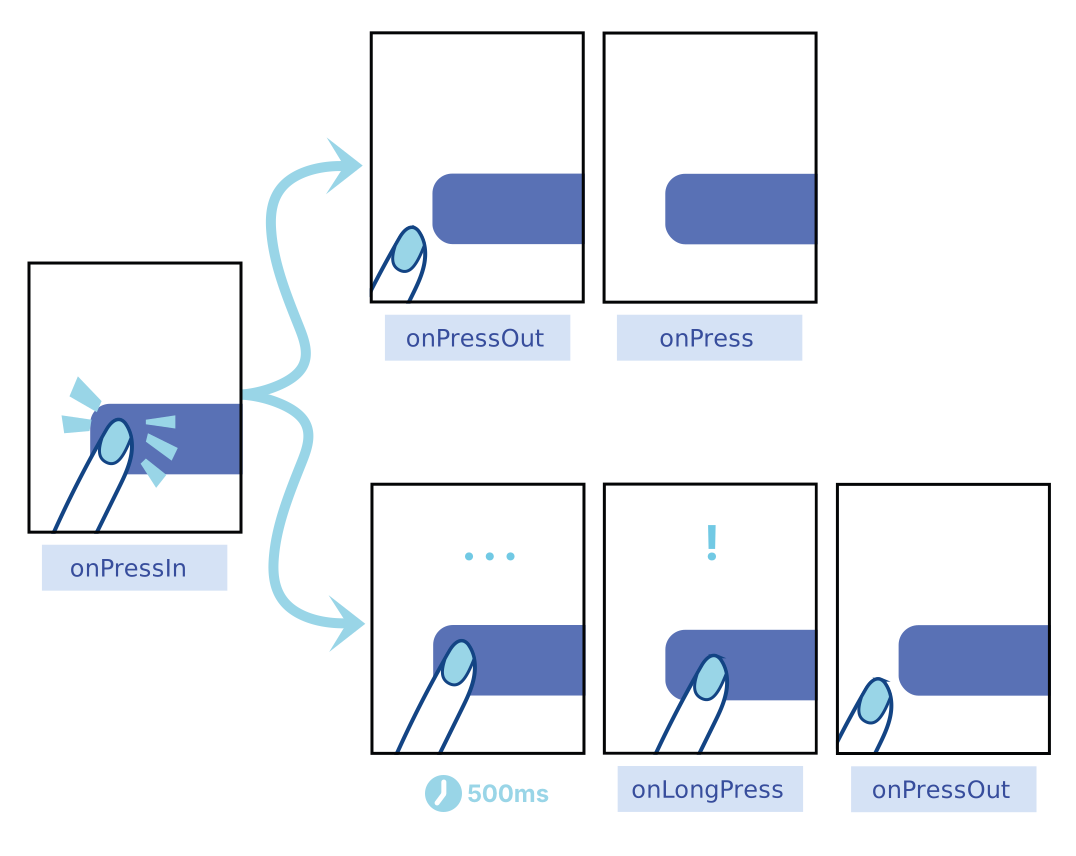
Abyss Admirals
## Benefits for Product Stakeholders It's very important for product stakeholders to understand that an Admiral's involvement in their new responsibilities will reduce their capacity for delivering sprint work as a standard individual contributor. However, by allocating enough time for the role, Admirals will enable engineering scrum teams to measurably improve both quality and delivery metrics. It's recommended to dedicate between **30% - 50%** of an Admiral's capacity for this role, but could be up to 100% depending on the size and scope of the project. Product stakeholders will be able to capitalize on the efficiencies gained by leveraging the collective knowledge and shared solutions that are accessible through the broader Abyss community. The benefits of staffing a dedicated Admiral on your product include: - **Accelerated Solution Development:** When delivery teams are asked to identify and create solutions to common problems, they’ll need to do so in between developing new features which can result in delays. An Admiral assists their product teams at critical moments by eliminating these bottlenecks and offering proven solutions, which in turn increases the speed of delivery.

- **Minimized Duplication of Work:** The Abyss team facilitates the creation of reusable digital assets such that, when the business makes a new request, an Admiral can utilize a similar solution that was built previously for another team rather than building a new one from scratch, greatly minimizing cost and time to value.

- **Consistent Product Quality:** It’s reasonable to assume that most teams will not be evenly balanced when it comes to experience and skill levels, resulting in products being built with different techniques and standards. Admirals can ensure that the quality of development is both consistent and in accordance with the established standards of other products built with Abyss.

- **Expansive Specialist Network:** When working with an Abyss Admiral, product stakeholders obtain access to a network of highly experienced and qualified specialists including software architects, lead engineers, UX designers, accessibility experts who are motivated to craft the best product experiences possible. ## Benefits for Engineering Managers It's very important for engineering managers to understand that an Admiral's involvement in their new responsibilities will reduce their capacity for delivering sprint work as a standard individual contributor. However, by allocating enough time for the role, Admirals will enable engineering scrum teams to measurably improve both quality and delivery metrics. It's recommended to dedicate between **30% - 50%** of an Admiral's capacity for this role, but could be up to 100% depending on the size and scope of the project. Engineering managers will be able to capitalize on the efficiencies gained by leveraging the collective knowledge and shared solutions that are accessible through the broader Abyss community. The benefits of staffing a dedicated Admiral on your delivery team include: - **Reduced Software Fragmentation:** When individual teams are developing within disconnected, siloed environments, they’ll often discover multiple different approaches to solve the same problem. Admirals can act as advisors to prevent this additional overhead from occurring by raising awareness of pre-existing solutions.

- **Promote Engineering Growth:** For an engineer who is eager to progress further along their career path, the Admirals program offers an elevated set of responsibilities for overseeing software projects. Since this role is both highly technical and relationship-oriented, coupled with a sense of personal accountability, Admirals can leverage this experience to explore their interest in management or technology leadership roles.

- **Accountability for Essential Tasks:** Engineering teams are often overburdened with upkeep and maintenance related chores because they are given a lower priority than feature work. By assigning an Admiral to each project, engineering managers can verify that code quality, versioning, and peer review processes are being observed.

- **Optimized Outcomes:** Admirals reduce the time and cost of development through specialization and economies of scale. By tapping into a centralized community of knowledge, skills, and experience, the Admirals program is able to streamline access to those scarce capabilities while also facilitating balanced, cohesive engineering teams. ## Admiral Assignments - **Upgrade Abyss Versions:** It's highly beneficial to keep your product up-to-date with the newest versions of Abyss. Inform your engineering team and product stakeholders of any new components, tools, or patterns your application can leverage. - **Review the [release notes](/mobile/releases/) after a release** to determine the level of effort for upgrading to the latest version. - **Run the command "npm run abyss"** to automatically upgrade all Abyss packages in your project. - **Support for new features and defects** will only be included in new versions.

- **Monitor Code Quality:** As an Admiral, the accountability of maintaining high standards for code quality starts with you. Become well-versed in JavaScript, React, ESLint, and SonarQube anti-patterns and shepherd your team away from these pitfalls, reducing the burden of unrestrained technical debt and extending the lifespan of your codebase. - **Remediate runtime errors & warnings** observed in the browser's developer console for your product. - **Inspect problems reported by [ESLint](https://eslint.org/docs/latest/rules)** and discuss rule modifications with other Admirals. - **Triage issues identified by [Sonar](https://sonar.optum.com)** to ensure your product meets code quality benchmarks.

- **Manage Pull Requests:** Within the GitHub repository for your product, you should encourage your team to open pull requests regularly. By consulting with other Admirals, you are in the most well-suited position to act as a code reviewer for your team. - **Open draft PR's early** in the sprint to give you and your team enough time to review and offer feedback on the approach. - **Offer comments and conduct reviews** for each PR before approving. - **Merge PR's in a timely manner** to improve time-to-build metrics for your product.

- **Leverage Assets:** Admirals should strive to identify all of the usable assets that exist within Abyss, as well as the network of individuals involved. Becoming familiar with the abstract concepts of a framework will elevate the engineering maturity of your team. - **Research code developed for Abyss** to understand the patterns for consistent, repeatable software practices. - **Review and update documentation** which demonstrates guidance for best practices, guidelines, and considerations. - **Foster relationships with key experts** who possess very specific and unique skill sets who can influence the growth of your product.

- **Continuous Learning:** To be successful, Admirals should provide thought leadership, direction, and appropriate recommendations for their teams and the Admiral community. The ability to both absorb and transfer knowledge is essential. - **Have a self-starter attitude** and a passion for growing your career by being surrounded by like-minded engineers. - **Seek opportunities for learning** by reading developer blogs, attending tech conferences, and networking with other Admirals. - **Familiarize yourself with industry trends** by researching and recommending techniques for application development.

- **Sustainable Software:** When left unchecked, the sustainability of an application can continuously deteriorate. Admirals are able to counteract this by taking appropriate measures to establish a healthy development environment and extend the lifespan of a product. - **Maintain a log of tech debt** and track the ongoing scope of maintenance tasks incurred from past sprints. - **Conduct frequent pair programming** sessions with your team to guide current feature development. - **Discuss upcoming requirements** with architects to establish a clear path for future stories in your product pipeline.

- **Abyss Contributions:** With the Admiral contribution process, the development process for new assets can be accelerated by building the solution yourself as the need arises; rather than waiting for your idea to reach the top of the Abyss core backlog. - **Determine the priority** for framework enhancements based on your product delivery schedule. - **Discuss new ideas in [Office Hours](#abyss-office-hours)** with the core team and other Admirals. - **Follow the [Contribution Workflow](#contribution-workflow)** shown below to share your proposals with the framework. ## Admiral Developers Guide If an existing Abyss component doesn't meet your product's requirements, you can follow this guide for building and testing changes within your application's codebase. Start by cloning the package structure of abyss within your product, such as **'src/abyss/mobile/ui/Badge'** demonstrated below. If you are creating a new component, you can start with a similar one as a template, otherwise cloning the existing component is the recommended approach. ```txt └── packages └── mobile ├── node_modules ├── src | └── ui | └── Badge | ├── index.js | └── Badge.jsx └── package.json ``` Next, replace the relative imports with absolute paths to **@uhg-abyss/mobile**. You can use any combination of Abyss package imports, open source libraries, and custom JavaScript dependencies to build your component. ```jsx import React from 'react'; import PropTypes from 'prop-types'; import { styled } from '../../tools/styled'; import { useAbyssProps } from '../../hooks/useAbyssProps'; ``` Replace with: ```jsx import React from 'react'; import PropTypes from 'prop-types'; import { styled } from '@uhg-abyss/mobile/tools/styled'; import { useAbyssProps } from '@uhg-abyss/mobile/hooks/useAbyssProps'; ``` Finally, to test your component changes, modify your import path by changing **'@uhg-abyss/mobile/ui/Badge'** to **'@src/abyss/mobile/ui/Badge'** which will use your local Abyss component. Once you have fully verified your changes, you can submit a new Pull Request back to [Abyss](https://github.com/uhc-tech/abyss/pulls) and showcase your updates in the Abyss office hours. Once merged, your contributions will be available in the next release! ## Contribution Workflow As an Abyss Admiral the workflow for a contribution goes as follows: 1. Office Hours: Discuss proposal for new components, designs, architecture, and tools with other Admirals. 2. Abyss Contact us: If idea can be re-used, submit a new request with Abyss "Contact Us" form. 3. Develop Locally: Follow the steps in Admiral developers guide to create re-usable asset locally in your product. 4. Abyss GitHub: Before opening a new Pull Request, ensure that all requirements are met for UX, branding, and accessibility guidelines. 5. Abyss Office Hours: Demo proposed feature with Abyss core team and other Admirals. 6. Abyss Github: Pull Request undergoes modifications from feedback, acceptance, quality checks and merge. The contribution will end with the finalized abyss packages ![Contribution Workflow](/img/graphics/abyss_admirals_flowchart.png) ## Abyss Office Hours | Day | Time | Meeting | | --------- | ----------------------- | ------------------------------------------------------------------------------------------------------------------------------------------------------------------------------------------------------------------------------------------------------------------------- | | Tuesdays | 3:00 - 4:00 PM **CST** | [Join Teams Meeting](https://teams.microsoft.com/l/meetup-join/19%3ameeting_YjVlMDM3OTgtY2ExYi00OTU0LWIyYTYtODk0NGUwN2E2MmUz%40thread.v2/0?context=%7b%22Tid%22%3a%22db05faca-c82a-4b9d-b9c5-0f64b6755421%22%2c%22Oid%22%3a%226e73a16f-0cf1-4fd2-9501-31c2c9038e9b%22%7d) | | Thursdays | 9:00 - 10:00 AM **CST** | [Join Teams Meeting](https://teams.microsoft.com/l/meetup-join/19%3ameeting_YjVlMDM3OTgtY2ExYi00OTU0LWIyYTYtODk0NGUwN2E2MmUz%40thread.v2/0?context=%7b%22Tid%22%3a%22db05faca-c82a-4b9d-b9c5-0f64b6755421%22%2c%22Oid%22%3a%226e73a16f-0cf1-4fd2-9501-31c2c9038e9b%22%7d) | --- id: abyss-contributors title: Abyss Contributors --- ## Overview First of all, thank you for your interest in contributing to Abyss. All of your contributions are valuable to the project! There are several ways you can get involved in the Abyss community and become a contributor: - **Share Abyss:** Share the link to [Abyss](https://abyss.uhc.com) with members of your product team, and we'd be happy to discuss how we can help support your application. - **Improve documentation:** Help us improve the [Abyss Docs](https://github.com/uhc-tech/abyss/tree/main/products/abyss-docs-web) by fixing incomplete or missing sections, examples, and explanations. - **Provide feedback:** The team at Abyss are constantly working to make the project better, please let us know what features you would like to see with the [Contact Us](/mobile/contact-us/) form. ## Abyss Code Repo ```jsx render () => { const packages = [ 'api', 'core', 'desktop', 'ext', 'infra', 'mobile', 'parcels', 'utility', 'web', ]; const products = ['assets', 'docs', 'ext', 'scaffold', 'storybook']; return ( {' '} The Abyss source code monorepo contains both core packages and products Packages: {packages.map((item) => { return ( {item} ); })} Products: {products.map((item) => { return ( {item} ); })} {` `} } > Visit ); }; ``` ### Setting Up Project Locally For the essential system tools to get Abyss running on your local development environment, visit our [workspace setup](/mobile/developers/workspace-setup) guide. To set up, clone the [abyss](https://github.com/uhc-tech/abyss) repository: ```bash # Make the abyss-projects directory mkdir abyss-projects && cd abyss-projects # Clone the abyss repository git clone https://github.com/uhc-tech/abyss.git ```
Afterwards, install the dependencies for `abyss` on your machine: ```bash # Go into the abyss directory cd abyss # Install abyss dependencies npm i ```
Then you are ready to start `abyss-docs` on your machine: ```bash npm run docs ``` ### Commit Conventions Head to the [Abyss](https://github.com/uhc-tech/abyss) source code for updates and additions to our Abyss NPM packages and documentation. With several contributors working in these repos daily, it's important to write your commit messages to be as descriptive as possible. Commit Convention: ``` [area] Optional title: Message ```
Examples: ``` [docs] Button: Edit accessibility section [@uhg-abyss/ui] useLoadingOverlay: Add remove handler [@uhg-abyss/core] Fix non-prod deployment scripts [@uhg-abyss/ui] Carousel: New feature added [docs] Doc scripts: Fix docs deployment script ``` ### Git Branch Names Naming the branch you're working on helps repository maintainers understand the changes being made when the PR is opened. Using consistent branch name prefixes also allows build tools to automatically categorize the branches using labels. Branch names should be all lowercase (with the exception of US and DE) and include hyphens between words. All branches are divided into four groups: - **story/#######** - Changes associated with a User Story, use the unique 7-digit number from Rally followed by a task description. - **defect/#######** - Changes associated with a Defect, use the unique 7-digit number from Rally followed by a task description. - **refactor/** - Changes to the repo that aren't documented in Rally are considered refactors, so use the task portion to add detail to your branch name. - **release/** - Used specifically by build tools, this branch name is exclusive to release notes and documentation leading up to a new release. Examples: ``` git checkout -b story/US2434515-developer-toolkit git checkout -b defect/DE308703-button-accessibility git checkout -b refactor/select-list-multi-docs git checkout -b story/US1533842-use-loading-overlay ```
Branch Name Rules: - Branch prefix must start with **story**, **defect**, **refactor**, or **release** - Branch name must be only **lowercase letters, numbers, and hyphens** - **US###** and **DE###** are valid character exceptions ## Secure Groups Visit [secure.uhc.com](https://secure.uhc.com) to request permissions groups: - **abyss_contributors**: For write access to [abyss](https://github.com/uhc-tech/abyss) code repositories ## Developer Tools Abyss is built using a list of trusted resources. Below are links to what makes up the framework of Abyss Mobile.
```jsx render () => { const devLinks = [ { id: 1, name: 'React Native', href: 'https://reactnative.dev/', }, { id: 2, name: 'Emotion', href: 'https://emotion.sh/docs/introduction', }, { id: 3, name: 'React Navigation', href: 'https://reactnavigation.org/docs/getting-started', }, { id: 4, name: 'npm ', href: 'https://docs.npmjs.com/about-npm', }, ]; return ( {devLinks.map((link) => { return ( } > {link.name} ); })} ); }; ``` If you're ready to get started with Abyss on your own, checkout the Abyss StarterKit (coming soon) to get started. ## Design Tools Abyss has a dedicated team of designers creating a Design Kit on Figma. Below are some resources to help developers navigate these tools: ```jsx render () => { const designLinks = [ { id: 1, name: 'Abyss Design Kit', href: 'https://www.figma.com/file/wCMblLsq9TxAQvKzY3EfCt/Abyss-Mobile?type=design&node-id=1180-3541&t=1l9yUfKeafljt2k0-0', }, { id: 2, name: 'Figma for developers', href: 'https://www.figma.com/best-practices/tips-on-developer-handoff/an-overview-of-figma-for-developers/', }, { id: 3, name: 'UHC branding', href: 'https://brand.uhc.com/design-with-care', }, { id: 4, name: 'Optum branding', href: 'https://brand.optum.com/', }, ]; return ( {designLinks.map((link) => { return ( } > {link.name} ); })} ); }; ``` If you're a designer and want to dive deeper into the Abyss Design Kit, visit our Designer Getting Started (coming soon) page to learn more.
--- id: documentation-guide title: Documentation Guide --- ## Overview The documentation pages are organized under the **docs** directory shown below. When adding a new component, tool, or guide to Abyss Docs, create a new markdown.md file under the associated folder. ```txt abyss-docs-web └── docs └── mobile ├── brand ├── developers ├── hooks ├── tools └── ui ``` ## Markdown Structure Each markdown file should begin with the following metadata, as an example: ```md --- id: card category: Layout title: Card description: A single or multi-section container used to display content related to a single subject. design: https://www.figma.com/file/wCMblLsq9TxAQvKzY3EfCt/branch/Sk3MrHYxjT39TKDzDU5LBc/Abyss-Mobile?node-id=12334%3A61355 --- ```
Every doc page is divided into three tabs: Overview, Integration and Accessibility. Within the body of the markdown file, use these tabs to group sections of information. ``` **Overview Content** **Integration Content** **Accessibility Content** ```
## Overview Tab ###### Import statement Add the import statement for the feature like such: ```jsx import { Alert } from '@uhg-abyss/mobile'; ``` ###### Component Sandbox Add Sandbox after the import statement for any components that make sense to have a sandbox. Inputs are controlled props that can be adjusted by the user using the Sandbox features. Each input contains `prop`, `type` and optionally: `options` and, `defaultValue`. To create a Sandbox, use the convention below: ```jsx sandbox { component: 'Alert', inputs: [ { prop: 'heading', type: 'string', }, { prop: 'paragraph', type: 'string' }, { prop: 'variant', type: 'select', options: [ { label: 'success', value: 'success' }, { label: 'warning', value: 'warning' }, { label: 'error', value: 'error' }, { label: 'info', value: 'info' }, ] }, ] } Go To Results ``` ###### Property examples Following the Sandbox, it's important to show the ability of each property separate of the others. We break each one down, giving it a title, description and jsx example showing variants of that specific property. For example, if you wanted to show the sizes for Button, you'd write: ``` ```
Since there are multiple visual variants of Button, which use the same sizing convention (`small` & `large`) we can combine the visuals under the one size example by organizing them utilizing the built-in Layout component from the Abyss library. Here's what the combined example looks like: ``` ```
To follow the complexity of each prop example, use the following rules to properly document the feature: - **When organizing the list of examples,** they should be ordered from simple to complex starting with size or width - **Start each example case** with "Use the `prop-name` property to..." followed by an explanation - **For props with a pre-set list of variants,** add a sentence listing out the variant options "Variants include `variant-1`, `variant-2`", and so on - **For props with a default value,** add "The default value is set to `value`" - **For the customization example section,** include the sentence “If further customization is needed, most styles of `component-name` can be overridden by passing style props to `abyss-component-name`. See the class table on each component for more details” - **Size and width examples** should include the list of Abyss style sizes - **Examples may include:** size, width, isDisabled, controlled, uncontrolled, loading, and customization. Take a look at other doc pages for examples of how to best format the component you're documenting ## Integration Tab Implementing a props table and classes table for the component, and any sub-components gives users an in-depth view of the component without having to visit the code. (The below example is modified for this template. Please refer to the Button component for a full list of props and classes). Follow these rules when creating a Props Table: - **Prop name** is lowercase - **Type** is one of the following: boolean, function, array, shape, number, string, number | string - **Description** first word is uppercase, followed by a brief description of the props use Follow these rules when creating a Classes Table: - **Class name** is lowercase and uses dashes to separate words - **Description** first word is uppercase, followed by a brief description of the class #### Example of Integration Tab ## Accessibility Tab This tab is important to be as thorough and in-detail as possible, adhering to the WAI-ARIA design guidelines. Check out the accessibility documentation on [React Native](https://reactnative.dev/docs/accessibility) for guidance during development. Follow this pattern when creating the Accessibility tab: - **Brief description** write a description about the component, and link to the WAI-ARIA website page referring to the component - **Sandbox** allows our A11Y partners to practice assistive technology on the component in a dedicated field - **Keyboard interactions table** referring to the WAI-ARIA keyboard interactions, create a table with all interactions usable for the specific component - **Additional guidance** note any additional guidance features of the component, including (but not limited to) Decorative Icons, Loading State, etc. #### Example of Accessibility Tab An alert is an element that displays a brief, important message in a way that attracts the user's attention without interrupting the user's task. Dynamically rendered alerts are automatically announced by most screen readers, and in some operating systems, they may trigger an alert sound. It is important to note that, at this time, screen readers do not inform users of alerts that are present on the page before page load completes. Adheres to the [Alert WAI-ARIA design pattern](https://www.w3.org/TR/wai-aria-practices-1.2/#alert). ```jsx live {}} /> {}} /> {}} /> {}} /> ```
###### Decorative Icons In the alert below, since the word “Warning” appears next to the icon, the icon is considered decorative and must be ignored by assistive technology. The icon does not need to meet the 3:1 minimum contrast requirement against its adjacent color. ```jsx live ``` ###### Close Button Guidance Keyboard operation: if the “close” button is used on the alert, it must be keyboard accessible. A keyboard only user must be able to tab to the button, and activate it with the space bar and the enter key. ```jsx live {}} /> ```
Note: per the WAI ARIA specification, when the “alert” role is used, the user should not be required to close the alert. In this case, it is assumed that the close button is provided as a convenience and the user is not explicitly required to close the alert. --- id: mobile-contribution-standards title: Mobile Contribution Standards --- ## Overview Thanks for getting involved with Abyss! If you've made it here we'll assume you've reviewed the [Abyss Contributors](/mobile/developers/contributors/abyss-contributors) page. To make the contribution process go as smooth as possible, we've laid out our code standards and development steps for you below. As a reminder the component you are developing should _already_ be approved by product, design, and accessibility. ## Code Standards While components may differ, most Abyss Mobile UI components have the following... The outermost styled element will be named `ComponentNameRoot`. The rest of the names should describe what they contain.
Below is a simplified example from [Modal](/mobile/ui/modal/) ```
// code
```
The `useAbyssProps` hook must be imported in each component. This allows consuming teams to customize the style of the component and gives the ability to assign unique test-ids. ``` const abyssProps = useAbyssProps(props); ``` `abyssProps` are spread into each element that will allow for customization and testing. The class names start with the component name followed by a dash and then the element name. These names should be simple and self-explanatory. For example, `button-root` describes the root element and `button-label` describes the label element. ``` ```
Add accessibility props when applicable. ``` ```
Don't forget the display name. ``` Button.displayName = '@uhg-abyss/mobile/ui/Button'; ``` ### Types, Props, and Classes All the types, props, and classes used in the component must be defined in a `ComponentName.types.ts` file. This file should export a TypeScript interface for the component's props, classes, and any reused types.
Below is a simplified example of Button: ``` export type ButtonClasses = { 'button-root': Abyss.Class<'Animated.Pressable'>; 'button-label': Abyss.Class<'Animated.Text'>; }; ``` Unless a prop is marked as required in the TypeScript interface, be sure to add a default value where applicable (and within the component itself). ``` export interface ButtonProps extends Abyss.BaseProps { /** * The contents of the button component */ children?: | React.ReactNode | ((state: PressableStateCallbackType) => React.ReactNode); /** * Defines the button type (style) * @default 'filled' */ type?: 'filled' | 'outline' | 'text'; /** * Defines the button size * @default 'large' */ size?: 'large' | 'small'; /** * Disables the button * @default false */ isDisabled?: boolean; /** * Callback fired when the Button is pressed */ onPress?: Abyss.GestureResponderEventHandler; } ``` ``` export interface ButtonRef extends Abyss.PressableRef {} ```
Once the `ComponentName.types.ts` file is complete import the necessary elements into the `ComponentName.tsx` file. ``` import type { ButtonProps, ButtonRef } from './Button.types'; ``` The full props spread may look something like the example below.

`ButtonRoot` is the outermost `Pressable` component, so `size` and `type` are passed in for styling, as well as all the props pertaining to press interactions: `onPress`, `onPressIn`, `onPressOut`, and `disabled`. `{...abyssProps('button-root')}` is added, and for the Button component specifically, accessibility props are only within the `ButtonRoot` element. ``` ``` ## Development Workflow ###### 1. Developer Refinement Before starting development, you are **required** to attend our Mobile Developer refinement session. Here we will discuss the development plan for the component you are contributing. This includes outlining code already available to be used within your component, as well as what we expect to be reusable from your component. ###### 2. Development Please review our [Code Standards](/mobile/developers/contributors/mobile-contribution-standards/#code-standards) before you get started, and remember we're here to help! Feel free to reach out an Abyss Mobile developer and attend [office hours](/mobile/contact-us/?card=meetings) for anything that comes up during development. ###### 3. Documentation A component is not complete without proper documentation. Please see our [Documentation Guide](/mobile/developers/contributors/documentation-guide/) for more details and examples. Be sure to continue to update documentation with any changes from the Peer, QE, and A11y reviews. ###### 4. Peer Review After you've completed development, make a pull request and reach out to the Abyss Mobile developer that has been assigned to review your component. They will do an initial review, as well as check any code changes after QE and Accessibility testing. Any changes requested bring you back to [development](/mobile/developers/contributors/mobile-contribution-standards/#2-development). ###### 5. Quality Engineering Review Once the PR is complete, your component will be sent to our quality engineer for testing. Any changes requested bring you back to [development](/mobile/developers/contributors/mobile-contribution-standards/#2-development). ###### 6. Accessibility Review After your component has been approved by QE, it will be passed on to our accessibility engineer for testing. You are responsible for adding accessibility elements within your component. Check out our [Accessibility Testing](/mobile/developers/testing/accessibility-testing/) page and the [React Native documentation](https://reactnative.dev/docs/accessibility) for further guidance. Any changes requested bring you back to [development](/mobile/developers/contributors/mobile-contribution-standards/#2-development). If the changes made only pertain to accessibility, the component does not need to be reviewed again by QE. ## Definition of Done By contributing to Abyss, you are committing to the full development cycle. A component is complete when all changes have been made and accepted by the Peer, QE, and Accessibility reviews, and is thoroughly documented. --- id: ai-code-gen-how-to title: How to use AI to perform code generation "CodeGen" with Abyss sidebar_label: AI Code Generation searchSiteWide: true --- ## Design-to-Code ## Prompt-to-Code --- id: installation title: Installation --- There are two ways to go about installing Abyss - either by creating a new Abyss app or by adding Abyss to an existing application. ## Create Abyss App (Recommended) The recommended way to get started with Abyss is by using `create-abyss-app`. Go to our [tutorials](/mobile/developers/tutorials/create-abyss-app/) to get started! ### Advantages - **Zero Configuration Setup** - All tools are already configured that are essential for React development. Tools like Webpack (for bundling your code) and Babel (for using modern JavaScript features). - **Easy To Use** - You can start developing and see those results immediately. - **Optimized Build Output** - Provides optimized production builds out of the box, including minification, concatenation, and efficient loading (e.g., code splitting). - **Community and Support:** - Many teams are already using the `create-abyss-app`, it offers significant support, regular updates, and a large number of resources for troubleshooting. ## Existing Application For teams that want to use Abyss web within an existing React framework (i.e. NextJs) or are unable to migrate their existing application to a create-abyss-app you can still use Abyss within your application. ### Peer dependencies Please note that react and react-native are peer dependencies, meaning you should ensure they are installed before installing Abyss. ```jsx "peerDependencies": { "react": "^16.8.0 || ^17.0.0 || ^18.0.0", "react-native": ">=0.63.0 <1", "react-native-safe-area-context": ">=3.0.0", "react-native-screens": ">=2.0.0", "react-native-svg": ">=12.0.0" "@react-navigation/bottom-tabs": ">=5.0.0", "@react-navigation/native": ">=5.0.0", "@react-navigation/native-stack": ">=5.0.0", }, ``` ### Install Abyss Mobile To add Abyss mobile to an existing application, first install the Abyss dependencies: ```jsx npm install @uhg-abyss/mobile ``` Then, wrap your application root component with [`ThemeProvider`](/mobile/ui/theme-provider). The `ThemeProvider` enables global theming for your application, with the option to customize or rely on the default styles of Abyss components. Utilizing React's context, it distributes your theme to all nested components. ```jsx import { ThemeProvider } from '@uhg-abyss/mobile/ui/ThemeProvider'; const theme = createTheme('uhc'); function Demo() { return ( ); } ``` ## Upgrading Abyss Abyss releases [New Versions](/mobile/releases/) on a biweekly basis. For further details, refer to our [Versioning Guide](/mobile/developers/versioning-guide). Benefits to staying current with the latest version of Abyss include: - **Adhering to Brand Guidelines** - Align with the latest branding guidelines, ensuring your application maintains a consistent look and feel with the overall brand identity. - **Enhanced Security** - Address vulnerabilities and security enhancements to protect your application against emerging threats. - **Improved Accessibility** - As accessibility standards evolve, Abyss updates provide enhancements and fixes that help ensure your application is accessible to all users, including those with disabilities. - **Access to New Components Features** - Gain access to new components and features that can enrich the user experience and offer new functionality for your application. - **Bug Fixes** - Addresses defects that improve the stability and performance of your application. - **Efficient Upgrades and Minimal Regression Testing** - Staying updated with the latest version simplifies the upgrade process and minimizes related regression testing efforts. ### How To Upgrade Abyss You can upgrade Abyss by running the following command in the root of your application: ```bash npm install @uhg-abyss/mobile@latest ``` ```bash yarn add @uhg-abyss/mobile@latest ``` --- id: v1-to-v2-guide title: V1 to V2 Guide --- Abyss V2 is finally here! We've worked hard to make the transition from V1 as smooth as possible. ## Troubleshooting If you encounter any issues during the migration process, please post your questions, problems, or findings on GitHub Discussions. This will allow all teams to see, respond to, and benefit from shared solutions. If someone has already asked a similar question, consider adding your insights or upvoting the existing discussion rather than creating a duplicate. This helps keep the conversation organized and makes it easier for everyone to find relevant information. [Go to the V1 → V2 Migration Discussion](https://github.com/uhc-tech/abyss/discussions/5083) ## Getting started The steps listed below will guide you through the migration process. ### 1. Update to the latest V1 version Make sure your project is running on the [most recent V1 release](/mobile/releases) before starting any migration steps. This will help minimize potential issues during the migration process. ### 2. Update React In Abyss V2, we have updated our peer dependencies for React and React DOM. Notably, **React 16 and 17 are no longer supported** in Abyss V2. You should ensure your application is running on React 18 or 19 before migrating to Abyss V2. ```json // V1 - "react": "^16.0.0 || ^17.0.0 || ^18.0.0 || ^19.0.0" // V2 + "react": "^18.0.0 || ^19.0.0" ``` ### 3. Update React Native In Abyss V2, we have updated our peer dependencies for React Native. Notably, **React Native versions below 0.70 are no longer supported** in Abyss V2. You should ensure your application is running on React Native 0.70 or higher before migrating to Abyss V2. ```json // V1 - "react-native": ">=0.64.0 <1" // V2 + "react-native": ">=0.70.0 <1" ``` ### 4. Update component usage **It is strongly recommended** to replacing your V1 components with their V2 counterparts before updating to Abyss V2. This way, when you move to V2, most of your components will only need to update the import names (e.g., `V2Button` → `Button`) instead of making all the prop changes at the same time. Navigate to the [Component Changes](/mobile/developers/migration/v2/components/) guide to see a list of components with breaking changes between V1 and V2, along with details on what has changed for each component. **Note:** Some components have breaking changes between V1 and V2 without a V2 counterpart. Please refer to the [Component Migration Notes](/mobile/developers/migration/v2/components#component-migration-notes) section for more details. #### Deprecations Below is a list of tools, hooks, and components that are no longer available in Abyss V2. ### 5. Update to the latest V2 version Now that you've completed all preparation steps, you can update your project to use Abyss V2! Assuming that you have already replaced the deprecated V1 components with their recommended alternatives and switched all other components to their V2 counterparts, the migration to Abyss V2 should be straightforward. Most of the remaining work should be **import renaming** rather than large-scale refactoring. #### Remove the V2 prefix We had released a number of V2 components in V1 with a `V2` prefix to allow teams to start using them early and ease the migration process. Now that you are migrating to Abyss V2, you will need to **remove the `V2` prefix** from these components in your imports. If you used an alias when importing, make sure to update that as well. ```jsx // Before import { V2Button } from '@uhg-abyss/mobile/ui/Button'; import { V2Coachmark as Coachmark } from '@uhg-abyss/mobile/ui/Coachmark'; // After import { Button } from '@uhg-abyss/mobile/ui/Button'; import { Coachmark } from '@uhg-abyss/mobile/ui/TextInput'; ``` #### Updating components with breaking changes As mentioned above some components have breaking changes between V1 and V2 without a V2 counterpart. Please update these components as needed based on the documentation found in the [Component Changes](/mobile/developers/migration/v2/components/) section. Example of a breaking change: ```jsx // V1 (1.X) This is the toast message content // V2 (2.X) ``` ## UHG theme The UHG theme has been **removed in Abyss V2**. To learn more about this change and how to migrate, please navigate to the [UHG Theme](/mobile/developers/migration/v2/v2-uhg-theme) documentation. ## Theming Some values in the overrides provided to the [createTheme function](/mobile/tools/create-theme) have been removed to better align with brand design guidelines. If your project is using any of the following overrides, you will need to remove them. ### deprecatedOptumIcons The `deprecatedOptumIcons` override has been removed as the old Optum brand icons were not aligned with the Optum brand guidelines. Removing this override will ensure that your application uses the correct icons. No changes to your codebase are necessary beyond removing this override from your theme configuration. Note that it was also possible to override a single `BrandIcon` with the `useDeprecated` prop. This prop is no longer supported in V2 and should be removed from all `BrandIcon` instances. ## AI-Powered Migration Copilot To help with component migration, we provide an AI context package that works with tools like GitHub Copilot, ChatGPT, or other AI code assistants. This context enables the AI to understand V1 to V2 changes and provide accurate migration assistance. #### Using the Migration Copilot - [Download the this zip folder](/migration/mobile/ai-migration-context.zip) - Extract the zip to your project root directory: ``` your-project-root/ ├── abyss-migration-ai-context/ │ ├── ABYSS-MIGRATION-ASSISTANT.md | └── MigrationData.json ├── package.json └── src/ └── ... (your project files) ``` Add the context to your AI tool of choice (e.g., Copilot, ChatGPT, etc.) referencing the folder location. Next you can prompt the AI tool with questions like: ```bash Migrate this file from V1 to V2 of Abyss Migrate the `Button` component from V1 to V2 of Abyss ``` Here is an example showcasing migrating a file from V1 to V2 of Abyss using the AI tool: ```bash Migrate #file:Mobile.tsx from V1 to V2 of Abyss ``` **Note:** This is the result after using the one prompt above. No additional prompts were needed to get the correct result ```jsx render AI Migration Example from V1 to V2 of Abyss ``` --- id: components title: Component Changes --- ## Overview This guide focuses on breaking prop changes to be aware of when migrating from Abyss V1 to V2. These include: - Props that have been removed - Props whose behavior or typings have been updated - Props whose names have been changed but whose functionality remains the same. This guide does **not** cover: - New props added in V2 - Class changes - Token changes - Additional features and enhancements For complete documentation of all available props, including new features added, refer to each component's dedicated documentation page. :::tip AI-Powered Component Migration Need help with component migration? Use our [AI-powered migration tool](/mobile/developers/migration/v2/v1-to-v2-guide#ai-powered-migration-copilot) to help convert V1 components to their V2 equivalents with proper prop mapping. ::: ## Component migration notes While many components in V1 had a dedicated `V2`-prefixed counterpart to allow teams to adopt enhancements gradually , **not all components followed this pattern**. In some cases, breaking changes were introduced directly in the V2 release without creating a separate `V2` component name. To help identify this: - **Migration possible while staying on 1.X — via V2 Component or usage adjustments:** The updated (V2) form of this component is already included in the latest 1.X release. You can migrate without upgrading to 2.X by switching to the V2 Component or updating your usage to avoid deprecated features (such as removing or replacing certain props). - **Requires 2.X upgrade — migration available only in major V2:** The updated component or breaking change is only available starting in major version 2.X, where it becomes the default without any “V2” prefix. ## Badge ## Banner ## Button ## Carousel ## CellGroup ### CellGroup.Cell ## Chip ## Coachmark ## DonutChart ## IconBrand ## LoadingSpinner ## NeedHelp ## Popover ## Rating ## SelectInput ## SelectInputMulti ## Skeleton ## Tabs ## TextField ## TextInput ## Timeline ## Toast --- id: v2-uhg-theme title: UHG Theme --- ## Overview The `uhg` theme will be removed in Abyss V2. **Why is the UHG theme being removed?** The `uhg` theme does not have an official set of design tokens, which means it cannot be aligned to design standards. ## Migration All teams currently using the `uhg` theme should migrate to the `uhc` theme as soon as possible. **Note:** All actions in this guide can/should be implemented **now** in Abyss V1. The `uhg` and `uhc` themes are very close in appearance. If UHG-specific styling is required, you can override using tokens. **Step by-step migration instructions are provided below.** **Step 1:** Update the theme used in your application from `uhg` to `uhc`. ```jsx // Old usage const theme = createTheme('uhg'); // New usage const theme = createTheme('uhc'); ``` **Step 2:** If you are using `Brandmark` or `IconBrand` components, update them to use the `brand` prop. ```jsx ``` **Note:** Teams are welcome to use the `uhc` theme assets (logos, icons) if they prefer the updated branding. **Step 3:** Override tokens (if needed) If you need to preserve specific UHG token styling from V1, you can override tokens when creating your theme. To learn more about overriding tokens, see the [Flatten Tokens](/mobile/tools/flatten-tokens) and [Create Theme](/mobile/tools/create-theme) documentation. **Step 4:** Test your application to ensure all components have the desired appearance. As stated above the `uhg` and `uhc` themes are very similar, so minimal changes should be needed. However, it's important to verify that everything looks correct after the migration. **Note:** Many teams may find the `uhc` theme meets their visual and functional needs without additional customization. Unless your team has specific styling requirements or a business request for a different look, you should expect **little to no changes** beyond the theme switch. ## Smooth Upgrade to V2 By completing the steps outlined above **now** in Abyss V1, you will have already addressed all `uhg` changes. When Abyss V2 is officially released, your application should have **no `uhg`-specific breaking issues**, allowing for a smooth upgrade process. ## Future of the UHG theme There is a possibility that a fully defined UHG theme - with its own complete set of design tokens - may be created in the future. However, this is **not currently planned** and should not be expected in the near term. Teams should use the `uhc` theme moving forward. --- id: legacy-tokens-migration title: Legacy Tokens Migration --- For a long time, Abyss provided a set of "tokens" to allow teams to access standardized values for colors, typography, spacing, and more. These legacy tokens have been **removed** in Abyss V2 in favor of our new [design token system](/mobile/brand/{brand}/tokens). Teams that were not using these legacy tokens previously will not need to make any changes to their codebase beyond the normal [component migrations](/mobile/developers/migration/v2/components), but teams that were using them will need to perform some migration steps. The largest challenge is that there is not a one-to-one mapping between the legacy tokens and the new design tokens. To better align with the Abyss V2 Design System, we highly recommend that teams migrate to the new design tokens. However, for teams wanting to minimize up-front work, there is an alternative. Both methods are described below. ## Method 1: Mapping to new design tokens (Preferred) The preferred method for migrating away from legacy tokens is to update your usages of them to the new design tokens. This will ensure your application is fully aligned with the Abyss V2 Design System and will benefit from any future updates to the design tokens. Additionally, as the legacy tokens have been removed, this method will make it easier for the Abyss team to provide support. When migrating to the new design tokens, you will need to identify the appropriate design token that matches the legacy token you were using. Generally speaking, this will mean finding the closest matching [semantic token](/mobile/brand/{brand}/tokens?tab=semantic+tokens) and replacing the legacy token with that semantic token. ```jsx Legacy token usage New design token usage ```
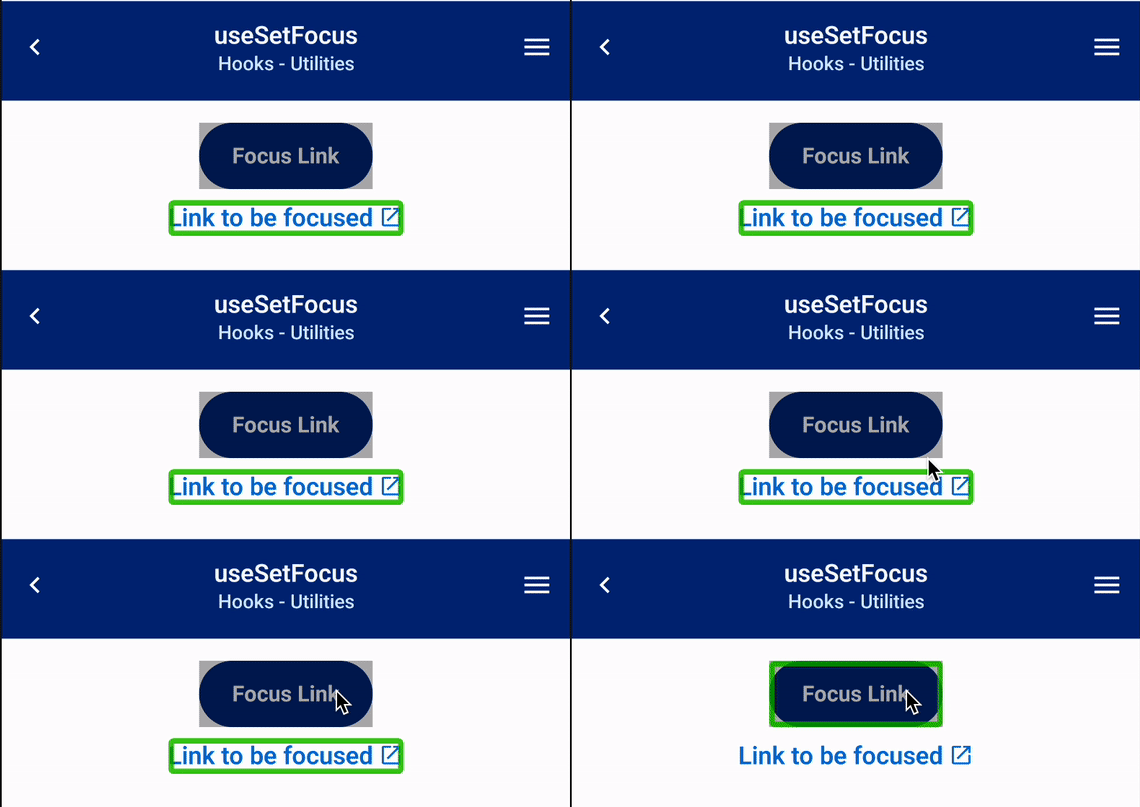
**Note:** While it is possible to use [core tokens](/mobile/brand/{brand}/tokens?tab=core+tokens) directly, we strongly recommend using semantic tokens whenever possible. Semantic tokens provide context for how a token should be used, which helps ensure consistency across your application. Additionally, there will likely be some cases where a direct mapping is not possible. In these cases, you will either need to: - Use a hard-coded value that matches the legacy token (not recommended), - Find a semantic token that is close enough, or - Create a custom token in your theme override to match the legacy token (see [Method 2](#method-2-adding-custom-tokens) below). See our [migration table](#legacy-tokens-migration-table) below for help finding the appropriate tokens. ## Method 2: Adding custom tokens The quickest way to migrate to V2 with minimal token changes is to reintroduce any legacy tokens used in your application as custom tokens in your [theme overrides](/mobile/tools/create-theme#example) in the `createTheme` tool. These tokens will be added into the theme and can be used in the same way as before. The reason we discourage this method is that it adds extra maintenance overhead for your team and is inconsistent with the Abyss V2 Design System. However, it is valid as a temporary solution to minimize up-front work and allow your team to migrate to the new design tokens over time. ## Legacy tokens reference Below are all the legacy tokens we supported in Abyss V1. You can use this as a reference when migrating your application to use the new design tokens. ## Legacy tokens migration table To help with your migration, we've additionally created an interactive table that shows each legacy token, its resolved value, and all matching semantic tokens in the new system. You can click on any token to copy it to your clipboard. **Note:** Some legacy tokens may not have direct semantic token matches. In these cases, you'll need to either find a semantically similar token, use a core token directly, or add a custom token to your theme. --- id: overview title: Overview --- Abyss is a full-stack mobile application framework that enables you to build products faster and easier than ever. It features a comprehensive set of tools that weaves together the best parts of [React Native](https://reactnative.dev/) and [GraphQL](https://graphql.org). By taking common patterns and modularizing them into accessible and reusable packages, Abyss is designed to accelerate the development of production-ready React Native applications. The framework handles all heavy lifting behind the scenes, allowing you to focus on core business logic specific to your product. Automated code quality tools analyze, identify, and correct errors in the code, giving developers real-time feedback and training to standardize programming styles. With improvements in project maintainability, scalability, and source code quality, Abyss aims to deliver the best overall development experience. Developers looking to use Abyss must have, or obtain access via Secure, to Artifactory (repo1.uhc.com) ## Learning React Native Just starting your journey with React Native? Abyss is a framework built on top of the popular React Native library. To get started, visit the [React Native documentation](https://reactnative.dev/docs/environment-setup). If you are interested in learning high-level concepts, check out the [getting started guide for React Native](https://reactnative.dev/docs/getting-started). ## Developer Tools Abyss is built using a list of trusted resources. Below are links to what makes up the framework of Abyss Mobile.
```jsx render () => { const devLinks = [ { id: 1, name: 'React Native', href: 'https://reactnative.dev/', }, { id: 2, name: 'Emotion', href: 'https://emotion.sh/docs/introduction', }, { id: 3, name: 'React Navigation', href: 'https://reactnavigation.org/docs/getting-started', }, { id: 4, name: 'npm ', href: 'https://docs.npmjs.com/about-npm', }, ]; return ( {devLinks.map((link) => { return ( } > {link.name} ); })} ); }; ``` ## Support If you're ready to get started with Abyss for your next project, check out our [Contact Us](/mobile/contact-us) page. Submit a new support request and let us know how we can help your team. If you found Abyss to be helpful, please [give us a star on github](https://github.com/uhc-tech/abyss)! --- id: style-customization title: Style Customization description: Guide to override styles for Abyss components. design: https://www.figma.com/file/tk08Md4NBBVUPNHQYthmqp/Abyss-Design-System?node-id=0%3A1 --- ## Overview Every Abyss component supports style customization using class names. Customization should be kept at a minimum, as the Abyss components are set to create a standard across all UHG affiliated products. ## Prop Overrides To apply your styles to any component, go to the **Integration** tab under component documentation and find the classes table. The class name column will tell you how to target specific elements in any component. ### Button Example Here you have a default `Button` component. ```jsx live ```
Similarly, to customize `Button` component, you can target specific class names to change the styles. The `Button` component should maintain a 3:1 color contrast ratio. Please visit the [accessibility](/mobile/resources/accessibility) documentation page to read more on designing an accessible component. ```jsx // Add styles to Button ``` ## States Components that allow for additional customization depending on their state can be configured by passing the desired style to the Abyss class using the `&:state` selector. Available states will be displayed on the integration tab. ```jsx live () => { const today = new Date(); const day = today.getDate(); const [value, setValue] = useState(today); return ( { return date.getDay() === 6; }} styles={{ 'abyss-calendar-day-label': { '&:selected': { color: '$semantic.color.text.body.primary' }, '&:disabled': { color: '#99A8C9' }, }, 'abyss-calendar-selection-circle': { backgroundColor: '#d9f6fa', }, }} /> ); }; ``` --- id: quality-engineering title: Quality Engineering description: QE Testing Overview --- ## Dedication To Quality ## Test Plan ## Automation Testing Automation testing of Abyss components is a top priority. Currently, our automation tests consist of the following: ### Web ### Mobile ### Unit Testing ## Manual Testing ## FAQ --- id: end-user-spec title: End User Specifications description: Abyss Spec --- ## Version Requirements ## Testing and Review ## How are these numbers calculated? ## Abyss Web ## Abyss Mobile

\* Last updated March 2025. To ensure this document is kept up to date and relevant, it should be revisited and revised with the latest metrics information on a set schedule, such as quarterly or bi-annually. --- id: component-testing title: Component Testing description: Guide on how to facilitate testing of Abyss Mobile components. --- ## testID To facilitate the usage of component testing libraries such as **[React Native Testing Library](https://callstack.github.io/react-native-testing-library/docs/getting-started)** you have the option of adding a `testID` attribute to a component's corresponding elements. By passing `testID` in as a prop with a value of the desired string id this attribute will be appended to all component elements that include a unique Abyss class name. Please see the Integration tab and the Classes sub-heading for each component to determine which elements will receive this test id. The resulting `testID` value will be a concatenated string that combines the value passed in with the prop and the element's unique class name. For example, the following code: ```jsx live Add your dependents to your account to view their claims and coverage. ``` will render the following structure: ```jsx Add your dependents to your account to view their claims and coverage. May 13, 2025 ``` ## Change testing strategy By default, the `testID` will have an abyss class name appended to it. If you do not want this, you can use the [`TestProvider`](/mobile/ui/test-provider) component to change the testing strategy. The `TestProvider` component has two strategies: `"class"` and `"root"`. ### Root strategy The `"root"` strategy applies the `testID` only to the root element of the component. This means you won't be able to target nested elements within the Abyss component for testing. For example, let's say the `testID` of [ProgressBar](/mobile/ui/progress-bar) is set to `"your-test-ID"`. ```jsx ``` You can use the following code to find and test the element: ```jsx import { render } from '@testing-library/react-native'; const screen = render( ); const element = screen.getByTestId('your-test-ID'); ``` ### Class strategy The `"class"` strategy (similar to default) allows testing of nested components by appending the Abyss class name to your `testID`. This creates unique identifiers for each element within the component. For example, let's say the `testID` of [ProgressBar](/mobile/ui/progress-bar) is set to `"your-test-ID"`. ```jsx ``` You will have to look at the classes for the ProgressBar component to determine which elements will receive this test ID and have its class name appended to it. The resulting test IDs will be _**`"your-test-ID-abyss-progress-bar-root"`**_ & _**`"your-test-ID-abyss-progress-bar-slide"`**_. You can then use the following code to find and test an element's subcomponents: ```jsx import { render } from '@testing-library/react-native'; const screen = render( ); const element = screen.getByTestId('your-test-ID-abyss-progress-bar-slide'); ``` --- id: accessibility-testing title: Accessibility Testing --- ## Overview Mobile accessibility, also known as A11Y, is the design and creation of mobile applications that can be used by everyone regardless of age, device, or disability. Accessibility support is necessary to allow assistive technology to interpret mobile pages. Abyss fully supports building accessible mobile applications and follows the Web Content Accessibility Guidelines [(WCAG 2.1)](https://www.w3.org/WAI/standards-guidelines/mobile/) and the [UHG Accessibility Engineering Standards](https://uhgazure.sharepoint.com/sites/a11y-engineering-standards) by the Accessibility Center of Excellence (ACOE). The list below are steps to take as a developer to ensure accessibility compliance. Please take a minute to read through the following testing resources and familiarize yourself with how to utilize them for best practices. ## Keyboard Navigation Use an external Bluetooth keyboard only to navigate the page without using your finger to tap or swipe. A visual indicator, known as the keyboard focus, should appear when navigating content. Look for difficulty reaching or activating interactive components, or if the focus becomes trapped on portions of the screen. Expected keyboard behavior for custom components is typically the following, but there are exceptions - Content navigation - **Tab** to enter a component - Use **arrow keys** to navigate within the component - **Tab** to exit the component - Interacting with CTA or form components - **Enter** or **Space** to mimic a tap or press - **Arrow keys** to navigate to an item within a list OR mimic a swipe - **Tab** to move onto the next item ## Desktop Development Tools XCode's Accessibility Inspector tool is available for inspecting the code of the application for accessibility features and labels via a mobile emulator. ## Screen Reader Mobile Controls A Screen Reader is an accessibility tool used primarily by sight-deficient users to navigate computer/mobile content. They interact with applications by reading aloud the content presented in the code. On mobile devices, users utilize either custom tap/swipe controls, Bluetooth keyboards, or both, to interact with the application. These users are impacted the most from lacking A11Y implementation. Testing with a screen reader on physical mobile devices is important to understand if the code is working effectively for these tools. Mobile devices provide the following screen readers, each with similar, yet unique functionality - iOS VoiceOver: [Learn about VoiceOver gestures](https://support.apple.com/guide/iphone/learn-voiceover-gestures-iph3e2e2281/ios) - Android TalkBack: [Learn about TalkBack gestures](https://support.apple.com/guide/iphone/learn-voiceover-gestures-iph3e2e2281/ios) ## NPM Packages Most NPM packages rely on axe-core. Set an impact level and start with critical issues then work down. Remember to allow time to fix critical issues in the User Story. Otherwise, the product developers will get frustrated and learn to ignore the errors, which defeats the purpose and doesn't help anyone. ## Linting For linting rules, work with an Accessibility Engineer to determine what to include there. ## Summary Remember, the tools/processes mentioned above don't catch all A11Y issues, but they serve as a great start to empowering the team to do some of your own testing. You can learn more from the Mobile Accessibility page in the [Accessibility Knowledge Center](https://uhgazure.sharepoint.com/sites/accessibility-knowledge-center/SitePages/Mobile-accessibility.aspx). For further information, reach out to an Accessibility Engineer! ## Accessibility Tools If you're looking for an in-depth overview of what accessibility standards Abyss is working towards, visit our Abyss [Accessibility page](/web/resources/accessibility). ```jsx render () => { const accessibilityLinks = [ { id: 1, name: 'WCAG 2.1', href: 'https://www.w3.org/WAI/WCAG21/Understanding/', }, { id: 2, name: 'Color Contrast Analyser (CCA)', href: 'https://webaim.org/resources/contrastchecker/', }, { id: 3, name: 'W3 Validator', href: 'https://validator.w3.org/favelets.html', }, { id: 4, name: 'Digital A11y', href: 'https://www.digitala11y.com/accessibility-bookmarklets-testing/', }, { id: 5, name: 'React Native Accessibility', href: 'https://reactnative.dev/docs/accessibility', }, ]; return ( {accessibilityLinks.map((link) => { return ( } > {link.name} ); })} ); }; ``` --- id: create-abyss-app title: Create Abyss App --- --- **Note:**
We would appreciate any feedback on our tutorial guide. If you are stuck at any time, make sure to contact the Abyss Admiral assigned to your team. If they cannot help, send a help request on our [Contact Page](/mobile/contact-us/). --- Before starting, be sure to complete the [Workspace Setup](/mobile/developers/workspace-setup/) guide. ### Step 1: Create an App Now, let's get started. Navigate to your terminal in order to create a new project named **"my-new-app"**. Once there, run the following command: ```bash npx github:uhc-tech/abyss-app my-new-app ``` ### Step 2: Navigate to Project Directory Next, navigate into the **my-new-app** project directory by running the command below: ```bash cd my-new-app ``` ### Step 3: Run Abyss Finally, run the following command in order to get localhost running: ```bash npm run mobile ``` Once you see the screen shown below, you are now up and running with Abyss! ```jsx render:phone () => { const Container = styled('ScrollView', { height: '90%', }); const theme = createTheme('uhc'); const links = [ { heading: 'About Us', paragraph: 'Learn more about the Abyss library', url: 'https://abyss.uhc.com/web/about', }, { heading: 'Components', paragraph: 'View the full list of components inside Abyss Mobile', url: 'https://abyss.uhc.com/mobile/ui/button', }, { heading: 'Tokens', paragraph: 'View our palette of color tokens', url: 'https://abyss.uhc.com/mobile/brand/uhc/colors/', }, { heading: 'Custom Styling', paragraph: 'Learn how to customize Abyss components', url: 'https://abyss.uhc.com/mobile/developers/style-customization', }, { heading: 'Navigation', paragraph: 'Learn to handle moving between screens inside your application', url: 'https://abyss.uhc.com/mobile/tools/create-bottom-tab-navigator', }, { heading: 'Support', paragraph: 'Need help? Visit our support page', url: 'https://abyss.uhc.com/mobile/contact-us', }, ]; return ( Welcome to Abyss Edit{' '} App.tsx {' '} to change this screen and then come back to see your edits. {links.map((link) => { return ( window.open(link.url)} /> ); })} ); }; ```
Great job, you have successfully created an abyss app! --- id: import-components title: Import Components --- --- **Note:**
We would appreciate any feedback on our tutorial guide. If you are stuck at any time, make sure to contact the Abyss Admiral assigned to your team. If they cannot help, send a help request on our [Contact Page](/mobile/contact-us/). --- ### Step 1: Open App.tsx In Visual Studio Code, open **my-new-app** project. From here, navigate into **products/mobile**, and open the **App.tsx** file. ```txt └── products └── mobile └── App.tsx ``` ### Step 2: Import React Anytime you’re using a react component, make sure to import the following dependency at the top: ```jsx import React from 'react'; ``` ### Step 3: Importing Component Depending on the project requirements, the **@uhg-abyss/mobile/ui**, **@uhg-abyss/mobile/hooks**, and **@uhg-abyss/mobile/tools** libraries have different components in order to assemble products quickly. There are three ways to import resources: Directly from one of the libraries above, from **@uhg-abyss/mobile**, or from the file for that resource **@uhg-abyss/mobile/ui/ComponentName** Let's start with the **Card** component. A Card acts as a container used to display content related to a single subject. You can access the documentation for the [Card](/mobile/ui/card/) through the Abyss Portal. The import statement for a card can be any of the following: ```jsx import { Card } from '@uhg-abyss/mobile'; ``` ```jsx import { Card } from '@uhg-abyss/mobile/ui'; ``` ```jsx import { Card } from '@uhg-abyss/mobile/ui/Card'; ``` In **App.tsx**, within the tsx of **App** functional component, insert the following code: ```jsx Hello tutorial We did it! ``` ### Step 4: Verifying Your Code Your code in **App.tsx** should now look similar to this: ```jsx import React from 'react'; import { Image, SafeAreaView, ScrollView, View } from 'react-native'; import { createTheme, ThemeProvider, Layout, Text, Card, Heading, } from '@uhg-abyss/mobile'; const theme = createTheme('uhc'); function App(): React.JSX.Element { return ( Welcome to Abyss Edit{' '} App.tsx {' '} to change this screen and then come back to see your edits. Hello tutorial We did it! ); } export default App; ``` ```jsx render const App = () => { const theme = createTheme('uhc'); return ( Welcome to Abyss Edit{' '} App.tsx {' '} to change this screen and then come back to see your edits. Hello tutorial We did it! ); }; render(() => { return ; }); ```
Great job, you have successfully imported components! --- id: screen-navigation title: Screen Navigation --- --- **Note:**
We would appreciate any feedback on our tutorial guide. If you are stuck at any time, make sure to contact the Abyss Admiral assigned to your team. If they cannot help, send a help request on our [Contact Page](/mobile/contact-us/). --- Before starting, be sure to complete the [Create Abyss App](/mobile/developers/tutorials/create-abyss-app/) tutorial. ## Step 1: Create New Files In Visual Studio Code, open **my-new-app** project. From here, navigate into **products/mobile/src/navigation**, and create a new file, named **"MyPlanNavigator.tsx"**. Then, navigate to **products/mobile/src/screens**, and create a new folder named **MyPlan**. Within this folder, we'll be creating 3 files: **"MyPlanScreen.tsx"**, **"CoverageScreen.tsx"**, and **"index.ts"**. Your folder structure should look like this: ```txt └── products └── mobile ├── src | ├── navigation | | ├── HomeNavigator.tsx | | ├── MenuNavigator.tsx | | └── MyPlanNavigator.tsx | ├── screens | | ├── Home | | ├── Menu | | ├── MyPlan | | | ├── CoverageScreen.tsx | | | ├── index.ts | | | └── MyPlanScreen.tsx └── App.tsx └── package.json ``` ## Step 2: Create MyPlan Screen Lets create a screen! We'll add a Plan Coverage card. In **"MyPlanScreen.tsx"**, insert the following code: ```jsx import React from 'react'; import { View } from 'react-native'; import { Card, Cell, CellGroup, Heading, IconBrand } from '@uhg-abyss/mobile'; export const MyPlanScreen = ({ navigation, route }) => { return ( Plan Coverage } heading="Coverage & Benefits" onPress={() => navigation.navigate('Coverage', { benefits: ['Medical', 'Dental', 'Transportation'], }) } /> ); }; ``` Then in **index.ts** , insert the following export command: ```jsx // Exporting MyPlanScreen allows us to import and use MyPlanScreen in the Navigator export { MyPlanScreen } from './MyPlanScreen'; ``` In the code above, we have a Cell that navigates to another screen called **Coverage**. The Coverage screen takes an array of benefits as a parameter. Let's create that screen. ## Step 3: Create Coverage Screen ```jsx import React from 'react'; import { View } from 'react-native'; import { Card, Cell, CellGroup, Heading } from '@uhg-abyss/mobile'; export const CoverageScreen = ({ navigation, route }) => { // The benefits array from MyPlanScreen const { benefits } = route.params; return ( Coverage & Benefits {benefits.map((benefit) => { return {}} />; })} ); }; ``` ```jsx // Exporting MyPlanScreen allows us to import and use MyPlanScreen in the Navigator export { MyPlanScreen } from './MyPlanScreen'; ``` Then in **index.ts** , add the screen to the list of exports: ```jsx export { CoverageScreen } from './CoverageScreen'; export { MyPlanScreen } from './MyPlanScreen'; ``` ## Step 4: Create a Stack Navigator Next, we will create the stack navigator. In **MyPlanNavigator.tsx**, insert the following code: ```jsx import React from 'react'; import { Pressable } from 'react-native'; import { createStackNavigator, IconSymbol } from '@uhg-abyss/mobile'; import { MyPlanScreen, CoverageScreen } from '@/screens/MyPlan'; const MyPlanStack = createStackNavigator(); export const MyPlanNavigator = () => { return ( ( ), }} /> ); }; ``` ## Step 5: Add MyPlan Tab Next, we will add the MyPlan Stack Navigator, to the main tab bar. Navigate into **products/mobile/App.tsx**. There should already be two existing `Tab.Screen` components, representing the Home and Menu tabs. Let's place a new `Tab.Screen` in between the existing tabs so that the My Plan tab shows 2nd on the tab bar. First import the `MyPlanNavigator`. ```jsx import { MyPlanNavigator } from '@/navigation/MyPlanNavigator'; ``` Then add the MyPlan tab ```jsx ... ( ), }} name="HomeTab" component={HomeNavigator} /> ( ), }} name="MyPlanTab" component={MyPlanNavigator} /> ( ), }} name="MenuTab" component={MenuNavigator} /> ... ``` ## Step 6: Create Navigation Types Navigate to **products/mobile/src/navigation** and open **"navigation.ts"**. Let's create a new `type` to represent the two screens' parameters. The `MyPlan` screen has no parameters and the `Coverage` screen has a benefits array of strings. In **"navigation.ts"**, insert the following code. ```ts type MyPlanTabParamList = { MyPlan: undefined; Coverage: { benefits: string[] }; }; ``` Now, we can create a `type` for the navigation and route props of each screen. In **"navigation.ts"**, insert the following code. ```ts export type MyPlanTabScreenProps = CompositeScreenProps< BottomTabScreenProps, RootStackScreenProps >; ``` Next, let's navigate back to **"MyPlanScreen.tsx"** and add the `MyPlanTabScreenProps` type in the function's parameter. ```jsx import { MyPlanTabScreenProps } from '@/types/navigation'; export const MyPlanScreen = ({ navigation, route, }: MyPlanTabScreenProps<'MyPlan'>) => { // rest of the code }; ``` We can do the same thing in **"Coverage.tsx"**. ```jsx import { MyPlanTabScreenProps } from '@/types/navigation'; export const CoverageScreen = ({ navigation, route, }: MyPlanTabScreenProps<'Coverage'>) => { // rest of the code }; ```
Great job, you have successfully completed page routing! --- id: custom-themes title: Custom Themes --- --- **Note:**
We would appreciate any feedback on our tutorial guide. If you are stuck at any time, make sure to contact the Abyss Admiral assigned to your team. If they cannot help, send a help request on our [Contact Page](/mobile/contact-us/). --- ### Step 1: Create a Theme screen In Visual Studio Code, open the **my-new-app** project. From here, navigate to **products/mobile/src/screens** and create a new folder named `ThemeScreen`. Within this new folder, create two new files named `index.ts` and `ThemeScreen.tsx`. ```txt products └── mobile └── src └── screens └── ThemeScreen ├── index.ts └── ThemeScreen.tsx ``` ### Step 2: Choosing A Theme In **ThemeScreen.tsx**, we are building our theme using the pre-defined `UHC` theme. You can choose between the different brands shown below: Abyss offers pre-defined themes: `UHC` and `Optum`. You can find these themes [here](https://github.com/uhc-tech/abyss/tree/main/packages/abyss-mobile/src/tools/theme/variants). While building **ThemeScreen.tsx**, you can choose any of the brands demonstrated below. --- [UHC Theme](https://github.com/uhc-tech/abyss/blob/main/packages/abyss-mobile/src/tools/theme/variants/uhc.js) ```jsx const theme = createTheme('uhc'); ``` [Optum Theme](https://github.com/uhc-tech/abyss/blob/main/packages/abyss-mobile/src/tools/theme/variants/optum.js) ```jsx const theme = createTheme('optum'); ``` ### Step 3: Customizing your Theme There are multiple ways to customize and style your application. In this guide, we will focus on color and font customization. To customize your brand's default themes to align with your product's branding, you can include a configuration object to add or override variables within the theme by adding values inside the **createTheme** function as shown below. You can learn more about the **createTheme** function [here](/mobile/tools/create-theme). ```jsx const theme = createTheme('uhc', { // Add custom colors theme: { colors: { customColor: 'purple', }, // Add custom fonts fonts: { customFont: 'UHCSerif', }, }, }); ``` ### Step 4: Viewing Theme To view some of your theme updates, import some Abyss components into your project and see how they look! ```jsx sandbox () => { // Add Custom Theme const theme = createTheme('uhc', { theme: { colors: { customColor: '#8943fe', }, fonts: { customFont: 'UHCSerif', }, }, }); return ( //Define Custom Theme in theme prop Standard Text Customized Text ); }; ```
Great job, you have successfully customized a theme! --- id: styled-components title: Styled Components --- --- **Note:**
We would appreciate any feedback on our tutorial guide. If you are stuck at any time, make sure to contact the Abyss Admiral assigned to your team. If they cannot help, send a help request on our [Contact Page](/mobile/contact-us/). --- ### Step 1: Create a Styled Screen In Visual Studio Code, open the **my-new-app** project. From here, navigate to **products/mobile/src/screens** and create a new folder named `StyledScreen`. Within this new folder, create two new files named `index.ts` and `StyledScreen.tsx`. ```txt products └── mobile └── src └── screens └── StyledScreen ├── index.ts └── StyledScreen.tsx ``` ### Step 2: Creating Styled Components You can use the **styled** tool to style existing components or create new styled components. To learn more, check out our [styled](/mobile/tools/styled/) function. In your **StyledScreen.tsx** file, add the following import statements: ```jsx import React from 'react'; import { IconBrand, Card, Text, styled } from '@uhg-abyss/mobile'; ``` We will create an information box to demonstrate how to work with styled-components. After your import statements, insert the following code: ```jsx const StyledCard = styled(Card, { padding: '$semantic.spacing.sm', flexDirection: 'row', alignItems: 'center', }); const StyledText = styled('Text', { fontWeight: '$semantic.font-weight.semibold', }); ``` ### Step 3: Rendering Styled Components This component uses the **StyledCard**, and **StyledText** components we created previously. There are other features available in the [styled](/mobile/tools/styled/) function to customize and edit your components to best fit your product's custom designs. In the **StyledScreen.tsx** file, add the following code to your **StyledScreen** component: ```jsx export const StyledScreen = () => { return ( Average cost in your area: $980 ); }; ``` ### Step 4: Viewing Styled Components At the end of this tutorial, the code in your **StyledScreen.tsx** file should look like this: ```jsx import React from 'react'; import { styled, IconBrand, Card, Text } from '@uhg-abyss/mobile'; const StyledCard = styled(Card, { padding: '$semantic.spacing.sm', flexDirection: 'row', alignItems: 'center', }); const StyledText = styled('Text', { fontWeight: '$$semantic.font-weight.semibold', }); const StyledScreen = () => { return ( Average cost in your area: $980 ); }; ``` On your device, your StyledScreen should look like this: ```jsx live // Create styled Card const StyledCard = styled(Card, { padding: '$semantic.spacing.sm', flexDirection: 'row', alignItems: 'center', }); // Create styled Text const StyledText = styled('Text', { fontWeight: '$semantic.font-weight.semibold', }); const StyledScreen = () => { return ( Average cost in your area: $980 ); }; render(() => { return ; }); ```
Great job, you have successfully styled components! --- id: versioning-guide title: Versioning Guide --- ## Overview Stability ensures that reusable components and libraries, tutorials, tools, and learned practices don't become obsolete unexpectedly. Stability is essential for the ecosystem around Abyss to thrive. This document contains the practices that are followed to provide you with a leading-edge UI library, balanced with stability, ensuring that future changes are always introduced in a predictable way. ## Semantic Versioning Abyss follows [Semantic Versioning 2.0.0](https://semver.org). Abyss version numbers have three parts: major.minor.patch. The version number is incremented based on the level of change included in the release. - **Major releases** contain significant new features, some but minimal developer assistance is expected during the update. When updating to a new major release, you may need to run update scripts, refactor code, run additional tests, and learn new APIs. - **Minor releases** contain important new features. Minor releases should be fully backward-compatible; no developer assistance is expected during update, but you can optionally modify your apps and libraries to begin using new APIs, features, and capabilities that were added in the release. - **Patch releases** are low risk, contain bug fixes and small new features. No developer assistance is expected during update. ## Release Frequency A regular schedule of releases helps you plan and coordinate your updates with the continuing evolution of Abyss. In general, you can expect the following release cycle: - A **major** release typically every year for major changes. - A **minor** releases every two weeks after each sprint. - A **patch** release at any time for urgent bugfixes. ## Deprecation Practices Sometimes **"breaking changes"**, such as the removal of support for select APIs and features, are necessary. To make these transitions as easy as possible: - The number of breaking changes is minimized, and migration tools provided when possible. - The deprecation policy described below is followed, so that you have time to update your apps to the latest APIs and best practices. ## Deprecation Policy - Deprecated features are announced in the changelog, and when possible, with warnings at runtime. - When a deprecation is announced, recommended update path is provided. - Existing use of a stable API during the deprecation period is supported, so your code will keep working during that period. - Peer dependency updates (React) that require changes to your apps are only made in a major release. ## Tested React Native versions --- id: workspace-setup title: Workspace Setup pagination_prev: null --- ## Overview Developing modern JavaScript applications requires efficient, powerful, and extensible tooling. Consistency across developer machines is a priority when collaborating across highly distributed teams. The following is a guide for installing the preferred environment for JS development. ![workspace setup](/img/graphics/workspace.svg) ## Secure Groups Visit [secure.uhc.com](https://secure.uhc.com) to request permissions groups: - **github_users**: To access [github.com](https://github.com) - **Mac_Admin**: To install software for macOS users only ## VSCode Editor To write code for UI projects, it is **highly recommended** that you download and install [Visual Studio Code](https://code.visualstudio.com). ![Visual Studio Code](https://code.visualstudio.com/assets/home/home-screenshot-mac-lg-2x.png) ## VSCode Extensions Recommended extensions will be suggested to you when you visit the VSCode Marketplace. - [ESLint](https://marketplace.visualstudio.com/items?itemName=dbaeumer.vscode-eslint) - code syntax validator ESLint is a JavaScript linting tool which is used for automatically detecting incorrect patterns found in ECMAScript/JavaScript code. It is used with the purpose of improving code quality, making code more consistent, and avoiding bugs. Rules can be configured to look for all kinds of discrepancies due to discouraged code patterns or formatting. Running a Linting tool over the source code helps to improve the quality and readability of the code. - [Prettier](https://marketplace.visualstudio.com/items?itemName=esbenp.prettier-vscode) - code formatter Prettier is very popular because it improves code readability and makes the coding style consistent for teams. Developers are more likely to adopt a standard rather than writing their own code style from scratch, so tools like Prettier will make your code look good without you ever having to dabble in the formatting. ## System Essentials ### Xcode - [Xcode Command Line Tools](https://mac.install.guide/commandlinetools/4.html) (Mac Only) `xcode-select` contains necessary utilities for software development on macOS. Xcode's simulator will be used for viewing your app in an iOS environment. ```bash xcode-select --install ```
**_After install, exit and restart Terminal (CMD + Q)_** ``` $ xcode-select --version ``` ### Android Studio Install [Android Studio.](https://developer.android.com/) The Virtual Device Manager will be use for viewing your app in an Android environment. ### Additional Tools - [oh-my-zsh](https://ohmyz.sh/) >= 5.3.0 (optional) `zsh` is an optional upgrade to the native shell which provides a delightful terminal experience. ```bash sh -c "$(curl -fsSL https://raw.githubusercontent.com/robbyrussell/oh-my-zsh/master/tools/install.sh)" ```
**_After install, exit and restart Terminal (CMD + Q)_** ```bash omz version ```
--- - [node](https://github.com/nvm-sh/nvm) >= 16.0.0 `nvm` is a great tool for installing and upgrading versions of Node on your system. ```bash curl -o- https://raw.githubusercontent.com/nvm-sh/nvm/v0.35.1/install.sh | bash ```
**_After install, exit and restart Terminal (CMD + Q)_** ```bash nvm --version nvm install 16 && nvm use 16 && nvm alias default 16 ```
**_After install, exit and restart Terminal (CMD + Q)_** ``` $ npm --version $ npm config set registry https://repo1.uhc.com/artifactory/api/npm/npm-virtual ```
--- - [git](https://git-scm.com/book/en/v2/Getting-Started-Installing-Git) >= 2.0.0 `git` is a universal version control system for working collaboratively and efficiently. ```bash git config --global user.id "YOUR_MS_ID" git config --global user.email "YOUR_EMAIL@optum.com" ``` ## Git Branch Names Naming the branch you're working on helps repository maintainers understand the changes being made when the PR is opened. Using consistent branch name prefixes also allows build tools to automatically categorize the branches using labels. Branch names should be all lowercase (with the exception of US and DE) and include hyphens between words. All branches are divided into four groups: - **story/#######** - Changes associated with a User Story, use the unique 7-digit number from Rally followed by a task description. - **defect/#######** - Changes associated with a Defect, use the unique 7-digit number from Rally followed by a task description. - **refactor/** - Changes to the repo that aren't documented in Rally are considered refactors, so use the task portion to add detail to your branch name. - **release/** - Used specifically by build tools, this branch name is exclusive to release notes and documentation leading up to a new release. Examples: ``` git checkout -b story/US2434515-developer-toolkit git checkout -b defect/DE308703-button-accessibility git checkout -b refactor/select-list-multi-docs git checkout -b story/US1533842-use-loading-overlay ```
Branch Name Rules: - Branch prefix must start with **story**, **defect**, **refactor**, or **release** - Branch name must be only **lowercase letters, numbers, and hyphens** - **US###** and **DE###** are valid character exceptions --- id: use-animation category: Utilities title: useAnimation description: Use to create standardized animation types for Abyss Mobile components design: https://www.figma.com/proto/wCMblLsq9TxAQvKzY3EfCt/branch/c6ve0gNrTGpdwBIuJehC3n/Abyss-Mobile?page-id=41951%3A175&type=design&node-id=41951-176&viewport=741%2C524%2C0.06&t=33q3lqs409fRYj6B-1&scaling=scale-down-width&starting-point-node-id=41951%3A176&show-proto-sidebar=1 --- ```jsx import { useAnimation } from '@uhg-abyss/mobile'; ``` ## Usage `useAnimation` hook standardizes the animation types for Abyss components and simplifies additional customization. The hook returns `animate`, `value`, `interpolations`, as well as other [Animated](https://reactnative.dev/docs/animated#methods) functions used throughout Abyss. ```jsx export const useAnimation = (value: number, config: AnimationConfig) => { ... return { animate, value: animatedValue, interpolations, createAnimation, add, subtract, multiply, divide, delay, parallel, loop, sequence, }; }; ``` ## Animate The `animate` function requires a toValue be passed in, with the option for overrides and a callback function. ```jsx const animate = ( toValue: number, configOverride?: Partial, callback?: Animated.EndCallback ) => { return createAnimation(toValue, configOverride).start(callback); }; ``` ```jsx live () => { const { animate, value, interpolations } = useAnimation(1, { easing: 'gentle', interpolations: { background: { inputRange: [0.95, 1], outputRange: [ '$core.color.brand.100', '$semantic.color.surface.container.status.info.saturated', ], tokenType: 'colors', }, }, }); const AnimatedButton = styled(Animated.createAnimatedComponent(Pressable), { justifyContent: 'center', alignItems: 'center', padding: '$semantic.spacing.lg', borderRadius: 100, alignSelf: 'center', }); return ( { animate(0.95); }} onPressOut={() => { animate(1); }} style={{ transform: [{ scale: value }], background: interpolations.background, }} > Press Me ); }; ``` ### Overrides By default the animation type is set to `'timing'`. Additional types supported are `'spring'` and `'instant'` with the following animation config open to override: ```jsx interface AnimationConfig extends BaseAnimationConfig { type?: 'spring' | 'timing' | 'instant'; interpolations?: Record; delay?: number | undefined; // timing easing?: Easing; duration?: number | undefined; // spring overshootClamping?: boolean | undefined; restDisplacementThreshold?: number | undefined; restSpeedThreshold?: number | undefined; velocity?: number | { x: number, y: number } | undefined; bounciness?: number | undefined; speed?: number | undefined; tension?: number | undefined; friction?: number | undefined; stiffness?: number | undefined; mass?: number | undefined; damping?: number | undefined; } ``` ## Interpolations The `interpolations` prop can take in multiple interpolation objects to be used on the same animated value. ```jsx const { value, animate, interpolations } = useAnimation(1, { easing: 'gentle', interpolations: { backgroundColor: { inputRange: [0.95, 1], outputRange: [ '$semantic.color.surface.container.status.info.saturated', '$core.color.brand.100', ], tokenType: 'colors', }, opacity: { inputRange: [0.95, 1], outputRange: [0, 1], }, }, }); ``` ```jsx live () => { const { animate, value, interpolations } = useAnimation(1, { easing: 'gentle', interpolations: { background: { inputRange: [0.95, 1], outputRange: ['#00BED5', '$core.color.brand.100'], tokenType: 'colors', }, opacity: { inputRange: [0.95, 1], outputRange: [0.8, 1], }, }, }); const Label = styled(Animated.Text, { color: '$semantic.color.text.body.alt', typography: '$semantic.typography.p.xs-bold', marginTop: '$semantic.spacing.xs', }); const AnimatedTabButton = styled( Animated.createAnimatedComponent(Pressable), { justifyContent: 'center', alignItems: 'center', padding: '$semantic.spacing.lg', borderRadius: 10, alignSelf: 'center', } ); return ( { animate(0.95); }} onPressOut={() => { animate(1); }} style={{ transform: [{ scale: value }], background: interpolations.background, }} > ); }; ``` ## Additional Functionality Other Animated methods currently used throughout Abyss components can also be returned. ```jsx const parallel = ( animations: Animated.CompositeAnimation[], parallelConfig?: Animated.ParallelConfig ) => { return Animated.parallel(animations, parallelConfig); }; const loop = ( animation: Animated.CompositeAnimation, loopConfig?: Animated.LoopAnimationConfig ) => { return Animated.loop(animation, loopConfig); }; const sequence = (animations: Animated.CompositeAnimation[]) => { return Animated.sequence(animations); }; const delay = (time: number) => { return Animated.delay(time); }; const add = (num: number) => { return Animated.add(animatedValue, num); }; const subtract = (num: number) => { return Animated.subtract(animatedValue, num); }; const divide = (num: number) => { return Animated.divide(animatedValue, num); }; const multiply = (num: number) => { return Animated.multiply(animatedValue, num); }; ``` ## Accessibility Integration The `useAnimation` hook has built-in integration with the [`useReduceMotion`](/mobile/hooks/use-reduce-motion) hook. This ensures that animated components automatically respect the user's "Reduce Motion" accessibility setting without requiring additional handling. When "Reduce Motion" is enabled, the `useAnimation` hook adjusts the animation type to `'instant'`, minimizing motion effects. This makes it easier to create accessible components that align with user preferences. --- id: use-device-orientation category: Utilities title: useDeviceOrientation description: Used to retrieve the orientation of the mobile device --- ```jsx import { useDeviceOrientation } from '@uhg-abyss/mobile'; ``` ## Usage `useDeviceOrientation` measures the width and height of the screen and returns `'landscape'` or `'portrait'`. ```jsx const orientation = useDeviceOrientation(); const iconSize = orientation === 'landscape' ? 20 : 24; return ; ``` --- id: use-form category: State Management title: useForm description: useForm is a hook for defining, validating and submitting forms. sourceIsTS: true --- ```jsx import { useForm } from '@uhg-abyss/mobile'; ``` ## Usage The `useForm` hook is used to define, validate, and submit forms in Abyss. Use `useForm` along with the [FormProvider](/mobile/ui/form-provider) component in order to better manage your forms and fully utilize the capabilities of form management within Abyss. Abyss components that can be used with useForm have a `model` prop that is used to bind the component to the form state. Validations can be defined on each component using the `validations` prop, which accepts an object with validation rules. If a component fails validation, it will display an error message based on the validation rules defined. When a form is successfully submitted, the function passed to the `onSubmit` prop will be called with the form data. ```jsx live () => { const form = useForm(); const onSubmit = (data) => { // Do something on submit alert(`FormData: ${JSON.stringify(data)}`); }; return ( ); }; ``` ## Default Values The defaultValues prop populates the entire form with default values. It supports both synchronous and asynchronous assignments of default values. ```jsx live () => { // Default Values Passed into useForm const form = useForm({ defaultValues: { firstName: 'John', lastName: 'Doe', }, }); const onSubmit = (data) => { alert(`FormData: ${JSON.stringify(data)}`); }; return ( ); }; ``` ## Form State This object contains information about the form state. If you want to subscribe to formState via useEffect, make sure that you place the entire formState in the optional array. ```jsx const form = useForm(); const { errors, // An object with field errors isDirty, // Set to true after the user modifies any of the inputs. isValid, // Set to true if the form doesn't have any errors. isValidating, // Set to true during validation. isSubmitting, // true if the form is currently being submitted; false if otherwise. isSubmitted, // Set to true after the form is submitted. isSubmitSuccessful, // Indicate the form was successfully submitted without any Promise rejection or Error being thrown within the handleSubmit callback. submitCount, // Number of times the form was submitted. touchedFields, // An object containing all the inputs the user has interacted with. dirtyFields, // An object with the user-modified fields. } = form.formState; ``` ## Watch This will watch specified inputs and return their values. It is useful for determining what to render. ```jsx live () => { const form = useForm(); const onSubmit = (data) => { alert(`FormData: ${JSON.stringify(data)}`); }; // Watch one field const WatchField = form.watch('firstName'); // Target specific fields by their names const WatchFields = form.watch(['firstName', 'lastName']); // Watch everything by passing no arguments const WatchAllFields = form.watch(); return ( Watch One Field: {JSON.stringify(WatchField)} Watch Multiple Fields: {JSON.stringify(WatchFields)} Watch All Fields: {JSON.stringify(WatchAllFields)} ); }; ``` ## Handle Submit This function will receive the form data if form validation is successful. ```jsx live () => { const form = useForm({ defaultValues: { firstName: 'John', lastName: 'Doe', }, }); const onSubmit = (data, e) => alert('onSubmit'); const onError = (errors, e) => alert('onError'); return ( ); }; ``` ## Validate Model This function will receive the model data if form validation is successful. ```jsx live () => { const form = useForm({ defaultValues: { firstName: 'John', }, }); const handleValidateFirst = () => { form.validate( 'firstName', (data) => { alert(`FormData: ${JSON.stringify(data)}`); }, (error) => { delete error.ref; alert(`Error: ${JSON.stringify(error)}`); } ); }; const handleValidateLast = () => { form.validate( 'lastName', (data) => { alert(`FormData: ${JSON.stringify(data)}`); }, (error) => { delete error.ref; alert(`Error: ${JSON.stringify(error)}`); } ); }; return ( ); }; ``` ## Set Error The function allows you to manually set one or more errors. ```jsx live () => { const form = useForm({ defaultValues: { firstName: 'John', lastName: 'Doe', }, }); // Set single error const setSingleError = () => { form.setError('firstName', { type: 'manual', message: 'There is an error with your name!', }); }; // Set multiple errors const setMultipleErrors = () => { [ { type: 'manual', name: 'firstName', message: 'Check first name', }, { type: 'manual', name: 'lastName', message: 'Check last name', }, ].forEach(({ name, type, message }) => { form.setError(name, { type, message }); }); }; // Set error for single field errors React.useEffect(() => { form.setError('firstName', { types: { required: 'This is required', minLength: 'This is minLength', }, }); }, []); return ( ); }; ``` ## Clear Errors This function can manually clear errors in the form. ```jsx live () => { const form = useForm({ defaultValues: { firstName: 'John', lastName: 'Doe', phone: '555-555-5555', }, }); const resetErrors = () => { [ { type: 'manual', name: 'firstName', message: 'Required', }, { type: 'manual', name: 'lastName', message: 'Required', }, { type: 'manual', name: 'phone', message: 'Required', }, ].forEach(({ name, type, message }) => { form.setError(name, { type, message }); }); }; // Clear single error const clearSingleErrors = () => { form.clearErrors('firstName'); }; // Clear multiple errors const clearMultipleErrors = () => { form.clearErrors(['firstName', 'lastName']); }; // Clear all errors const clearAllErrors = () => { form.clearErrors(); }; return ( ); }; ``` ## Get Values An optimized helper for reading form values. The difference between watch and getValues is that getValues will not trigger re-renders or subscribe to input changes. ```jsx live () => { const form = useForm({ defaultValues: { firstName: 'John', lastName: 'Doe', phone: '555-555-5555', }, }); // Read an individual field value by name const singleValue = form.getValues('firstName'); // Read multiple fields by name const multipleValues = form.getValues(['firstName', 'lastName']); // Reads all form values const allValues = form.getValues(); return (

Single Value: {JSON.stringify(singleValue)}

Multiple Values: {JSON.stringify(multipleValues)}

All Values: {JSON.stringify(allValues)}

); }; ``` ## Trigger Manually triggers form or input validation. This method is also useful when you have dependent validation (input validation depends on another input's value). ```jsx live () => { const form = useForm(); // Trigger one input to validate const triggerSingle = () => { form.trigger('firstName'); }; // Trigger multiple inputs to validate const triggerMultiple = () => { form.trigger(['firstName', 'lastName']); }; // Trigger entire form to validate const triggerAll = () => { form.trigger(); }; const clearErrors = () => { form.clearErrors(); }; return ( ); }; ``` ## Cross-Field Validation Example ```jsx live () => { const form = useForm(); const onSubmit = (data) => { console.log('data', data); }; return ( { const checkValue = form.getValues('middleName-check'); if (!checkValue && !v) { return 'Required'; } }, }} showValidations={false} /> { form.trigger('middleName'); }} /> ); }; ``` ## Additional Documentation `@uhg-abyss/mobile/hooks/useForm` is a built on top of the `useForm` hook from [React Form Hook](https://react-hook-form.com/get-started). **Note:** You should be using Abyss's `useForm` hook when using Abyss components and **not** react hook forms. --- id: use-reduce-motion category: Utilities title: useReduceMotion description: Used within animated components to respect a user's accessibility preferences. --- ```jsx import { useReduceMotion } from '@uhg-abyss/mobile'; ``` ## Usage The `useReduceMotion` hook is a custom hook designed to determine whether the user has enabled the "Reduce Motion" accessibility setting on their device. This setting is often used by individuals who prefer to minimize animations and motion effects for accessibility or comfort reasons. The hook returns an object `{reducedMotionEnabled}` with the boolean value: - `true`: "Reduce Motion" is enabled. - `false`: "Reduce Motion" is disabled. When reduce motion is enabled, this hook can be used to adjust animation behavior. ```jsx live const AnimatedContainer = styled('Animated.View', { padding: '$semantic.spacing.xl', backgroundColor: '$semantic.color.surface.container.primary', width: 100, height: 100, margin: '$semantic.spacing.xl', }); const SequentialAnimation = () => { const { reducedMotionEnabled } = useReduceMotion(); const animatedValues = useRef([ new Animated.Value(1), new Animated.Value(1), new Animated.Value(1), ]).current; useEffect(() => { const createAnimation = (index) => Animated.sequence([ Animated.timing(animatedValues[index], { toValue: 1.4, duration: 500, useNativeDriver: false, }), Animated.timing(animatedValues[index], { toValue: 1, duration: 500, useNativeDriver: false, }), ]); const loopAnimation = Animated.loop( Animated.stagger(250, [ createAnimation(0), createAnimation(1), createAnimation(2), ]) ); loopAnimation.start(); return () => loopAnimation.stop(); }, []); return ( {animatedValues.map((animatedValue, index) => ( ))} ); }; render(() => { return ; }); ``` ## Enabling Reduce Motion by Device ### iOS - Open the Settings app - Select Accessibility - Choose Motion - Toggle the switch next to Reduce Motion to on ### Android - Open the Settings app - Select Accessibility - Depending on your Android version, look for Remove Animations (or similar) ### Windows - Open Settings - Select Accessibility - Go to Visual Effects - Toggle Animation Effects to off ### Mac OS - Open System Settings - Select Accessibility - Choose Display - Toggle Reduce Motion to on ## Additional Notes - The hook listens for changes to the "Reduce Motion" setting and updates its value dynamically. - The [`useAnimation`](/mobile/hooks/use-animation) hook integrates `useReduceMotion` directly, ensuring that animated components automatically respect the user's motion preferences without requiring additional handling. - Use this hook to create a more inclusive and accessible experience for users who prefer minimal motion effects. Please refer to accessibility guidelines for animations when creating new components. - WCAG standards: - [iOS](https://uhgazure.sharepoint.com/sites/a11y-engineering-standards/SitePages/CP-2.33-Animations-from-Interactions-Native-iOS.aspx?web=1) - [Android](https://uhgazure.sharepoint.com/sites/a11y-engineering-standards/SitePages/CP-2.33-Animations-from-Interactions-Native-Android.aspx?web=1) --- id: use-set-focus category: Utilities title: useSetFocus description: Used to set accessibility focus on a specified element. --- ```jsx import { useSetFocus } from '@uhg-abyss/mobile'; ``` ## Usage The hook returns a function that consumes a ref object. Simply call said function to set the screen reader focus. ```jsx const setFocus = useSetFocus(); const myRef = useRef(null); return ( <> Link to be focused ); ``` ## Example In the example below, Android's Talkback can be seen focusing the bottom text when the `Focus Text` button is pressed. --- id: use-style-sheet category: Styling title: useStyleSheet description: Used to parse styles from a StyleSheet --- ```jsx import { useStyleSheet } from '@uhg-abyss/mobile'; ``` The `useStyleSheet` hook helps to parse the additional functionality from the Abyss [StyleSheet](/mobile/ui/style-sheet). ## Usage ```tsx useStyleSheet(styles: object): object ``` Take a look at StyleSheet below: ```jsx const styles = StyleSheet.create({ container: { padding: '$semantic.spacing.xs * 4px', margin: '$fontScale', }, label: { color: '$semantic.color.text.body.paragraph', fontWeight: '$core.font-weight.bold', fontSize: '$core.font-size.p.100', marginVertical: '$semantic.spacing.lg * 2', fontFamily: '$heading', }, box: { backgroundColor: '$semantic.color.surface.container.status.info.saturated', borderColor: '$semantic.color.border.status.saturated.error', borderRadius: '$semantic.border-radius.container.sticky * $core.border-radius.xs', borderWidth: 4, width: '6rem', height: '48px * 3', marginBottom: '32px - 0.75rem', '@media (min-width: 767px)': { width: '12rem', }, }, }); ``` There's a lot of code that is unfamiliar to the normal StyleSheet. Above, there are _**media queries**_, _**tokens**_, _**operations**_, _**rem values**_, and _**pixel values**_, which normally would not be able to be parsed by React Native core component. This is where the `useStyleSheet` hook comes in. By using the hook, we can parse these value into value that the core component can understand. ```jsx live const themedStyles = StyleSheet.create({ container: { padding: '$semantic.spacing.xs * 4px', margin: '$fontScale', }, label: { color: '$semantic.color.text.body.paragraph', fontWeight: '$core.font-weight.bold', fontSize: '$core.font-size.p.100', marginVertical: '$semantic.spacing.lg * 2', fontFamily: '$heading', }, box: { backgroundColor: '$semantic.color.surface.container.status.info.saturated', borderColor: '$semantic.color.border.status.saturated.error', borderRadius: '$semantic.border-radius.container.sticky * $core.border-radius.xs', borderWidth: 4, width: '6rem', height: '48px * 3', marginBottom: '32px - 0.75rem', '@media (min-width: 767px)': { width: '12rem', }, }, }); render(() => { const styles = useStyleSheet(themedStyles); return ( Parsed Styles {JSON.stringify(styles, null, 4)} Original Styles {JSON.stringify(themedStyles, null, 4)} ); }); ``` --- id: use-token category: Utilities title: useToken description: Used to get values mapped to tokens. --- ```jsx import { useToken } from '@uhg-abyss/mobile'; ``` This hook returns a function that is used to get the style value associated with a token defined in the theme. Use this whenever you want to pass in a prop with the value of a token string instead of the associated token value. ## Properties ```typescript type TokenKey = 'colors' | 'space' | 'sizes' | 'fontSizes' | 'lineHeights' | 'fontWeights' | 'fonts' | 'radii'; interface TokenConfig { retain?: boolean; }; useToken(key: TokenKey, config?: TokenConfig) ``` ## Usage The `key` argument corresponds to the upper level category inside the theme. Start with defining a function and passing it the string of the token key. You can then use that function to pass in your token element and get the associated value. A hex value can also be passed in as a `token` and it will be returned as is|unless set not to. ```jsx const theme = { theme: { colors: {...}, space: {...}, fontSizes: {...}, fonts: {...}, }, }; const getColorToken = useToken('colors'); const color = getColorToken('$core.color.brand.100'); ``` ## Example ```jsx live () => { const getColorToken = useToken('colors'); const color = getColorToken('$semantic.color.surface.container.emphasis.4'); const getSpaceToken = useToken('space'); const space = getSpaceToken('$semantic.spacing.lg'); return ( Abyss Design System ); }; ``` ### Defaults By default, the `useToken` hook uses the passed in value if the token is not found/is invalid. This allows it to take hex and string values and return them as is. Using the `config` parameter, you can pass in `{retain: false}` to require tokenized values. ```jsx live () => { const getSpaceToken = useToken('space'); const space = getSpaceToken('$semantic.spacing.lg'); const getColorToken = useToken('colors'); const color = getColorToken('#D9E9FA'); const color2 = getColorToken('gray'); const getColorToken2 = useToken('colors', { retain: false }); const color3 = getColorToken2('#D9E9FA'); return ( Abyss Design System Abyss Design System Abyss Design System ); }; ``` --- id: use-translate category: Utilities title: useTranslate description: Used to get the translated string from the i18n object. --- ```jsx import { useTranslate } from '@uhg-abyss/mobile/hooks/useTranslate'; ``` The `useTranslate` hook is used to get the translated string from the Abyss [i18n](https://github.com/uhc-tech/abyss/blob/main/packages/abyss-mobile/src/tools/i18n/translations/en.ts) object.. ## Usage ```typescript interface I18nTranslate { t: (key: string, replacements?: object) => string; i18n: object; } useTranslate(key: string, replacements?: object): I18nTranslate ``` The `key` argument corresponds to the key in the i18n object. The `replacements` argument is an object that contains the values to replace in the translated string. Let's use an example to illustrate how to use the `useTranslate` hook. In the [TextArea](/mobile/ui/text-area) component, we have a text block that displays the remaining characters available to be typed in the text area. We can get that value with the key `TextArea.charactersRemaining`. ```jsx live-expanded () => { const { t } = useTranslate(); return {t('TextArea.charactersRemaining')}; }; ``` If we want to replace the value of the remaining characters, we can pass in the `replacements` object with the key `count`. Replacement values should always appear in double curly braces, (e.g. `{{count}}`). ```jsx live-expanded () => { const { t } = useTranslate(); return {t('TextArea.charactersRemaining', { count: 10 })}; }; ``` We can also use the `useTranslate` hook to get the translated string from the i18n object. ```jsx live-expanded () => { const { i18n } = useTranslate(); return {i18n.TextArea.charactersRemaining}; }; ``` --- id: about slug: /mobile/about title: About Abyss --- ## What is Abyss? ## How Abyss works ## We support adoption ## Guiding Principles ## We Maintain Assets ## The Abyss Team --- id: abyss-version-2 slug: /mobile/abyss-version-2 title: Abyss Version 2 hide_table_of_contents: true ---
## Abyss Design System version 2 ## V2 prep for designers ## V2 prep for developers ## Stay connected --- id: contact-us slug: /mobile/contact-us title: Contact Us hide_table_of_contents: true --- ## Support ## Requests --- id: disclaimer slug: /mobile/disclaimer title: Mobile Components Disclaimer --- As a note, these components were developed for use in a mobile application environment. For your convenience, we created documentation and interactive examples on our Abyss site. We have tried our best to accurately show the functionality and style of each component on these pages, but you may notice some differences and limitations as the optimal platform for viewing and interacting with these components is a mobile device. A few examples are described below: - [Date Input](/mobile/ui/date-input) requires native code, so this component is only supported on iOS and Android. There are no interactive examples in the documentation; only recordings of each feature are available. To fully interact with the date and time pickers you will need to import the component within a mobile development environment. - [Modal](/mobile/ui/modal), and any component that uses Modal, takes up the entire browser window when opened. While it is intended to take up the entire phone screen as well, the content on the modal will fill much more space when used on a mobile device than it does in the browser window. --- id: overview slug: /mobile/overview title: Overview hide_table_of_contents: true --- --- id: releases slug: /mobile/releases title: Releases hide_table_of_contents: true --- --- id: accessibility title: Accessibility --- ## Overview ## Interactive components ```jsx sandbox { component: 'Button', inputs: [ { prop: 'variant', type: 'select', defaultValue: 'brand', options: [ { label: 'brand', value: 'brand' }, { label: 'neutral', value: 'neutral' }, { label: 'destructive', value: 'destructive' }, { label: 'inverse', value: 'inverse' }, ], }, { prop: 'type', type: 'select', defaultValue: 'filled', options: [ { label: 'filled', value: 'filled' }, { label: 'outline', value: 'outline' }, { label: 'text', value: 'text' }, ], }, { prop: 'size', type: 'select', defaultValue: 'large', options: [ { label: 'small', value: 'small' }, { label: 'large', value: 'large' }, ], }, { prop: 'children', type: 'string', }, { prop: 'isDisabled', type: 'boolean' }, ], } ``` ## Color Contrast ```jsx render ``` ## Icons ### Meaningful or Control Icons If the icon is being used in a setting where it is the only element providing meaning, then that same meaning should be conveyed to screen reader users. The below implementation provides examples of situations in which the property `isScreenReadable` should be set to true and the `title` property is required and should describe the purpose of the image. Example 1: An alert icon is used to convey a sense of urgency; there is adjacent text (“There is a data outage”) but the text doesn't include any words that convey urgency. So, in this case, the icon should have a text alternative such as “Alert” or “Warning”. ```jsx live
There is a data outage
```
Example 2: An “X” material icon is used as a close button on a modal dialog. There is no adjacent text, so the icon should have a text alternative of “close” or “close window”. ```jsx live ``` ### Decorative Icons If the icon is being used in a setting in which it is just a decorative element (which is the default case for icons), then the icon should be ignored by screen readers. The below implementation provides example of which situations would be classified as decorative. Since the default of `isScreenReadable` is set to false no specific changes need to be made for decorative icons. Example 1: An alert icon is used next to an urgent message and the word “Alert” is included in the adjacent text. In this case, the icon becomes decorative in nature and should be ignored by screen readers. ```jsx live
Alert: There is a data outage
```
Example 2: An “X” material icon is used as a close button on a modal dialog; the word “Close” appears to the right of the button. In this case, the icon should be considered decorative and ignored by screen readers. ```jsx live
Close
``` ## Dynamic Type Abyss Mobile standards for dynamic types are as follows:
- We scale typography and icons in increments of 11.8%.
- [Figma](https://www.figma.com/design/34gRQMq2NxFgeRynjqd24C/Documentation-%7C-Abyss-Mobile?node-id=7-144&t=Os647hSjOcX5N1UO-0) shows scaling examples at xxxLarge and AX5.
- We do not scale images, brand icons, or illustrations. - See [IconBrand](/mobile/brand/uhc/icon-brand/) and [IllustrationBrand](/mobile/brand/uhc/illustration-brand/) for more details.
- We also do not scale border-weight or border-radius.
- Some components, such as framing components and certain graphic elements, freeze at xxxLarge (3XL). ### Scale ```jsx render
Scale Percent
XL 110%
XXL 120%
XXXL 130%
AX1 179%
AX2 214%
AX3 264%
AX4 314%
AX5 357%
``` ## Additional Resources --- id: product-inclusion title: Product Inclusion --- ## Mission statement ## Product inclusion principles ## Product inclusion checklist ## Product inclusion audit tool ## Contact us --- id: product-resources title: Product Resources --- ## Overview ## How does Abyss work? ## Versioning ## Branding ## Accessibility ## Support --- id: create-theme category: Util title: createTheme description: Tool to create and modify themes. --- ```jsx import { createTheme } from '@uhg-abyss/mobile'; ``` The tool `createTheme` allows for the creation of preset themes and allows you to override those themes to fit your design needs. `createTheme` is used in conjunction with [ThemeProvider](/mobile/ui/theme-provider). ## Properties ```typescript createTheme( theme: string, override?: object, ): object; ``` ## Usage `createTheme` takes two arguments. The first argument is the choice of a default theme. There are currently 4 themes available: `"uhc"`, `"uhg"`, `"optum"`, and `"abyss"`. If no theme is chosen, it will fall back to the default `"abyss"` theme. The second argument is any overrides you wish to apply to the chosen base theme. ```jsx import { ThemeProvider, createTheme } from '@uhg-abyss/mobile'; import { AppRegistry } from 'react-native'; import { name as appName } from './app.json'; const themeOverride = { theme: { colors: {...}, space: {...}, fontSizes: {...}, fonts: {...}, fontWeights: {...}, lineHeights: {...}, letterSpacings: {...}, sizes: {...}, borderWidths: {...}, borderStyles: {...}, radii: {...}, shadows: {...}, zIndices: {...}, transitions: {...}, }, }; const theme = createTheme('uhc', themeOverride); const App = () => { return ...; }; AppRegistry.registerComponent(appName, () => App); ``` ## Example Here is an example of a theme created with a custom override. A token named `customColor` will be added to the color tokens. ```jsx const theme = createTheme('uhc', { theme: { colors: { customColor: '#ff612b', // orange }, }, }); ``` ```jsx live () => { const theme = createTheme('uhc', { theme: { colors: { customColor: '#ff612b', }, }, }); return ( Sample Text ); }; ``` --- id: create-bottom-tab-navigator category: Navigation title: createBottomTabNavigator description: A simple tab bar on the bottom of the screen that lets you switch between different routes. --- ```jsx import { createBottomTabNavigator } from '@uhg-abyss/mobile'; ``` The most common style of navigation in mobile apps is tab-based navigation. A simple tab bar on the bottom of the screen lets you switch between different routes. Routes are lazily initialized -- their screen components are not mounted until they are first focused. Calling the `createBottomTabNavigator` function creates a Tab object with `Screen` & `Navigator` properties. All tab screen must be wrapped around a Tab.Navigator object component. All screens must have a `name` and `component` passed in as props. ## Example ```jsx const Tab = createBottomTabNavigator(); const Screen = ({ route }) => { return ( This is the {route.name} page ); }; export default function App() { return ( ( ), }} /> ( ), }} /> ( ), }} /> ( ), }} /> ); } ``` ```jsx render:phone-dark () => { const [page, setPage] = useState('home'); const Container = styled('View', { flexGrow: 1, }); const Header = styled('View', { backgroundColor: '$app-bar.color.surface.container', width: '100%', paddingTop: 30, }); const HeaderContent = styled('View', { margin: '$semantic.spacing.sm', flexDirection: 'row', justifyContent: 'center', }); const Title = styled('Text', { color: '$app-bar.color.text.heading', typography: '$semantic.typography.h.xxs-bold', textTransform: 'capitalize', }); const ContentArea = styled('View', { flexGrow: 1, alignItems: 'center', justifyContent: 'center', }); const TabBar = styled('View', { backgroundColor: '$tab-bar.color.surface.container', display: 'flex', color: '$tab-bar.color.text.label.default', paddingBottom: 24, paddingTop: 8, flexDirection: 'row', borderTopLeftRadius: 12, borderTopRightRadius: 12, }); const TabBarItem = styled('Pressable', { flex: 1, display: 'flex', alignItems: 'center', justifyContent: 'center', }); const ContentText = styled('Text', {}); const TabLabel = styled('Text', { typography: '$semantic.typography.p.xs-med', color: '$tab-bar.color.text.label.default', variants: { active: { true: { fontWeight: '$core.font-weight.bold' }, }, }, }); return (
{page.split('_').join(' ')}
{page === 'home' && This is the Home page} {page === 'my_plan' && ( This is the My Plan page )} {page === 'find_care' && ( This is the Find Care page )} {page === 'menu' && This is the Menu page} setPage('home')} > {({ pressed }) => { const active = page === 'home'; return ( <> Home ); }} setPage('my_plan')} > {({ pressed }) => { const active = page === 'my_plan'; return ( <> My Plan ); }} setPage('find_care')} > {({ pressed }) => { const active = page === 'find_care'; return ( <> Find Care ); }} setPage('menu')} > {({ pressed }) => { const active = page === 'menu'; return ( <> Menu ); }}
); }; ```
### Props The `Tab.Navigator` component accepts following props: #### `id` Optional unique ID for the navigator. This can be used with `navigation.getParent` to refer to this navigator in a child navigator. #### `initialRouteName` The name of the route to render on first load of the navigator. #### `screenOptions` Default options to use for the screens in the navigator. #### `backBehavior` This controls what happens when `goBack` is called in the navigator. This includes pressing the device's back button or back gesture on Android. It supports the following values: - `firstRoute` - return to the first screen defined in the navigator (default) - `initialRoute` - return to initial screen passed in `initialRouteName` prop, if not passed, defaults to the first screen - `order` - return to screen defined before the focused screen - `history` - return to last visited screen in the navigator; if the same screen is visited multiple times, the older entries are dropped from the history - `none` - do not handle back button #### `detachInactiveScreens` Boolean used to indicate whether inactive screens should be detached from the view hierarchy to save memory. This enables integration with [react-native-screens](https://github.com/software-mansion/react-native-screens). Defaults to `true`. #### `sceneContainerStyle` Style object for the component wrapping the screen content. #### `tabBar` Function that returns a React element to display as the tab bar. Note that you **cannot** use the `useNavigation` hook inside the `tabBar` since `useNavigation` is only available inside screens. You get a `navigation` prop for your `tabBar` which you can use instead: ### Options The following options can be used to configure the screens in the navigator. These can be specified under `screenOptions` prop of `Tab.navigator` or `options` prop of `Tab.Screen`. #### `title` Generic title that can be used as a fallback for `headerTitle` and `tabBarLabel`. #### `tabBarLabel` Title string of a tab displayed in the tab bar or a function that given `{ active: boolean, color: string }` returns a React.Node, to display in tab bar. When undefined, scene `title` is used. To hide, see `tabBarShowLabel`. #### `tabBarShowLabel` Whether the tab label should be visible. Defaults to `true`. #### `tabBarLabelPosition` Whether the label is shown below the icon or beside the icon. - `below-icon`: the label is shown below the icon (typical for iPhones) - `beside-icon` the label is shown next to the icon (typical for iPad) By default, the position is chosen automatically based on device width. #### `tabBarLabelStyle` Style object for the tab label. #### `tabBarIcon` React.ReactNode or a function that given `{ active: boolean }` returns a React.ReactNode, to display in the tab bar. #### `showTabBarBadge` Whether or not the badge should be visible on the tab icon. #### `showTabBarBadgeOnActive` Whether or not the badge should be visible on the tab icon when it is active. #### `tabBarBadgeLabel` Text to show in a badge on the tab icon. Accepts a `string` or a `number`. #### `tabBarBadgeOffset` Offset for the badge on the tab icon. #### `tabBarAccessibilityLabel` Accessibility label for the tab button. This is read by the screen reader when the user taps the tab. It's recommended to set this if you don't have a label for the tab. #### `tabBarTestID` ID to locate this tab button in tests. #### `tabBarActiveTintColor` Color for the icon and label in the active tab. #### `tabBarInactiveTintColor` Color for the icon and label in the inactive tabs. #### `tabBarActiveBackgroundColor` Background color for the active tab. #### `tabBarInactiveBackgroundColor` Background color for the inactive tabs. #### `tabBarActiveLabelWeight` Font weight for the label in the active tab. #### `tabBarInactiveLabelWeight` Font weight for the label in the inactive tabs. #### `tabBarItemStyle` Style object for the tab item container. #### `tabBarStyle` Style object for the tab bar. You can configure styles such as background color here. To show your screen under the tab bar, you can set the `position` style to absolute: ```js ``` ## Dynamic Type Text and icons scale to 3XL. Any additional text or icon passed in should set `maxFontSizeMultiplier={1.3}`.
--- id: create-stack-navigator category: Navigation title: createStackNavigator description: Provides a way for your apps to transition between screens where each new screen is placed on top of a stack. --- ```jsx import { createStackNavigator } from '@uhg-abyss/mobile'; ``` This navigator uses the native APIs `UINavigationController` on iOS and `Fragment` on Android so that navigation built with `createStackNavigator` will behave exactly the same and have the same performance characteristics as apps built natively on top of those APIs. `Screen` components are used to configure various aspects of screens inside a navigator. A `Screen` is returned from a createStackNavigator function: ```jsx const Stack = createStackNavigator(); // Stack contains Screen & Navigator properties ``` After creating the navigator, it can be used as children of the Navigator component: ```jsx function MyStack() { return ( ); } ``` You need to provide at least a name and a component to render for each screen. ### Options The following options can be used to configure the screens in the navigator. These can be specified under `screenOptions` prop of `Tab.Navigator` or `options` prop of `Tab.Screen`. #### `title` Generic title that can be used as a fallback for `headerTitle` and `tabBarLabel`. #### `lazy` Whether the screen should render the first time it's accessed. Defaults to `true`. Set it to `false` if you want to render the screen on initial render. #### `unmountOnBlur` Whether this screen should be unmounted when navigating away from it. Unmounting a screen resets any local state in the screen as well as state of nested navigators in the screen. Defaults to `false`. Normally, we don't recommend enabling this prop as users don't expect their navigation history to be lost when switching tabs. If you enable this prop, please consider if this will actually provide a better experience for the user. #### `freezeOnBlur` Boolean indicating whether to prevent inactive screens from re-rendering. Defaults to `false`. Defaults to `true` when `enableFreeze()` from `react-native-screens` package is run at the top of the application. Requires `react-native-screens` version >=3.16.0. ### Header related options You can find the list of header related options [here](https://reactnavigation.org/docs/stack-navigator/#header). These [options](https://reactnavigation.org/docs/stack-navigator/#options) can be specified under `screenOptions` prop of `Tab.navigator` or `options` prop of `Tab.Screen`. You don't have to be using `@react-navigation/elements` directly to use these options, they are just documented in that page. In addition to those, the following options are also supported in bottom tabs: #### `header` Custom header to use instead of the default header. This accepts a function that returns a React Element to display as a header. The function receives an object containing the following properties as the argument: - `navigation` - The navigation object for the current screen. - `route` - The route object for the current screen. - `options` - The options for the current screen. Example: ```jsx import { getHeaderTitle } from '@react-navigation/elements'; header: ({ navigation, route, options }) => { const title = getHeaderTitle(options, route.name); return ; }; ``` To set a custom header for all the screens in the navigator, you can specify this option in the `screenOptions` prop of the navigator. #### `headerTitle` String or React Element that returns a React Element to be used as the title of the header. Defaults to scene `title` #### `headerTitleAlign` How to align the header title. Possible values: - `left` - `center` Defaults to `center` on iOS and `left` on Android. #### `truncateHeading` Allows the heading to be truncated. Defaults to false. #### `headerEyebrow` String, React Element, or function that returns a React Element to be used as the eyebrow of the header. The eyebrow is placed above the title. #### `headerSubtitle` String, React Element, or function that returns a React Element to be used as the subtitle of the header. The subtitle is placed below the title. #### `headerLeft` React Element or Function which returns a React Element to display on the left side of the header. You can use it to implement your custom left button, for example: ```js ( { // Do something }} /> ), }} /> ``` #### `headerRight` Function which returns a React Element to display on the right side of the header. #### `headerContent` Content of the header placed at the bottom of the header. #### `headerStyle` Style object for the header. You can specify a custom background color here, for example. #### `headerTitleStyle` Styles for the title component. #### `headerLeftContainerStyle` Customize the style for the container of the `headerLeft` component, for example to add padding. #### `headerRightContainerStyle` Customize the style for the container of the `headerRight` component, for example to add padding. #### `headerTitleContainerStyle` Customize the style for the container of the `headerTitle` element. #### `headerBackgroundContainerStyle` Customize the style for the container of the `headerBackground` element. #### `headerTintColor` Tint color for the header #### `headerTransparent` Defaults to `false`. If `true`, the header will not have a background unless you explicitly provide it with `headerBackground`. The header will also float over the screen so that it overlaps the content underneath. This is useful if you want to render a semi-transparent header or a blurred background. Note that if you don't want your content to appear under the header, you need to manually add a top margin to your content. React Navigation won't do it automatically. #### `headerBackground` Function which returns a React Element to render as the background of the header. This is useful for using backgrounds such as an image or a gradient. For example, you can use this with `headerTransparent` to render a blur view to create a translucent header. #### `headerShown` Whether to show or hide the header for the screen. The header is shown by default. Setting this to `false` hides the header. #### `headerCenter` Place content in the center of the app bar. Overrides `heading`, `subheading`, and `headerEyebrow` components. ## Group `Group` components are used to group several screens inside a navigator. A `Group` is returned from a createStackNavigator function: ```jsx const Stack = createStackNavigator(); // Stack contains Screen & `Navigator` properties ``` After creating the navigator, it can be used as children of the Navigator component: ```jsx ``` It's also possible to nest `Group` components inside other `Group` components. ## Props ### screenOptions Options to configure how the screens inside the group get presented in the navigator. It accepts either an object or a function returning an object: ```jsx {/* screens */} ``` When you pass a function, it'll receive the route and navigation: ```jsx ({ title: route.params.title, })} > {/* screens */} ``` These options are merged with the options specified in the individual screens, and the screen's options will take precedence over the group's options. See Options for screens for more details and examples. ## navigationKey Optional key for a group of screens screen. If the key changes, all existing screens in this group will be removed (if used in a stack navigator) or reset (if used in a tab or drawer navigator): ```jsx {/* screens */} ``` This is similar to the navigationKey prop on Screen, but applies to a group of screens. --- id: elevation category: Styling title: elevation description: Tool to create depth on screen for users --- ```jsx import { elevation } from '@uhg-abyss/mobile'; ``` ## Properties ```typescript elevation(level: number) ``` ## Usage The `elevation` function take in a single parameter that chooses the magnitude of the shadow effect applied to the surface of the component. The parameter accepts integers 0 - 4 inclusive. The function will return an object that can be placed in a component's style prop, which will add the shadow effects directly to the component. ```jsx live () => { return ( Level 0 Level 1 Level 2 Level 3 Level 4 ); }; ``` --- id: extend-theme category: Util title: extendTheme description: Tool to extend and modify themes. --- ```jsx import { extendTheme } from '@uhg-abyss/mobile'; ``` The tool `extendTheme` allows for extending preset themes and allows you to override those themes to fit your design needs. `extendTheme` is used in conjunction with [ThemeProvider](/mobile/ui/theme-provider) and [createTheme](/mobile/tools/create-theme). ## Properties ```typescript extendTheme( baseTheme: object, ...override: object[], ): object; ``` ## Usage `extendTheme` takes in a base theme object and one or more override objects. The override objects can contain any of the theme properties listed below to modify the base theme. If multiple override objects are provided, they will be merged in the order they are passed in, with later overrides taking precedence over earlier ones. If you do not have access to the base theme object, you can use the [ThemeProvider's](/mobile/ui/theme-provider) `theme` prop as a function to get the current theme object as a parameter and pass it to extendTheme as the base theme. If the token format is still in a nested JSON structure, you can use [flattenTokens](/mobile/tools/flatten-tokens) to flatten the tokens before passing them to `extendTheme`. ### Overriding theme from createTheme In this example, we create a base theme using `createTheme` and then extend it using `extendTheme` with our custom overrides. ```jsx import { ThemeProvider, createTheme, extendTheme } from '@uhg-abyss/mobile'; import { AppRegistry } from 'react-native'; import { name as appName } from './app.json'; const baseTheme = createTheme('uhc'); const themeOverride = { theme: { colors: {...}, space: {...}, fontSizes: {...}, fonts: {...}, fontWeights: {...}, lineHeights: {...}, letterSpacings: {...}, sizes: {...}, borderWidths: {...}, borderStyles: {...}, radii: {...}, shadows: {...}, zIndices: {...}, transitions: {...}, }, }; const extendedTheme = extendTheme(baseTheme, themeOverride); const App = () => { return ...; }; AppRegistry.registerComponent(appName, () => App); ``` ```jsx sandbox { } () => { const baseTheme = createTheme('uhc'); const extendedTheme = extendTheme(baseTheme, { theme: { colors: { 'core.color.purple.90': '#6950C3', 'core.color.purple.120': '#2F1783', 'semantic.color.surface.interactive.standards.rest.primary': '$core.color.purple.90', 'semantic.color.surface.interactive.standards.active.primary': '$core.color.purple.120', }, }, }); return ( ); }; ``` ### Overriding theme from ThemeProvider In this example, we use the `ThemeProvider`'s `theme` prop as a function to get the current theme and extend it with our custom overrides using `extendTheme`. ```jsx import { ThemeProvider, extendTheme } from '@uhg-abyss/mobile'; import { AppRegistry } from 'react-native'; import { name as appName } from './app.json'; const themeOverride = { theme: { colors: {...}, space: {...}, fontSizes: {...}, fonts: {...}, fontWeights: {...}, lineHeights: {...}, letterSpacings: {...}, sizes: {...}, borderWidths: {...}, borderStyles: {...}, radii: {...}, shadows: {...}, zIndices: {...}, transitions: {...}, }, }; const App = () => { return ( extendTheme(currentTheme, themeOverride) } > ... ); }; AppRegistry.registerComponent(appName, () => App); ``` ```jsx sandbox { } extendTheme(currentTheme, { theme: { colors: { 'core.color.purple.90': '#6950C3', 'core.color.purple.120': '#2F1783', 'semantic.color.surface.interactive.standards.rest.primary': '$core.color.purple.90', 'semantic.color.surface.interactive.standards.active.primary': '$core.color.purple.120', }, }, }) } > ; ``` ## Extend theme with flattened tokens In this example, we use `flattenTokens` to flatten nested token objects before passing them to `extendTheme`. ```jsx live () => { const nestedTokens = { semantic: { color: { surface: { interactive: { standards: { rest: { primary: { value: '#6950C3', type: 'color', description: 'Overrides primary Button background color', }, }, active: { primary: { value: '#2F1783', type: 'color', description: 'Overrides primary Button active background color', }, }, }, }, }, }, }, }; const flattenedTokens = flattenTokens(nestedTokens); return ( extendTheme(currentTheme, { theme: flattenedTokens }) } > ); }; ``` --- id: flatten-tokens category: Theme title: flattenTokens description: Tool to combine tokens from multiple sources into a single object. --- ```jsx import { flattenTokens } from '@uhg-abyss/mobile'; ``` ## Properties ```typescript flattenTokens(...themes: TokenTheme[]) ``` ## Usage The `flattenTokens` function is designed to flatten and merge tokens from multiple JSON structures, to support a layered system where tokens from different themes can override core, semantic, and component level tokens. The Abyss theme accepts an object with the following keys to define the theme: `sizing`, `spacing`, `color`, `borderRadius`, `borderWidth`, `boxShadow`, `fontFamilies`, `fontWeights`, `fontSizes`, `lineHeights`, `letterSpacing`, `border`, and `opacity`. This function will return a single object in this format that can be used to create a theme object via [createTheme](/mobile/tools/create-theme) for later use in the [ThemeProvider](/mobile/ui/theme-provider). ## Token Format Support The `flattenTokens` function supports both legacy and DTCG (Design Tokens Community Group) token formats, allowing for backward compatibility during the transition to the standardized DTCG format. ### DTCG Format (Current Standard) The DTCG format uses `$`-prefixed properties to distinguish token metadata from user-defined properties: ```json { "brand": { "$value": "#0071e3", "$type": "color", "$description": "Primary brand color" } } ``` ### Legacy Format (Deprecated) The legacy format uses unprefixed properties: ```json { "brand": { "value": "#0071e3", "type": "color", "description": "Primary brand color" } } ``` ### Format Detection The `flattenTokens` function automatically detects which format is being used by checking for the presence of `$value` (DTCG) or `value` (legacy) properties. Both formats are parsed identically and produce the same output, ensuring seamless compatibility regardless of which format your tokens use. **Key features:** - Automatic format detection per token - Support for mixed formats within the same token structure - Identical output regardless of input format - Type inheritance from parent groups (for DTCG format with hoisted `$type`) ## Overriding Abyss Token Theme In this example, we use `flattenTokens` and `createTheme` to create a new theme object, which is then passed into `ThemeProvider` to override the Abyss theme and customize the `Toast` component. ```jsx live const coreTheme = { core: { color: { brand: { 60: { $value: '#60A0F0', $type: 'color', $description: 'Overrides info toast with core token', }, }, red: { 60: { $value: '#FF5757', $type: 'color', $description: 'Overrides error toast with core token', }, }, }, }, }; const semanticTheme = { semantic: { color: { surface: { container: { status: { warning: { saturated: { $value: '#FFAC63', $type: 'color', $description: 'Overrides warning toast with semantic token', }, }, }, }, }, }, }, }; const componentTheme = { toast: { color: { background: { success: { $value: '#61D48F', $type: 'color', $description: 'Overrides success toast with component token', }, error: { $value: '{core.color.red.60}', $type: 'color', $description: 'Overrides error toast with component token', }, }, icon: { leading: { $value: '{core.color.neutral.80}', $type: 'color', $description: 'Toast color icon leading', }, close: { $value: '{core.color.neutral.80}', $type: 'color', $description: 'Toast color icon close', }, }, text: { heading: { $value: '{semantic.color.text.interactive.rest.tertiary}', $type: 'color', $description: 'Toast color heading', }, link: { $value: '{semantic.color.text.interactive.rest.tertiary}', $type: 'color', $description: 'Toast color link', }, notification: { $value: '{semantic.color.text.interactive.rest.tertiary}', $type: 'color', $description: 'Toast color notification', }, }, }, 'font-size': { heading: { $value: '{core.font-size.lg}', $type: 'fontSizes', $description: 'Overrides toast heading font size with component token', }, }, 'line-height': { $value: '{core.line-height.lg}', $type: 'lineHeights', $description: 'Overrides toast line height with component token', }, }, }; const Toasts = ({ overridden }) => { return ( ); }; const flattenedTokens = flattenTokens(coreTheme, semanticTheme, componentTheme); const theme = createTheme('uhc', { theme: flattenedTokens }); const styles = StyleSheet.create({ heading: { marginLeft: '$semantic.spacing.lg', marginBottom: '$semantic.spacing.sm', marginTop: '$semantic.spacing.xl', }, }); render(() => { return ( Original Theme Custom Theme ); }); ``` --- id: styled category: Styling title: styled description: Tool to style elements. --- ```jsx import { styled } from '@uhg-abyss/mobile'; ``` ## Properties ```typescript styled( nativeElement: string | React.FC, config?: object ) ``` ## Object Syntax Only Write using the JavaScript object style syntax. The reasons for this are: performance, bundle size, and developer experience. ```jsx const Button = styled('Pressable', { backgroundColor: '$semantic.color.surface.container.emphasis.4', borderColor: '$core.color.brand.100', borderWidth: 2, borderRadius: 24, padding: 12, }); ``` ```jsx live () => { const Button = styled('Pressable', { backgroundColor: '$semantic.color.surface.container.emphasis.4', borderColor: '$core.color.brand.100', borderWidth: 2, borderRadius: 24, padding: 16, }); return ); }; ``` ## Tokens and Themes You can define tokens in the config file and seamlessly consume and access directly in the Style Object. ```jsx const Button = styled('Pressable', { ... backgroundColor: '$semantic.color.surface.container.primary', paddingVertical: '$semantic.spacing.sm', paddingHorizontal: '$semantic.spacing.lg', }); ``` ```jsx live () => { const Button = styled('Pressable', { alignItems: 'center', borderRadius: 24, paddingVertical: '$semantic.spacing.sm', paddingHorizontal: '$semantic.spacing.lg', backgroundColor: '$semantic.color.surface.container.primary', }); return ( ); }; ``` ### Landscape and Portrait Orientation Use `landscape` and `portrait` to define styles specific to the device orientation. ```jsx const OrientationView = styled('View', { ... landscape: { flexDirection: 'row', paddingVertical: '$semantic.spacing.xs', }, portrait: { paddingVertical: '$semantic.spacing.sm', }, }); ``` ## Animations You can use Animated within a styled component to add animations. Animation values must be passed to the component's `style` prop, not placed within the styled configs. ```jsx import { Animated } from 'react-native'; const AnimatedButton = styled(Animated.View, { alignItems: 'center', borderRadius: 24, paddingVertical: '$semantic.spacing.sm', paddingHorizontal: '$semantic.spacing.lg', backgroundColor: '$semantic.color.surface.container.primary', }); const animatedValue = useRef(new Animated.Value(1)).current; const fade = (direction) => { Animated.timing(animatedValue, { toValue: direction === 'in' ? 0.95 : 1, duration: direction === 'in' ? 100 : 300, useNativeDriver: true, easing: Easing.bezier(0.25, 0.1, 0.25, 0.1), }).start(); }; const handlePressIn = (e) => { fade('in'); }; const handlePressOut = (e) => { fade('out'); }; ``` ```jsx live () => { const ButtonWrapper = styled('Pressable', {}); const AnimatedButton = styled(Animated.View, { alignItems: 'center', borderRadius: 24, paddingVertical: '$semantic.spacing.sm', paddingHorizontal: '$semantic.spacing.lg', backgroundColor: '$semantic.color.surface.container.primary', }); const animatedValue = useRef(new Animated.Value(1)).current; const fade = (direction) => { Animated.timing(animatedValue, { toValue: direction === 'in' ? 0.95 : 1, duration: direction === 'in' ? 100 : 300, useNativeDriver: Platform.select({ native: true, default: false, }), easing: Easing.bezier(0.25, 0.1, 0.25, 0.1), }).start(); }; const handlePressIn = (e) => { fade('in'); }; const handlePressOut = (e) => { fade('out'); }; return ( Button ); }; ``` ## Dynamic/Static When static variants won't work and you need a variable style, you can use the `props` config in the `styled` tool. Place all of your styles along with variants in the static config. The `props` config takes in a function with the props passed into the component as the function's parameters. You can then use those props to handle dynamic styles like sizing and colors. The function should return the style properties to add to the component. The `props` function overrides static styles and styles defined in `variants`. For the best results and performance, it is recommended to use variants when possible. ```jsx live () => { const Button = styled('Pressable', { borderRadius: 24, alignItems: 'center', justifyContent: 'center', variants: { variant: { solid: { backgroundColor: '#d9f6fa' }, outline: { backgroundColor: '$semantic.color.surface.container.secondary', borderWidth: 2, borderColor: '$core.color.brand.100', }, }, isDisabled: { true: { backgroundColor: '$semantic.color.surface.interactive.standards.disabled.secondary', borderWidth: 0, }, }, }, props: ({ size }) => { return { padding: size + 4 }; }, }); return ( ); }; ``` --- id: tokenize category: Theme title: tokenize description: Tool to tokenize props in a component. --- ```jsx import { tokenize } from '@uhg-abyss/mobile'; ``` ## Properties ```typescript tokenize( component: React.Component, tokenObj: object ): React.Component; ``` There are times when a component accepts a prop that could potentially map to an Abyss token. For example, the [React Native SVG Circle](https://github.com/software-mansion/react-native-svg/blob/main/USAGE.md#circle) component has a `fill` prop that accepts a color. We can use the `tokenize` function to allow the `fill` prop to now accept an Abyss color token. ```jsx const TokenizedCircle = tokenize(Circle, { fill: 'colors' }); ``` The default values that can be used for a prop are `'colors'`, `'space'`, `'fontSizes'`, `'lineHeights'`, `'fontWeights'`, `'fonts'` & `'radii'`. ## Basic Example The [TouchableHighlight](https://reactnative.dev/docs/touchablehighlight) component has a prop, `underlayColor` that accepts a color. Since we have tokens for colors, we can use the `tokenize` function to map the prop to accept tokens. ```jsx const TokenizedTouchableHighlight = tokenize(TouchableHighlight, { underlayColor: 'colors', }); ``` Now we can use a color token as a value for the `underlayColor` prop. Press the button below to see the underlay color. ```jsx live const TokenizedTouchableHighlight = tokenize(TouchableHighlight, { underlayColor: 'colors', }); render(() => { return ( {}} accessibilityRole="button" > Press Me ); }); ``` ### Advanced Example If the prop that should accept tokens is an object, the token object can be mapped to an object. For example, the `style` prop on a View accepts an object with many props that can be mapped to tokens. ```jsx const TokenizedView = tokenize(View, { style: { backgroundColor: 'colors', borderColor: 'colors', marginLeft: 'space', borderRadius: 'radii', }, }); ``` Now, those four props can now accept tokens. ```jsx live const TokenizedView = tokenize(View, { style: { backgroundColor: 'colors', borderColor: 'colors', marginLeft: 'space', borderRadius: 'radii', }, }); render(() => { return ( ); }); ``` --- id: with-theme category: Util title: withTheme description: Tool to wrap a component with a higher order component. --- ```jsx import { withTheme } from '@uhg-abyss/mobile'; ``` This function takes a component and returns a higher order component with the current theme passed into the child. ## Usage `withTheme` has one argument: the component to be wrapped. This sample code will show the difference. The first component will not have the theme passed to it, while the second will. ```jsx () => { const UnwrappedComponent = (props) => { return {JSON.stringify(props, null, 4)}; }; const WrappedComponent = withTheme(UnwrappedComponent); return ( Here are the props of a component not wrapped with the withTheme function Here are the props of a component that *are* wrapped with the withTheme function ); }; ``` ```jsx live () => { const UnwrappedComponent = (props) => { return {JSON.stringify(props, null, 4)}; }; const WrappedComponent = withTheme(UnwrappedComponent); return ( Here are the props of a component not wrapped with the withTheme function Here are the props of a component that *are* wrapped with the withTheme function ); }; ``` --- id: accordion category: Content title: Accordion description: A vertically stacked list of headers that reveal or hide associated sections of content. design: https://www.figma.com/file/wCMblLsq9TxAQvKzY3EfCt/branch/1Uml7LO8NTEWoBUAl4DTaG/Abyss-Mobile?node-id=10126-35246&t=2iqvkqjkI4KBEphM-0 --- ```jsx import { Accordion } from '@uhg-abyss/mobile'; ``` ```jsx sandbox { component: 'Accordion', inputs: [ { prop: 'type', type: 'select', options: [ { label: 'single', value: 'single' }, { label: 'multiple', value: 'multiple' }, ], }, { prop: 'defaultValue', type: 'select', options: [ { label: 'none', value: '' }, { label: 'sandbox-1', value: 'sandbox-1' }, { label: 'sandbox-2', value: 'sandbox-2' }, { label: 'sandbox-3', value: 'sandbox-3' }, ], }, { prop: 'isCollapsible', type: 'boolean', }, { prop: 'isDisabled', type: 'boolean', }, ] } SURPRISE - Sandbox Accordion 1 SURPRISE - Sandbox Accordion 2 SURPRISE - Sandbox Accordion 3 ``` ## Type Multiple Use the `type` property to set the Accordion to either have `single` or `multiple` open items. The default is set to `single`. ```jsx live SURPRISE - Sandbox Accordion 1 SURPRISE - Sandbox Accordion 2 SURPRISE - Sandbox Accordion 3 ``` ## Default Value - Single Use the `defaultValue` property to set an initial Accordion to be open based on its `value` property. When type is set to `single` pass in a string. ```jsx live SURPRISE - Sandbox Accordion 1 SURPRISE - Sandbox Accordion 2 SURPRISE - Sandbox Accordion 3 ``` ## Default Value - Multiple When the `type` of the Accordion is set to `multiple` pass in a string array. ```jsx live SURPRISE - Sandbox Accordion 1 SURPRISE - Sandbox Accordion 2 SURPRISE - Sandbox Accordion 3 ``` ## Collapsible The `isCollapsible` property allows closing content when clicking the trigger for an open item. When `true` you are allowed to collapse all items. When `false` one item will always remain open. The default is set to `true`. Collapsible does not apply when the type is "multiple". ```jsx live Accordion Content 1 Accordion Content 2 Accordion Content 1 Accordion Content Item 2 ``` ## Disabled Use the `isDisabled` property to disable the entire `Accordion` or individual levels. The default is set to `false`. ```jsx live Not disabled Disabled Not disabled Disabled Disabled ``` ## Border Variants Accordion borders can be manipulated using the below props: `hideBorderTop` | hides the border at the top of the accordion. `hideBorderBottom` | hides the border at the bottom of the accordion. `hideBorderAll` | hides all borders in the accordion. ```jsx live Hides the border at the top of the accordion Hides the border at the top of the accordion Hides the border at the bottom of the accordion Hides the border at the bottom of the accordion Hides all borders in the accordion Hides all borders in the accordion ``` ## onValueChange The `onValueChange` property is an event handler that is called when the expanded state of any item changes. ```jsx live () => { return ( console.log('Multi Value', val)} style={{ marginBottom: 20 }} > Accordion Content 1 Accordion Content 2 Accordion Content 3 console.log('Single Value', val)} > Accordion Content 1 Accordion Content 2 Accordion Content 3 ); }; ``` --- id: accumulator category: Data Viz title: Accumulator description: A graphical representation of a data set based on one variable. design: https://www.figma.com/design/5djnh49w0SBYAG5tFJifIG?node-id=1469-15540&t=v9rViPeBQC82z4yT-0 sourceIsTS: true --- ```jsx import { Accumulator } from '@uhg-abyss/mobile'; ``` ```jsx sandbox { component: 'Accumulator', inputs: [ { prop: 'percentage', type: 'number', defaultValue: 50 }, { prop: 'animationDelay', type: 'number', defaultValue: 0, }, { prop: 'color', type: 'string', defaultValue: '$accumulator.color.surface.track.green', }, ] } ``` ## Percentage The `percentage` prop determines how far the accumulator will move. The prop accepts numbers between `0` and `100`. The default is `0`. ```jsx live ``` ## Animation Delay The `animationDelay` prop is used to start the animation after a given delay (milliseconds). The default is `0`. ```jsx live () => { const [animated, toggle] = useToggle(false); const percentage = animated ? 40 : 0; return ( ); }; ``` ## Color The `color` prop is used to set the color for the accumulator track. The default is set to `$accumulator.color.surface.track.green`. ```jsx live ``` --- id: activity-tracker category: Data title: ActivityTracker description: Displays a visual representation of the user's activity. design: https://www.figma.com/design/wCMblLsq9TxAQvKzY3EfCt/UHC-Abyss-Mobile?node-id=56619-6859&t=7SRu2GmHzPNPQzaT-0 --- ```jsx import { ActivityTracker } from '@uhg-abyss/mobile'; ``` ```jsx sandbox { component: 'ActivityTracker', inputs: [ { prop: 'heading', type: 'string', }, { prop: 'showActiveStep', type: 'boolean', }, { prop: 'variant', type: 'select', options: [ { label: 'oneweek', value: 'oneweek' }, { label: 'twoweeks', value: 'twoweeks' }, ], }, ] } ``` ## Variants Use the `variant` prop to determine the variant of the activity tracker. The `twoweeks` variant displays a 14-day option that does not contain an `showActiveStep`. The `oneweek` variant is the default. ```jsx live ``` ## Completed Steps Use the `completedSteps` prop to determine the steps that have been completed. ```jsx live ``` --- id: alert category: Feedback title: Alert description: Communicate a state that affects the entire system, not just a feature or page. It persists over a session and appears without the user initiating the action. design: https://www.figma.com/file/wCMblLsq9TxAQvKzY3EfCt/Abyss-Mobile?node-id=10091%3A35499&t=KluMjh3mwaQrqcQh-0 sourceIsTS: true --- ```jsx import { Alert } from '@uhg-abyss/mobile'; ``` ```jsx sandbox { component: 'Alert', inputs: [ { prop: 'heading', type: 'string', }, { prop: 'paragraph', type: 'string' }, { prop: 'variant', type: 'select', options: [ { label: 'success', value: 'success' }, { label: 'warning', value: 'warning' }, { label: 'error', value: 'error' }, { label: 'info', value: 'info' }, ] }, { prop: 'isCloseable', type: 'boolean' }, ] } Go To Results ``` ## Heading and Paragraph The `heading` and `paragraph` props are used to set the heading and paragraph of the alert. Both props are required. ```jsx live ``` ## isCloseable The `isCloseable` prop determines if a close button is displayed in the alert. It defaults to `true` unless the `inline` prop is enabled. ```jsx live ``` ## Variants Use the `variant` property to set the color of the `Alert`. The options are `success`, `warning`, `error`, and `info`. The default is `success`. ```jsx live ``` ## Inline Variant The inline variant functions the same as the default, but is rounder and takes up less width. It uses the `inline` prop, changing the border radius to create a more rounded look. The inline variant should be wrapped in a component that provides padding on the left and right (see example below). ```jsx live () => { const InlineWrapper = styled('View', { paddingHorizontal: 48, }); return ( ); }; ``` ## Children Add Children to the Alert component by simply placing elements between the Alert tags. Children should be used for adding either a link or button. Links and buttons can be added with the `Alert.Link` and `Alert.Button` components, respectively. ```jsx live setIsVisible(false)} > } > Go To Results } > Use current location ``` ## Change Icon Use the `icon` property to pass in a specific `Icon` component. Since `heading` and `paragraph` are required props, icons are used in a setting in which it is just a decorative element (which is the default case for icons) and should be ignored by screen readers. The implementation below provides an example. Since the default of `isScreenReadable` is set to false, no specific changes need to be made for decorative icons. Find further guidance on icons symbols in the [Icons Symbols Tab](/mobile/ui/icon-symbol/). ```jsx live } heading="Search Heading" paragraph="The icon is decorative because of text from the heading and this paragraph." variant="info" onClose={() => {}} /> ``` ## onClose Use the `onClose` property to handle the action when close button is triggered. The `onClose` property is always required. ```jsx live () => { const [isVisible, toggleVisibility] = useToggle(true); return ( ); }; ``` --- id: app-bar category: Navigation title: AppBar description: Displays information and actions relating to the current screen. design: https://www.figma.com/file/wCMblLsq9TxAQvKzY3EfCt/Abyss-Mobile?node-id=10091%3A35499&t=KluMjh3mwaQrqcQh-0 sourceIsTS: true --- ```jsx import { AppBar } from '@uhg-abyss/mobile'; ``` ## Basics AppBar can be fully customized using the `left`, `right`, and `center` props, as well as by passing components to `nestedContent` and `children`. ```jsx render () => { const CustomSlot = styled(Slot, { flexGrow: 1, height: 52, width: '100%', }); return ( left content} right={right content} center={center content} nestedContent={ nested content nested content } > full width content ); }; ``` ## Accessories App Bar contains options to add several partner components, depending on the page the App Bar is designed for. These accessories can be placed in the children of the AppBar. - SearchBar - a SearchBar is used in AppBar content and the AppBar is wrapped in a ScrollProvider , set `animateRight` to enable the right-side hide/show animation while collapsing. Without a ScrollProvider, this prop has no effect. - ProgressBar - A complementary visual representation of the current step a user is on while completing a form of inputs. - Tabs - A navigation tool for secondary pages and actions. When a page contains Tabs, the user is able to horizontally scroll through the list of options. - Segmented Controls - A list of options, and there cannot be more than one segment selected, so under the hood this behaves like a radio group. - Avatar - Used on the homepage App Bar, and within the nested actions for Selector Section to show the current user on the app. ```jsx live () => { const [segmentTab, setSegmentTab] = useState('tab-1'); const [value, setValue] = useState(''); return ( { return console.log('Value submitted'); }} placeholder="Search your benefits" /> For Michael California ); }; ``` ## Center Content Use the `center` prop to add content to the AppBar. If the `center` prop is present, it will be preferred to `heading`, `subheading`, and `eyebrow`. ```jsx live } right={ } /> ``` ## Image Background Color Use the `imageBackgroundColor` prop to set an image in the image container of the banner. The default is `$semantic.color.surface.interactive.standards.rest.quaternary`. ```jsx live } variant="horizontal" /> ``` ## CTA Use the `cta` prop to set a call to action button in the banner. If a cta is set the number of lines of the heading paragraph are limited depending on the size of the CTA. To view the truncation rules, see the [Banner truncation conditions](https://www.figma.com/design/5djnh49w0SBYAG5tFJifIG?node-id=1620-6985&m=dev). ```jsx live } imageBackgroundColor="$semantic.color.surface.container.emphasis.3" cta={ } /> } variant="horizontal" cta={ Link CTA } /> ``` ## Dynamic Type Text and icons scale to Abyss standards. Any images, illustrations, or IconBrand passed to Banner should not scale. Size AX5 and larger cause reordering and resizing of all variants. --- id: bottom-sheet category: Overlay title: BottomSheet description: A surface containing supplementary content that are anchored to the bottom of the screen. design: https://www.figma.com/file/wCMblLsq9TxAQvKzY3EfCt/Abyss-Mobile?node-id=15431-86066&t=xQWp12dwBu1GhQOV-0 sourceIsTS: true --- ```jsx import { BottomSheet } from '@uhg-abyss/mobile'; ``` ## Example ```jsx live () => { const [radioValue, setRadioValue] = useState('one'); const [tempRadioValue, setTempRadioValue] = useState(radioValue); const [isVisible, setIsVisible] = useState(false); const [isVisible2, setIsVisible2] = useState(false); const updateRadioValue = (save) => { if (save) { setRadioValue(tempRadioValue); } else { setTempRadioValue(radioValue); } setIsVisible(false); }; return ( updateRadioValue()} heading="A really long heading" footer={ } > } > You can customize your estimate by deleting this step. Would you like to delete this step from the estimate? ); }; ``` ### Scrolling When the content of the BottomSheet becomes too long to display, scrolling is automatically enabled. In code, the height of the content is compared to the max height of the BottomSheet, which is 90% of the screen. To manually disable scrolling, setting `scrollEnabled` to `false` will switch the component from a ScrollView to a View. Default is `true,` meaning the height of the content will determine scrollability. ```jsx live () => { const [radioValue, setRadioValue] = useState('one'); const [tempRadioValue, setTempRadioValue] = useState(radioValue); const [isVisible, setIsVisible] = useState(false); const updateRadioValue = (save) => { if (save) { setRadioValue(tempRadioValue); } else { setTempRadioValue(radioValue); } setIsVisible(false); }; return ( updateRadioValue()} heading="A really long heading" footer={ } > ); }; ``` ### Closing on Background Press By default, the BottomSheet will close when the user taps on the background overlay. This can be disabled by setting the `disableOverlayPress` prop to `true`. ```jsx live () => { const [isVisible, setIsVisible] = useState(false); return ( setIsVisible(false)} title="Bottom Sheet with Background Click Disabled" disableOverlayPress footer={ } > Tapping outside this Bottom Sheet will not close it. Use the button below to close. ); }; ``` ## Advanced Layout Layouts like BottomSheet and Modal can be used in combination with each other to create flows. ```jsx live () => { const team = [ { firstName: 'Michael', lastName: 'White', linkText: 'California', subText: 'MM/DD/YYYY', value: '1', }, { firstName: 'Thomas', lastName: 'Musengwa', linkText: 'Arkansas', subText: 'MM/DD/YYYY', value: '2', }, { firstName: 'Bailey', lastName: 'Surowiec', linkText: 'Illinois', subText: 'MM/DD/YYYY', value: '3', }, { firstName: 'Pablo', lastName: 'Zepeda', linkText: 'California', subText: 'MM/DD/YYYY', value: '4', }, ]; const locations = [ { name: 'Alabama', value: 'AL', }, { name: 'Alaska', value: 'AK', }, { name: 'Arizona', value: 'AZ', }, { name: 'Arkansas', value: 'AR', }, { name: 'California', value: 'CA', }, { name: 'Colorado', value: 'CO', }, { name: 'Connecticut', value: 'CT', }, { name: 'Delaware', value: 'DE', }, { name: 'Florida', value: 'FL', }, { name: 'Georgia', value: 'GA', }, { name: 'Hawaii', value: 'HI', }, { name: 'Idaho', value: 'ID', }, { name: 'Illinois', value: 'IL', }, { name: 'Indiana', value: 'IN', }, { name: 'Iowa', value: 'IA', }, { name: 'Kansas', value: 'KS', }, { name: 'Kentucky', value: 'KY', }, { name: 'Louisiana', value: 'LA', }, { name: 'Maine', value: 'ME', }, { name: 'Maryland', value: 'MD', }, { name: 'Massachusetts', value: 'MA', }, { name: 'Michigan', value: 'MI', }, { name: 'Minnesota', value: 'MN', }, { name: 'Mississippi', value: 'MS', }, { name: 'Missouri', value: 'MO', }, { name: 'Montana', value: 'MT', }, { name: 'Nebraska', value: 'NE', }, { name: 'Nevada', value: 'NV', }, { name: 'New Hampshire', value: 'NH', }, { name: 'New Jersey', value: 'NJ', }, { name: 'New Mexico', value: 'NM', }, { name: 'New York', value: 'NY', }, { name: 'North Carolina', value: 'NC', }, { name: 'North Dakota', value: 'ND', }, { name: 'Ohio', value: 'OH', }, { name: 'Oklahoma', value: 'OK', }, { name: 'Oregon', value: 'OR', }, { name: 'Pennsylvania', value: 'PA', }, { name: 'Rhode Island', value: 'RI', }, { name: 'South Carolina', value: 'SC', }, { name: 'South Dakota', value: 'SD', }, { name: 'Tennessee', value: 'TN', }, { name: 'Texas', value: 'TX', }, { name: 'Utah', value: 'UT', }, { name: 'Vermont', value: 'VT', }, { name: 'Virginia', value: 'VA', }, { name: 'Washington', value: 'WA', }, { name: 'West Virginia', value: 'WV', }, { name: 'Wisconsin', value: 'WI', }, { name: 'Wyoming', value: 'WY', }, ]; const [data, setData] = useState(team); const [value, setValue] = useState(data[0].value); const [member, setMember] = useState(data[0]); const [isVisible, setIsVisible] = useState(false); const [showModal, setShowModal] = useState(false); const getCurrentMember = (data, val) => { return data.find(({ value }) => value === val); }; const getLocation = (locations, val) => { return locations.find(({ value }) => value === val); }; const showToastMessage = () => { Toast.show({ paragraph: 'Member changed', variant: 'success', }); }; const handlePress = () => { setIsVisible(true); }; const updateTeam = (newLocation) => { const newArr = data.map((member) => { if (member.value === value) { member.linkText = newLocation; } return member; }); setData(newArr); }; const handlePressLink = (value) => { const currentMember = getCurrentMember(data, value); setValue(currentMember.value); setShowModal(true); }; const handleButtonPress = () => { const currentMember = getCurrentMember(data, value); setMember(currentMember); setIsVisible(false); showToastMessage(); }; const handleCellPress = (val) => { const newLocation = getLocation(locations, val); updateTeam(newLocation.name); const currentMember = getCurrentMember(data, value); Toast.show({ paragraph: currentMember.firstName + "'s location updated to " + newLocation.name + '!', variant: 'success', }); }; const TextView = styled('View', { justifyContent: 'center', paddingLeft: 9, }); const Content = styled('View', { alignItems: 'center', justifyContent: 'space-between', flexDirection: 'row', backgroundColor: '$semantic.color.surface.container.primary', padding: '$semantic.spacing.lg', }); return ( {'For ' + member.firstName} {member.linkText} setIsVisible(false)} heading={'Select a member'} footer={} > {data.map( ({ linkText, value, firstName, lastName, subText }, i) => ( } link={ linkText && ( handlePressLink(value)} after={ } > {linkText} ) } /> ) )} setShowModal(false)} actionLeft={ } onActionLeftPress={() => { setShowModal(false); }} > {locations.map(({ value, name }) => ( handleCellPress(value)} /> ))} ); }; ``` ## Focus Guidance Abyss does not control the focus of components on the screen when the BottomSheet is toggled off. To meet accessibility guidelines, the focus must be set to the previous node when closed. The [useSetFocus](/mobile/hooks/use-set-focus) hook can be used for this. For example, if a button is pressed to open a BottomSheet, focus must return to that button once it is closed, so that a screen reader or keyboard user may continue using the app where they left off. --- id: box category: Layout title: Box description: Used as a blanket filler to surround just about any component(s) with color or create a box of predefined size. --- ```jsx import { Box } from '@uhg-abyss/mobile'; ``` ```jsx sandbox { component: 'Box', inputs: [ { prop: 'children', type: 'string', }, { prop: 'padding', type: 'string', }, { prop: 'height', type: 'string', }, { prop: 'width', type: 'string', }, { prop: 'color', type: 'string' }, ], } ``` ## Basic Usage `Box` is a container component that can be used to organize or structure a screen. Use `height` and `width` to control the size. ## Children `Box` takes children of type `node`. ```jsx live () => { return ( Abyss is cool! ); }; ``` ## Color The `color` prop sets the background color. The default is set to '$semantic.color.surface.interactive.standards.rest.quaternary'. ```jsx live () => { return ( ); }; ``` ## Padding The `padding` prop sets the padding in all directions. The default is set to $md. ```jsx live () => { return ( Default Padding Large Padding ); }; ``` ## Search Message Example A simple component that displays a message with a link to search for a different term. [Design](https://www.figma.com/file/wCMblLsq9TxAQvKzY3EfCt/Abyss-Mobile?type=design&node-id=64584-133368&mode=design&t=oXWMZJo7aLUqUiFG-0) ```jsx live () => { return ( Results for providers that can treat knee replacement in the following categories: }> Search for knee repladment instead ); }; ``` --- id: button category: Navigation title: Button description: Used to trigger an action or event. design: https://www.figma.com/design/wCMblLsq9TxAQvKzY3EfCt/v1.66.0-App-Abyss-UHC-Component-Library?node-id=9529-32359&p=f&m=dev --- ```jsx import { Button } from '@uhg-abyss/mobile'; ``` ```jsx sandbox { component: 'Button', inputs: [ { prop: 'children', type: 'string', }, { prop: 'variant', type: 'select', defaultValue: 'brand', options: [ { label: 'brand', value: 'brand' }, { label: 'neutral', value: 'neutral' }, { label: 'destructive', value: 'destructive' }, { label: 'inverse', value: 'inverse' }, ], }, { prop: 'type', type: 'select', defaultValue: 'filled', options: [ { label: 'filled', value: 'filled' }, { label: 'outline', value: 'outline' }, { label: 'text', value: 'text' }, ], }, { prop: 'size', type: 'select', defaultValue: 'large', options: [ { label: 'large', value: 'large' }, { label: 'small', value: 'small' }, ], }, { prop: 'isDisabled', type: 'boolean', }, ], } ``` ## Button Types and Variants Button provides distinct visual styles through separate `type` and `variant` props: - Use the `type` prop to specify the button style category: `filled`, `outline`, or `text`. - Use the `variant` prop to indicate purpose: `brand` (primary actions), `neutral` (secondary actions), `destructive` (dangerous actions), or `inverse` (on dark backgrounds). By default, `brand` variant and `filled` type are enabled. ```jsx live ``` ## Size Use the `size` prop to change the size of the button. The size prop can take in either `large` or `small`. The default value is `large`. To better visualize the difference, the Layout is preventing the large from taking up the full screen. ```jsx live ``` ## Icon Position The `iconPosition` prop controls where icons appear in your button. There are three options: - `trailing` (default): Places the icon after the button text - `leading`: Places the icon before the button text - `iconOnly`: Creates a small circular button with only the icon and no text ```jsx live ``` ### Icon-Only Buttons `iconPosition="iconOnly"` creates button with no text. ```jsx live ``` ## Loading When `isLoading` is set to `true`, a spinner indicates that an action is in progress, and `onPress` events are disabled. ```jsx live // v2 ``` ### Type vs Variant in V2 In v2 the `type` prop controls the visual category (`filled` | `outline` | `text`) while `variant` controls purpose/semantic color (`brand` | `neutral` | `destructive` | `inverse`). If you previously relied on `variant` to imply filled vs outline, add an explicit `type` prop in V2. If you used `type` in the v1 Button to submit a form, in v2 you can use the new `submit` boolean prop. Example: ```jsx // v1 intent: a secondary/outline button with the primary color (legacy) // v2: an outlined button with the brand color (brand prop optional here due to default) // v1 intent: a button that submits a form // v2: a button that submits a form ``` ### Removed props and recommended replacements - `before` / `after` -> use `icon` + `iconPosition` (leading/trailing) - `rounded` -> use `iconPosition="iconOnly"` and `icon` object There are multiple ways to add icons in the new button, see main doc page. Examples: ```jsx // v1 // v2 // v1 ); }; ``` ## Disable Scrolling Use the `disableScrolling` prop to prevent the carousel from scrolling. ```jsx live () => { const [disableScrolling, toggleScrolling] = useToggle(true); const colors = [ '$semantic.color.surface.container.emphasis.3', '$semantic.color.surface.container.emphasis.4', '$semantic.color.surface.container.emphasis.2', '$semantic.color.surface.container.emphasis.1', ]; return ( { return ( Slide {index + 1} ); }} /> ); }; ``` ## Disable Pagination Use the `disablePagination` prop to remove the pagination bullets below the carousel. ```jsx live () => { const [disablePagination, togglePagination] = useToggle(true); const colors = [ '$semantic.color.surface.container.emphasis.3', '$semantic.color.surface.container.emphasis.4', '$semantic.color.surface.container.emphasis.2', '$semantic.color.surface.container.emphasis.1', ]; return ( { return ( Slide {index + 1} ); }} /> ); }; ``` ## Slide Gap Use the `slideGap` prop to add a gap between each slide. The default value is `$carousel.space.slide-gap || 8`. ```jsx live () => { const [disableScrolling, toggleScrolling] = useToggle(); const colors = [ '$semantic.color.surface.container.emphasis.3', '$semantic.color.surface.container.emphasis.4', '$semantic.color.surface.container.emphasis.2', '$semantic.color.surface.container.emphasis.1', ]; return ( { return ( Slide {index + 1} ); }} /> { return ( Slide {index + 1} ); }} /> ); }; ``` ## Snap Percentage Use the `snapPercentage` prop to set minimum percent in either direction a carousel should be shifted to snap to another carousel. The default value is `30`. In the examples below, there is a green line denoting how much the carousel would need to scroll before snapping to the next slide. ```jsx live () => { const snapPercents = [30, 50, 75]; const carousels = snapPercents.map((percent, i) => { const slideContent = ['Slide 1', 'Slide 2']; return ( { return ( {slideContent[index]} ); }} /> Snap Percentage: {percent} ); }); return {carousels}; }; ``` ## Data Carousel is made to be used in conjunction with slides, therefore the `data` prop is required. This prop takes in an array that contains the information to be rendered on each slide. ``` const slides = [ { imageBackgroundColor: '$semantic.color.surface.container.secondary', eyebrow: 'New Service', heading: 'Virtual Care', paragraph: 'Get medical advice from the comfort of your home. Discover our new virtual care services.', }, { imageBackgroundColor: '$semantic.color.surface.container.emphasis.3', eyebrow: 'Mental health', paragraph: 'Learn more about available mental health benefits and resources available to you', heading: 'Explore Coverage & Support', }, { imageBackgroundColor: '$semantic.color.surface.container.emphasis.4', eyebrow: 'Update', heading: 'COVID-19 Vaccine Information', paragraph: 'Stay informed about the COVID-19 vaccine. Learn about eligibility, safety, and how to get your shot.', }, { imageBackgroundColor: '$semantic.color.surface.container.emphasis.2', eyebrow: 'Event', heading: 'United Healthcare Community Health Fair', paragraph: 'Join us for a day of free health screenings and wellness activities. Bring your family and friends!', }, { imageBackgroundColor: '$semantic.color.surface.container.emphasis.1', eyebrow: 'In-App Care', heading: 'Real-time, online visits', paragraph: 'Connect with a designated provider using your smartphone.', }, ]; ``` ## Render Slide Use the `renderSlide` prop to render the data passed into Carousel. This function takes in the slide object and index number. ``` renderSlide={{({ slide, index }) => { return ( { console.log(`card ${index + 1} pressed`); }} />); }}} ``` ```jsx live () => { const slides = [ { imageBackgroundColor: '$semantic.color.surface.container.secondary', background: 'mint', heading: 'Virtual Care', paragraph: 'Get medical advice from the comfort of your home. Discover our new virtual care services.', }, { imageBackgroundColor: '$semantic.color.surface.container.emphasis.3', background: 'peach', paragraph: 'Learn more about available mental health benefits and resources available to you', heading: 'Explore Coverage & Support', }, { imageBackgroundColor: '$semantic.color.surface.container.emphasis.4', background: 'white', heading: 'COVID-19 Vaccine Information', paragraph: 'Stay informed about the COVID-19 vaccine. Learn about eligibility, safety, and how to get your shot.', }, { imageBackgroundColor: '$semantic.color.surface.container.emphasis.2', background: 'sky-blue', heading: 'United Healthcare Community Health Fair', paragraph: 'Join us for a day of free health screenings and wellness activities. Bring your family and friends!', }, { imageBackgroundColor: '$semantic.color.surface.container.emphasis.1', background: 'aqua', heading: 'Real-time, online visits', paragraph: 'Connect with a designated provider using your smartphone.', }, ]; return ( { return ( { console.log(`card ${index + 1} pressed`); }} /> ); }} /> ); }; ``` ### Carousel Card Use the `Carousel.Card` component to display content on a card with pre-defined styled specific for use within a carousel. It does not allow for multiple variants within the same carousel. Please follow [design guidelines](https://www.figma.com/design/5djnh49w0SBYAG5tFJifIG/v1.76.0-App-Abyss-Global%E2%80%A8Component-Library?node-id=1185-2419) when implementing. ```jsx live () => { const [variant, setVariant] = useState('vertical-sm'); const optumBrand = ( ); const slides = [ { imageBackgroundColor: '$semantic.color.surface.container.secondary', background: 'mint', heading: 'Virtual Care', paragraph: 'Get medical advice from the comfort of your home. Discover our new virtual care services.', }, { imageBackgroundColor: '$semantic.color.surface.container.emphasis.3', background: 'peach', paragraph: 'Learn more about available mental health benefits and resources available to you', heading: 'Explore Coverage & Support', }, { imageBackgroundColor: '$semantic.color.surface.container.emphasis.4', background: 'white', heading: 'COVID-19 Vaccine Information', paragraph: 'Stay informed about the COVID-19 vaccine. Learn about eligibility, safety, and how to get your shot.', }, { imageBackgroundColor: '$semantic.color.surface.container.emphasis.2', background: 'sky-blue', heading: 'United Healthcare Community Health Fair', paragraph: 'Join us for a day of free health screenings and wellness activities. Bring your family and friends!', }, { imageBackgroundColor: '$semantic.color.surface.container.emphasis.1', background: 'aqua', heading: 'Real-time, online visits', paragraph: 'Connect with a designated provider using your smartphone.', }, ]; return ( <> { return ( { console.log(`Card ${index + 1} pressed`); }} /> ); }} /> ); }; ``` ### Carousel Nib Use the `Carousel.Nib` component to display nibs within a carousel. Nibs are small, pill-shaped buttons that can be used for navigation or to represent different categories or options. They are typically used in a horizontal layout and can be scrolled through if there are more nibs than can fit on the screen at once. ```jsx live () => { return ( { return Nib {index + 1}; }} /> ); }; ``` ## Pagination When a screen reader is enabled, the pagination should not be shown. Be sure to set `disablePagination` prop to `true`. --- id: cell category: Data Display title: Cell description: A navigation element to display a page of categorized content. design: https://www.figma.com/design/5djnh49w0SBYAG5tFJifIG/v1.66.0-App-Abyss-Global%E2%80%A8Component-Library?node-id=1242-1385&p=f&t=sMgU6UgXCqKGqjZe-0 sourceIsTS: true --- ```jsx import { Cell } from '@uhg-abyss/mobile'; ``` ```jsx sandbox { component: 'Cell', inputs: [ { prop: 'eyebrow', type: 'string', defaultValue: 'eyebrow' }, { prop: 'heading', type: 'string', defaultValue: 'Cell Heading' }, { prop: 'subheading', type: 'string', defaultValue: 'Subheading' }, { prop: 'paragraph', type: 'string', defaultValue: 'Paragraph content here' }, { prop: 'value', type: 'string', }, { prop: 'indicator', type: 'string', }, ] } ``` ## Leading Content The `leadingContent` prop defines the cell's content on the left-hand side. This may contain the [IconBrand](/mobile/brand/{brand}/icon-brand) component, a utility icon ([IconSymbol](/mobile/ui/icon-symbol)), or an [Avatar](/mobile/ui/avatar). ```jsx live <> } /> console.log('Cell Pressed')} heading="Primary Care" paragraph="Your first contact for to get care for your health." leadingContent={} /> console.log('Cell Pressed')} subheading="Search your benefits" leadingContent={ } /> ``` ## Main Content The `eyebrow` prop defines the cell's eyebrow. This prop can either be text or a custom component such as `Badge`. The `heading` prop defines the cell's heading. The `subheading` prop defines the cell's subheading. The `paragraph` prop defines the cell's paragraph The `trailingIcon` prop placed an icon at the end of the paragraph. This will not show unless there are also defined `paragraph` and `onPress` props. When this icon is present, only the icon is pressable, not the entire cell. A [link](/mobile/ui/link) can be displayed below the paragraph using the `link` prop. A link may also be passed to the `value` prop to be displayed on the right side of the cell. ```jsx live <> console.log('Help Icon Pressed')} trailingIcon={ } /> Badge} onPress={() => console.log('Cell Pressed')} /> Go to Abyss } /> ``` ## Trailing Content The `value` prop defines the value component on the right side of the cell. This is generally used to display a numerical value but can also display the [Link](/mobile/ui/link) component. If the `value` prop exists, the cell cannot contain an `onPress` function. The `indicator` prop defines the indicator component on the right side of the cell. Unlike `value`, this prop can co-exist with an `onPress` function. Either a string or a custom Component can be passed here. The `navIcon` prop defines the icon that appears on the far right side of the cell. This icon will only exist when an `onPress` function exists. ```jsx live <> Link Value } /> console.log('Cell Pressed')} heading="Cell heading" paragraph="Cell with a string indicator and onPress" indicator="Indicator" /> console.log('Cell Pressed')} subheading="Badge Indicator" indicator={ } > Badge } /> console.log('Cell Pressed')} navIcon={ } /> ``` ## isDisabled `isDisabled` is a prop available for type `radio`, `checkbox`, and `toggle`. When `isDisabled` is present in [CellGroup](/mobile/ui/cell-group), the entire group is disabled and cannot be modified. However, if `isDisabled` is present in `Cell`, only that cell is disabled and cannot be modified. ```jsx live () => { const [checkboxValue, setCheckboxValue] = useState([]); const [radioValue, setRadioValue] = useState('one'); const [disableGroup, setDisableGroup] = useState(false); const [disableCells, setDisableCells] = useState(false); return ( <> ); }; ``` **It is the responsibility of consuming teams to make sure all components within Cell are accessible.**
When possible, please test on physical devices for accessibility accuracy.
--- id: cell-group category: Data Display title: CellGroup description: Cells present data in one or more vertically stacked rows. design: https://www.figma.com/design/5djnh49w0SBYAG5tFJifIG/v1.66.0-App-Abyss-Global%E2%80%A8Component-Library?node-id=1242-1385&p=f&t=sMgU6UgXCqKGqjZe-0 sourceIsTS: true --- ```jsx import { CellGroup } from '@uhg-abyss/mobile'; ``` ## Type Inheritance When creating a `CellGroup` of type `radio`, `checkbox`, or `toggle`, it is important to use the `type` prop. Once a type prop is assigned to a CellGroup, every child will inherit the group's type and have access to all necessary providers preventing errors. Below, you can see a few examples of type inheritance within `CellGroup`. Notice how `Cell` does not have the `type` prop, inheriting it from the CellGroup. ```jsx live () => { const [isToggleChecked, setIsToggleChecked] = useState(false); const [radioValue, setRadioValue] = useState('one'); const [value, setValue] = useState([]); return ( <> ); }; ``` ## Toggle Switch CellGroup Cells of type `toggle` contain the content of the cell with a ToggleSwitch on the right side. Toggle Cells will return a boolean of the selected value onChange. ```jsx live () => { const [isToggleChecked, setIsToggleChecked] = useState(false); const [isToggleChecked2, setIsToggleChecked2] = useState(true); return ( ); }; ``` ## Radio Group Cells of type `radio` are required to be wrapped in a `CellGroup` with type `radio`. Reference the [Type Inheritance](/mobile/ui/cell-group/#type-inheritance) section above for more information. Radio Cells contain the content of the cell with a radio button on the right side, and return the selected value onChange. Radio `CellGroup` requires the `onChange` and `value` props. ```jsx live () => { const [radioValue, setRadioValue] = useState('one'); return ( <> Radio Group Example ); }; ``` ## Checkbox Group Cells of type `checkbox` are required to be wrapped in a `CellGroup` with type `checkbox`, reference the [Type Inheritance](/mobile/ui/cell-group/#type-inheritance) section above for more information. Checkbox Cells contain the content of the cell, with a checkbox on the right side. Checkbox Cells works the same as a standard Checkbox Group, returning the selected cell values. `selectAll` is a prop that can exist inside a Cell in a Checkbox CellGroup. This prop creates a select all checkbox that will select/deselect the entire checkbox list. Checkbox `CellGroup`'s require the `onChange` and `value` props. ```jsx live () => { const [checkboxValue, setCheckboxValue] = useState([]); return ( <> Checkbox Group Example ); }; ``` ## isDisabled `isDisabled` is a prop available for type `radio`, `checkbox`, and `toggle`. When `isDisabled` is present in `CellGroup`, the entire group is disabled and cannot be modified. However, if `isDisabled` is present in `Cell`, only that cell is disabled and cannot be modified. ```jsx live () => { const [checkboxValue, setCheckboxValue] = useState([]); const [radioValue, setRadioValue] = useState('one'); const [disableGroup, setDisableGroup] = useState(false); const [disableCells, setDisableCells] = useState(false); return ( <> ); }; ``` **It is the responsibility of consuming teams to make sure all components within CellGroup are accessible.** --- id: checkbox category: Forms title: Checkbox description: Used to mark an option as true/checked or false/not checked design: https://www.figma.com/file/wCMblLsq9TxAQvKzY3EfCt/Abyss-Mobile?node-id=9602%3A34536 --- ```jsx import { Checkbox } from '@uhg-abyss/mobile'; ``` ```jsx sandbox { component: 'Checkbox', inputs: [ { prop: 'label', type: 'string', }, { prop: 'align', type: 'select', options: [ { label: 'left', value: 'left' }, { label: 'right', value: 'right' }, ], }, { prop: 'isDisabled', type: 'boolean', }, { prop: 'isIndeterminate', type: 'boolean', }, ] } () => { const [isChecked, setChecked] = useState(true); return ( ); }; ``` ## States - Default - The default checkbox is unchecked. - Checked - Use the `isChecked` prop to mark a checkbox as checked. - Indeterminate - Use the `isIndeterminate` prop to set the checkbox as indeterminate. - Disabled - Use the `isDisabled` prop to disable a checkbox. A disabled checkbox is unusable and un-clickable. - Help Text - Use the `helpText` prop to insert helpful text below the checkbox. - Error Message - Use the `errorMessage` prop to display a custom error message below the checkbox. ```jsx live () => { const form = useForm({ defaultValues: { indeterminate: true, 'indeterminate-disabled': true, 'disabled-checked': true, }, }); return ( ); }; ``` ## useForm (Recommended) Using the `useForm` hook allows you to easily manage form state and validation. ```jsx live () => { const form = useForm(); const onSubmit = (data) => { console.log('submitted', data); }; return ( ); }; ``` ## useState Using the `useState` hook gets values from the component state. ```jsx live () => { const [isChecked, setChecked] = useState(false); return ( ); }; ``` ## Align The `align` prop determines which side the checkbox is on. The options are `left` or `right`. When the align prop is set to `right`, the label stays on the left and only the checkbox is set to the rightmost edge of it's container. The default is `left`. ```jsx live () => { const form = useForm({ defaultValues: { leftAlignedCheckbox: true, rightAlignedCheckbox: true, }, }); return ( ); }; ``` ## Dynamic Type The checkbox icon scales up to 3XL, while any text passed in scales according to Abyss dynamic type standards. --- id: checkbox-group category: Forms title: CheckboxGroup description: Allows a user to select one or multiple items from a list. --- ```jsx import { CheckboxGroup } from '@uhg-abyss/mobile'; ``` ```jsx sandbox { component: 'CheckboxGroup', inputs: [ { prop: 'align', type: 'select', options: [ { label: 'left', value: 'left' }, { label: 'right', value: 'right' }, ], }, { prop: 'isDisabled', type: 'boolean', }, ] } () => { const [value, setValue] = useState([]); const handlePress = () => { console.log(value); }; return ( setValue(value)}> ); }; ``` ## useForm (Recommended) Using the `useForm` hook allows you to manage the state of the checkbox group more effectively, especially when dealing with forms. ```jsx live () => { const form = useForm({ defaultValues: { 'checkbox-form': ['two'], }, }); const onSubmit = (data) => { console.log('submitted', data); }; return ( ); }; ``` ## useState Using the `useState` hook gets values from the component state. ```jsx live () => { const [value, setValue] = useState(['two']); return ( ); }; ``` ## Value Checkboxes within a `CheckboxGroup` component require the `value` prop to be specified in order to function as part of the checkbox group. ```jsx live () => { const form = useForm(); return ( ); }; ``` ## Select All Use the `CheckboxGroup.SelectAll` component to control the checked state for the entire group. ```jsx live () => { const form = useForm(); return ( ); }; ``` ## Disabled Use the `isDisabled` prop to disable the entire group. ```jsx live () => { const form = useForm(); return ( ); }; ``` ## Align The `align` prop determines which side the checkbox is on for the entire group. The options are `left` or `right`. When the align prop is set to `right`, the label stays on the left and only the checkbox is set to the rightmost edge of it's container. The default is `left`. ```jsx live () => { const form = useForm(); const [align, setAlign] = useState(true); return ( ); }; ``` ## Multi Select Card A child component can be used instead of a traditional checkbox label. The `label` prop is removed and a component is added as a child of each checkbox. See [Card](/mobile/ui/card/#cardsection) for more details on the Card used below. ```jsx live () => { const form = useForm(); return ( Select All Claims (4) $278.89 Dr. Sharon Tang $93.22 Date of Service 5/11/23 Claim Information Walgreens #927956 $127.93 Date of Service 5/5/23 Claim Information Dr. Edward M Jenner $25.00 Date of Service 10/30/22 Claim Information Odin Medical Group $32.74 Date of Service 12/9/22 Claim Information ); }; ``` --- id: chip category: Data Display title: Chip description: Chips are clickable, and used for filtering and selections. design: https://www.figma.com/file/wCMblLsq9TxAQvKzY3EfCt/Abyss-Mobile?node-id=11953-60547&t=N5JdMpNlL65N19qO-0 --- ```jsx import { Chip } from '@uhg-abyss/mobile'; ``` ```jsx sandbox { component: 'Chip', inputs: [ { prop: 'children', type: 'string', }, { prop: 'isDisabled', type: 'boolean', }, { prop: 'isClosable', type: 'boolean', }, { prop: 'isTag', type: 'boolean', }, { prop: 'isChecked', type: 'boolean', }, ], }; Chip; ``` ## useState Pass the value from the `useState` hook to the `isChecked` prop to set the checked state of the chip. ```jsx live () => { const [isChecked, setIsChecked] = useState(false); return ( setIsChecked(!isChecked)}> Chip ); }; ``` ## Group Group has three variants: `wrap`, `scroll` and `fit`. The `wrap` variant is the default. ### Wrap Chips can be wrapped in a `Group`. When using this to group multiple chips together, a chip that is too long to stack horizontally wraps to the next line. This variant allows any number of chips to be selected when each chip has an `isChecked` and `onChange`. Alternatively, passing the state into the `Group` (and not individual chips) will allow only one chip to be selected at a time. ```jsx live () => { const [isChecked, setIsChecked] = useState(false); const [isChecked2, setIsChecked2] = useState(false); const [isChecked3, setIsChecked3] = useState(false); const [isChecked4, setIsChecked4] = useState(false); return ( setIsChecked(!isChecked)}> Default Chip setIsChecked2(!isChecked2)}> A long time ago in a galaxy far, far away setIsChecked3(!isChecked3)} icon={ } > A long time ago in a galaxy far, far away setIsChecked4(!isChecked4)}> Chip ); }; ``` ### Scroll This variant has a filter button for selection and the chips scroll horizontally. Only one chip can be selected in this group. The `heading` prop is used to display a heading on the bottom sheet. ```jsx live () => { const [val, setVal] = useState('one'); return ( Chip 1 Chip 2 Chip 3 Chip 4 Chip 5 Chip 6 ); }; ``` ### Fit This variant does not scroll or have a filter button. The chips will fit the width of the parent container. Like the wrap variant, multiple chips can be selected when each chip has an `isChecked` and `onChange`, and only one chip can be selected when the state is passed into the `Group` (as shown). ```jsx live () => { const [val, setVal] = useState('one'); return ( Chip 1 Chip 2 Chip 3 ); }; ``` ## Icons Use the `icon` prop to pass in a specific Icon component. Icons should be 20px and given an accurate title to meet accessibility standards. Find further guidance on icons symbols in the [Icons Symbols Tab](/mobile/ui/icon-symbol/). ```jsx live () => { const [isChecked, setIsChecked] = useState(false); return ( setIsChecked(!isChecked)} icon={ } > Chip ); }; ``` ## Dismissible Chips Use the `isClosable` prop with the `onClose` function to allow a chip to be dismissed. The checked and pressed states are not enabled with a dismissible chip. ```jsx live () => { const [shouldShow, setShouldShow] = useState(true); return ( {shouldShow && ( setShouldShow(false)}> Close Me )} ); }; ``` ## Disabled Use the `isDisabled` prop to disable a chip. ```jsx live } isDisabled={true} > Disabled Chip ``` ## Tag Use the `isTag` prop to create a non-clickable chip. ```jsx live Tag ``` ## Width Chips do not wrap if the text gets longer than the width of the parent container. Instead, the text will truncate. ```jsx live () => { const [isChecked, setIsChecked] = useState(false); return ( setIsChecked(!isChecked)} icon={ } > A long time ago in a galaxy far, far away ); }; ``` --- id: coachmark category: CTA title: Coachmark description: A temporal message that provides contextual information or help. design: https://www.figma.com/design/5djnh49w0SBYAG5tFJifIG/branch/A6jVbwG9VlIxsupoiwvRjs/v1.72.0-App-Abyss-Global%E2%80%A8Component-Library?node-id=1360-50043&m=dev sourceIsTS: true --- ```jsx import { Coachmark } from '@uhg-abyss/mobile'; ``` ```jsx sandbox { component: 'Coachmark', inputs: [ { prop: 'offset', type: 'number', }, { prop: 'heading', type: 'string', }, { prop: 'children', type: 'string', }, { prop: 'position', type: 'select', options: [ { label: 'Above', value: 'above' }, { label: 'Below', value: 'below' }, ], }, { prop: 'type', type: 'select', options: [ { label: 'Dark', value: 'dark' }, { label: 'Light', value: 'light' }, { label: 'Light Border', value: 'light-border' }, ], default:'light-border' }, { prop: 'isVisible', type: 'boolean', }, { prop: 'dismissible', type: 'boolean', }, ] } Coachmark text ``` ## Usage Coachmarks always take the full width of the screen, should be placed with an 8px horizontal margin, and appear above or below the content it is pointing to. Content along the flat side should have a 16px margin from coachmark. ```jsx live Coachmark text goes here, can be a 100 characters maximum and expands on no more than four lines ``` #### Coachmark Tour For creating guided tours with multiple sequential coachmarks, use the [CoachmarkTour](./CoachmarkTour.mdx) component. CoachmarkTour extends Coachmark functionality while providing: - **Automatic step management**: Handles navigation between multiple coachmarks - **Built-in controls**: Provides Previous/Next buttons and step counting - **Coachmark positioning**: Calculates the best position and offset for each coachmark based on available screen space - **Tour state management**: Manages the overall tour lifecycle (start, skip, complete) Use Coachmark for standalone contextual help and CoachmarkTour for multi-step guided experiences. ## Position Use the `position` prop to display the notch either above or below the coachmark. The default is `"above"`. ```jsx live This coachmark appears above the content pointing down Content This coachmark appears below the content pointing up ``` ## Type Variants Use the `type` prop to change the visual appearance of the coachmark. Available options are `"dark"`, `"light"`, and `"light-border"`. The default is `"light-border"`. ```jsx live Dark coachmark with white text Light coachmark with dark text Light coachmark with dark text and visible border ``` ## Offset Use the `offset` prop to change the horizontal position of the notch. It is determined as a percent from the left edge of the coachmark. The default is `50`. ```jsx live () => { const [offset, setOffset] = useState(0); return ( The notch can be adjusted to point to specific content. 0 sets the notch 20px from the left and 100 sets the notch 20px from the right. ); }; ``` ## Heading and Content The Coachmark supports both a heading and body content. Use the `heading` prop for the title and pass the body content as `children`. ```jsx live This is the body content that provides additional details about the feature being highlighted. ``` ## Footer Content Use the `footer` prop to add custom footer content. **Note:** For guided tours with multiple coachmarks, consider using the [CoachmarkTour component](./CoachmarkTour.mdx) which provides built-in navigation controls and step management. ```jsx live () => { const [currentStep, setCurrentStep] = useState(1); const handleNext = () => { setCurrentStep(currentStep + 1); }; const handlePrev = () => { setCurrentStep(currentStep - 1); }; return ( handleNext()} onPrevious={() => handlePrev()} onComplete={() => setCurrentStep(1)} /> } /> Content Card 1 Content Card 2 handleNext()} onPrevious={() => handlePrev()} onComplete={() => setCurrentStep(1)} /> } > {`This coachmark is inside Content Card and is currently on step ${currentStep}.`} ); }; ``` ## Dismissible Use the `dismissible` prop to control whether the close button is shown. Set to `false` to hide the close button for non-dismissible coachmarks. ```jsx live <> This coachmark cannot be dismissed by the user. This coachmark can be dismissed by the user. ``` ## onClose Use the `onClose` prop to handle the action when the close button is pressed. Built into Coachmark is a fade out animation. ```jsx live () => { const [showCoachmark, setShowCoachmark] = useState(true); const handleClose = () => { setShowCoachmark(false); console.log('Coachmark closed'); }; return ( Press the close button for coachmark to fade out. ); }; ``` --- id: coachmark-tour category: CTA title: CoachmarkTour description: A guided tour system that displays contextual coachmarks to walk users through multiple steps of an interface. design: https://www.figma.com/design/5djnh49w0SBYAG5tFJifIG/branch/A6jVbwG9VlIxsupoiwvRjs/v1.72.0-App-Abyss-Global%E2%80%A8Component-Library?node-id=1360-50043&m=dev sourceIsTS: true --- ```jsx import { CoachmarkTour } from '@abyss/mobile'; ``` ## Basic Usage The CoachmarkTour system consists of two main components: `CoachmarkTour` (the provider) and `CoachmarkTour.Step` (wrapper for target elements). The tour displays Coachmarks in sequence to guide users through your interface. **Important:** The `children` prop in `CoachmarkTour.Step` is different from `Coachmark`'s `children` prop. In `CoachmarkTour.Step`, the `children` prop contains the target element to highlight, while the coachmark content should be passed via the `description` prop. This is unlike `Coachmark` where the `children` prop contains the coachmark content itself. ```jsx live () => { const [isStarted, setIsStarted] = useState(false); return ( setIsStarted(false)} onComplete={() => setIsStarted(false)} > Coachmark Tour Target Content ); }; ``` ## Tour Navigation This example demonstrates navigation controls, multiple steps, position control, and different coachmark types. Users can skip the tour at any time using the close button, and callbacks are provided for navigation events. ```jsx live () => { const [isStarted, setIsStarted] = useState(false); const [tourType, setTourType] = useState('light-border'); return ( { console.log('Tour skipped'); setIsStarted(false); }} onNext={(stepId) => console.log(`Moving to step ${stepId}`)} onPrevious={(stepId) => console.log(`Going back to step ${stepId}`)} onComplete={() => { console.log('Tour completed'); setIsStarted(false); }} > {Array.from({ length: 3 }).map((_, i) => { const stepId = i + 3; return ( Item {stepId - 2} ); })} Step 6: Final Step (Below) ); }; ``` ## Step Ordering Steps are displayed in the order of their `stepId` regardless of their DOM order, giving you full control over the tour flow. ```jsx live () => { const [isStarted, setIsStarted] = useState(false); return ( setIsStarted(false)} onComplete={() => setIsStarted(false)} > DOM Order: 1st, Tour Order: 3rd DOM Order: 2nd, Tour Order: 1st DOM Order: 3rd, Tour Order: 2nd ); }; ``` --- id: container category: Layout title: Container description: A responsive container component that adjusts padding based on screen size and safe area insets. design: https://www.figma.com/design/pXUASUBRjlvl1ZEUVuqniE/Landscape-A11y?node-id=647-37364 --- ```jsx import { Container } from '@uhg-abyss/mobile'; ``` The `Container` adjusts its padding based on the following rules: - **Small Screens (< 480px):** Minimum padding of 16px or the safe area inset, whichever is larger. - **Medium Screens (480px - 1023px):** Minimum padding of 44px or the safe area inset, whichever is larger. - **Large Screens (> 1024px):** Padding is calculated dynamically based on the screen width and safe area insets. ## Usage ```jsx live () => { return ( {Array.from({ length: 24 }).map((span, index) => { return ( ); })} ); }; ``` --- id: date-input category: Forms title: DateInput description: Capture date input from user. design: https://www.figma.com/file/wCMblLsq9TxAQvKzY3EfCt/Abyss-Mobile?node-id=18955-105856&t=YLpsLvAcbJ0Le6G5-0 --- ```jsx import { DateInput } from '@uhg-abyss/mobile'; ``` Important Note: The scrolling picker portion of this component is currently NOT accessible. The input box is accessible and can be used to enter a date or time with the keyboard. When a screen reader is active, the button to activate the picker will be hidden. ## Usage The `DateInput` component allows users to select a date or time from a picker. The picker will display a calendar for date selection and a time picker for time selection. The time picker is an internal component, but [Calendar](/mobile/ui/calendar) is a separate component that can be used independently. ### Keyboard Entry Users can enter the date or time with the native keyboard by pressing the input box. The date or time entered can be read from the `value` prop. Use the `onSubmit` prop to handle the action when the submit key is pressed. The date input will not accept an entry if it is not in the format of `MM/DD/YYYY` with leading zeros. The time input will not accept an entry if it is not in 12-hour `hh:mm AM/PM` format with leading zeros. ## useState The `useState` hook gets values from the component state. A date value is required and will be displayed in the input box and as the selected date or time on the picker. ```jsx live () => { const [date, setDate] = useState(new Date()); return ( ); }; ``` ## Mode Use the `mode` prop to define the type of picker. The default mode is set to `"date"` ### Date ```jsx live () => { const [date, setDate] = useState(new Date()); return ( ); }; ``` ### Time ```jsx live () => { const [date, setDate] = useState(new Date()); return ( ); }; ``` ## Label Use the `label` prop to display a label above the input menu. ```jsx live () => { const [date, setDate] = useState(new Date()); return ( ); }; ``` ## Help Content The `helpContent` prop is used to display a help icon in the top right of the container, which will display the provided content in a BottomSheet when pressed. ```jsx live () => { const [date, setDate] = useState(new Date()); return ( ); }; ``` ## Required Use the `isRequired` prop to display an asterisk next to the label. ```jsx live () => { const [date, setDate] = useState(new Date()); return ( ); }; ``` ## Disabled Set the `isDisabled` prop to `true` to disable the date picker. ```jsx live () => { const [date, setDate] = useState(new Date()); return ( ); }; ``` ## Messages Use the `errorMessage` and `successMessage` props to display a custom error or success message below the menu. ```jsx live () => { const [date, setDate] = useState(new Date()); const errorMessage = useRef(true); const successMessage = useRef(false); const handleChange = (newDate) => { if (newDate) { errorMessage.current = false; successMessage.current = true; } else { errorMessage.current = true; successMessage.current = false; } setDate(newDate); }; return ( ); }; ``` ## Excluded Dates To exclude dates use the `excludeDate` prop. Set a function that receives date as an argument and returns true if date should be disabled. For example, to disable weekends, check if the day is 0 or 6. ```jsx live () => { const [date, setDate] = useState(new Date()); return ( { return date.getDay() === 0 || date.getDay() === 6; }} /> ); }; ``` ## Min/Max Date ### Date Use the `minimumDate` and `maximumDate` props to set the min and max dates in the Calendar dropdown. ```jsx live () => { const [date, setDate] = useState(new Date()); const minDate = new Date(); const maxDate = new Date(); minDate.setFullYear(minDate.getFullYear() - 1); maxDate.setFullYear(maxDate.getFullYear() + 1); return ( ); }; ``` ### Time Use the `minimumDate` and `maximumDate` props to set the min and max times in the Time dropdown. ```jsx live () => { const [date, setDate] = useState(new Date()); const minDate = new Date(); const maxDate = new Date(); minDate.setHours(7); maxDate.setHours(19); return ( ); }; ``` ## onInvalidEntry Use the `onInvalidEntry` prop to handle the date validation. The function returns an object `{ value: Date, input: string, code: number, message: string }` where `value` is the Date instance of the user's attempted entry, `input` is the string submitted by the user, `code` indicates a custom code that references a specific error and `message` describes the error. The explanation of `code` is noted below: - 0 - Indicates the input date is invalid. - 1 - Indicates the input is before the minimum date. - 2 - Indicates the input is after the minimum date. - 3 - Indicates the input is a disabled date. ```jsx live () => { const setFocus = useSetFocus(); const inputRef = useRef(); const [date, setDate] = useState(new Date()); const [dateMessage, setDateMessage] = useState({ success: '', error: '', }); const minimumDate = new Date(2024, 0, 1); const maximumDate = new Date(2024, 2, 31); const handleInvalidEntry = ({ code, message }) => { setFocus(inputRef); if (code === 0) { setDateMessage({ error: message, success: '', }); } else if (code === 1) { setDateMessage({ error: `${message}: ${minimumDate.toDateString()}`, success: '', }); } else if (code === 2) { setDateMessage({ error: `${message}: ${maximumDate.toDateString()}`, success: '', }); } else if (code === 3) { setDateMessage({ error: message, success: '', }); } }; return ( { return date.getDay() === 6; }} /> ); }; ``` --- id: default-props-provider category: Providers title: DefaultPropsProvider description: An Abyss component that provides default props to all its child components. --- ```jsx import { DefaultPropsProvider } from '@uhg-abyss/mobile/ui/DefaultPropsProvider'; ``` ```jsx render ``` ## Overview `DefaultPropsProvider` lets you set default props for multiple components in one place. This helps keep your app consistent and reduces repeated code. ```jsx {/* ...children */} ``` ## How it Works The provider uses React Context to pass default props down to child components. Each component uses the `useDefaultProps` hook internally to merge the provider's defaults with its own props, with component-specific props taking precedence. Prop Priority (highest to lowest): - Props passed directly to the component - Default props from DefaultPropsProvider - Component's built-in default props ## Opting Out of Defaults To opt out of the defaults, you can set the `disableDefaultProviderProps` prop to `true` on the component. This will prevent the component from inheriting any default props set by the provider. ## Button ```jsx sandbox ``` --- id: divider category: Layout title: Divider description: Used to add visual or semantic separation between content. design: https://www.figma.com/design/wCMblLsq9TxAQvKzY3EfCt/v1.61.0-App-Abyss-UHC-Component-Library?node-id=65731-2323&p=f&t=5FIU5wnT0w5NeJW3-0 sourceIsTS: true --- ```jsx import { Divider } from '@uhg-abyss/mobile'; ``` ```jsx sandbox { component: 'Divider', inputs: [ { prop: 'orientation', type: 'select', options: [ { label: 'horizontal', value: 'horizontal' }, { label: 'vertical', value: 'vertical' }, ], defaultValue: 'horizontal' }, { prop: 'margin', type: 'string', default: '$semantic.spacing.sm', }, { prop: 'height', type: 'string', }, { prop: 'width', type: 'string', }, { prop: 'color', type: 'string', defaultValue: '$divider.color.surface.thin' }, ] } ``` ## Usage ```jsx live () => { const VerticalDivider = () => ( ); return ( Abyss Divider Component Add visual separation between content Orientation Width Height Color ); }; ``` ## Orientation Use the `orientation` prop to adjust the orientation to either `horizontal` or `vertical`. The default setting is `horizontal`. ```jsx live ``` ```jsx live ``` ## Width, Height and Margin Use the `width` and `height` props to set the desired sizing dimensions. Depending on the orientation, they default to `2` or `100%` to create a thin line. Use the `margin` prop to set the margin between the divider and the content it is separating. Default is `$semantic.spacing.sm`. When `horizontal` orientation is selected the settings are applied as follows: - `width` : determines the left-to-right length of the of the divider; default setting is `100%` - `height` : determines the thickness of the divider; default setting is `2px` - `margin`: sets the `marginVertical` property ```jsx live ``` When `vertical` orientation is selected the settings are applied as follows: - `width` : determines the thickness of the divider; default setting is `2px` - `height` : determines the top-to-bottom length of the of the divider; default setting is `100%` - `margin`: sets the `marginHorizontal` property ```jsx live ``` ## Color Use the `color` property to set the color of the divider. The two color tokens fit Abyss design guidelines for thin and thick dividers respectively. The default is set to `thin`. ```jsx live () => { return ( ); }; ``` ## Color Decorative only component -- does not need to meet minimum contrast ratio. --- id: donut-chart category: Data Viz title: DonutChart description: A graphical representation technique that displays data in a circular-shaped graph. design: https://www.figma.com/file/wCMblLsq9TxAQvKzY3EfCt/Abyss-Mobile?node-id=20095-102112 sourceIsTS: true --- ```jsx import { DonutChart } from '@uhg-abyss/mobile'; ``` ```jsx sandbox { component: 'DonutChart', inputs: [ { prop: 'progress', type: 'number', defaultValue: 30 }, { prop: 'size', type: 'number', defaultValue: 40 }, { prop: 'animationDuration', type: 'number', defaultValue: 500 }, { prop: 'color', type: 'string', defaultValue: '$donut-chart.color.surface.container.green' }, ], } ``` ## Progress The `progress` prop determines how far the accumulator will move. The prop accepts numbers between `0` and `100`. The default is `0`. ```jsx live ``` ## Animation Duration The `animationDuration` prop is used to determine how long the donut chart takes to animate (milliseconds). The default is `500`. ```jsx live () => { const [animated, toggle] = useToggle(false); const progress = animated ? 40 : 0; return ( ); }; ``` ## Color The `color` prop is used to set the color for the donut chart. The default is `$donut-chart.color.surface.container.green`. ```jsx live ``` Due to React Native limitations, this component enables keyboard access despite not having an interactive element. This component requires an accessibility label for use with a screen reader, which enables keyboard focus. --- id: expandable-text-block category: Typography title: ExpandableTextBlock description: Displays a text block that can be expanded or collapsed. design: https://www.figma.com/file/wCMblLsq9TxAQvKzY3EfCt/branch/1Uml7LO8NTEWoBUAl4DTaG/Abyss-Mobile?type=design&node-id=18955-106021&t=DfyeirEdeaLCVZP9-0 --- ```jsx import { ExpandableTextBlock } from '@uhg-abyss/mobile'; ``` ```jsx sandbox { component: 'ExpandableTextBlock', inputs: [ { prop: 'children', type: 'string', }, { prop: 'numberOfLines', type: 'number', }, { prop: 'showLess', type: 'boolean', }, ] } Lorem ipsum dolor sit amet, adipiscing elit, sed do eiusmod tempor incididunt ut labore et dolore magna aliqua. Consectetur adipiscing elit pellentesque habitant morbi tristique senectus et. Penatibus et magnis dis parturient montes. Diam in arcu cursus euismod quis viverra nibh cras pulvinar. Lorem mollis aliquam ut porttitor. ``` ## Props and Usage Children are required to use `ExpandableTextBlock`. The `numberOfLines` prop is used to control the number of lines shown while `ExpandableTextBlock` is closed. The default for `numberOfLines` is 2. The `showLess` prop is used to give the consumer the ability to shrink the `ExpandableTextBlock`. The default for `showLess` is `false`. The `onLinkPress` prop can be used when pressing the more/less link needs a callback function. This can take in `expanded` as an argument. ```jsx live () => { const lorum = `Lorem ipsum dolor sit amet, adipiscing elit, sed do eiusmod tempor incididunt ut labore et dolore magna aliqua. Consectetur adipiscing elit pellentesque habitant morbi tristique senectus et. Penatibus et magnis dis parturient montes. Diam in arcu cursus euismod quis viverra nibh cras pulvinar. Lorem mollis aliquam ut porttitor. Mauris augue neque gravida in fermentum et sollicitudin ac. Ultrices tincidunt arcu non sodales neque sodales ut etiam. In hac habitasse platea dictumst. In dictum non consectetur a erat nam at lectus. Sed nisi lacus sed viverra tellus in hac habitasse platea. Vitae ultricies leo integer malesuada nunc vel risus commodo viverra. Sed elementum tempus egestas sed sed risus pretium quam. Tellus id interdum velit laoreet id donec ultrices.`; return ( <> {lorum} { console.log( `The text block is now ${expanded ? 'expanded' : 'collapsed'}.` ); }} > {lorum} ); }; ``` ## Dynamic Type Text scales according to Abyss standards. Note that the `numberOfLines` prop also scales according to the font scale. ## Screen Reader Support Accessibility focus may need to be reset to the start of the text paragraph after the "more" button is pressed. This can be done within your `onLinkPress` function. --- id: filter-button category: CTA title: FilterButton description: A button that serves as an entry point to filtering options. design: https://www.figma.com/design/34gRQMq2NxFgeRynjqd24C/Documentation-%7C-UHC-Abyss-Mobile-App?node-id=104-1483&t=5zdX8H00uo6BCkNJ-0 --- ```jsx import { FilterButton } from '@uhg-abyss/mobile'; ``` ```jsx sandbox { component: 'FilterButton', inputs: [ { prop: 'label', type: 'string', }, { prop: 'variant', type: 'select', options: [ { label: 'primary', value: 'primary' }, { label: 'secondary-a', value: 'secondary-a' }, { label: 'secondary-b', value: 'secondary-b' }, ], }, ], } ``` ## Label Use the `label` prop to set the label of the FilterButton. The label can be a filter count or 'filter'. If there is no count, the secondary variants should have the label of 'filter' passed in. ```jsx live () => { const [value, setValue] = useState([]); return ( { console.log('primary FilterButton pressed'); }} /> { console.log('secondary-a FilterButton pressed'); }} /> { console.log('secondary-b FilterButton pressed'); }} /> ); }; ``` ## Variant Use the `variant` prop to change the style of the `FilterButton`. You can set the value to `'primary'`, `'secondary-a'`, and `'secondary-b'`. Please follow design guidelines for each variants use case. ```jsx live Primary } right={ { console.log('primary FilterButton pressed'); }} /> } /> Secondary A { console.log('secondary-a FilterButton pressed'); }} /> Secondary B { console.log('secondary-b FilterButton pressed'); }} /> ``` --- id: font-scale category: Layout title: FontScale description: Used to layout UI elements conditionally by font size. --- ```jsx import { FontScale } from '@uhg-abyss/mobile'; ``` ## Usage Used to conditionally display elements based on the device font scale. The condition is based on the `smallerThan` or `largerThan` props (or both of them at the same time). ```jsx live An icon will appear to the right when the window size is at least extra large: An icon will appear to the right when the window size is less than extra large: An icon will appear to the right when the window size is between large and extra large: ``` ## Smaller Than Use the `smallerThan` prop to specify a font scale that the device must be smaller than for the contents inside the FontScale to display. ```jsx live An icon will appear to the right when the font scale is less than 150%: ``` ## Larger Than Use the `largerThan` prop to specify a font scale that the device must be greater than or equal to for the contents inside the FontScale to display. ```jsx live An icon will appear to the right when the window size is at greater than 90%: ``` ## Preset Scale Values As an alternative to using hardcoded number for `smallerThan` and `largerThan`, you can use preset scale values to ensure consistency across your app. (Scale values are taken from the app's theme configuration.) Possible values are `$xs`, `$sm`, `$md`, `$lg`, and `$xl`. ```jsx live An icon will appear to the right when the window size is at least the size of the $md breakpoint: ``` --- id: footer category: Content title: Footer description: A footer is a component that appears at the bottom of the screen. design: https://www.figma.com/design/34gRQMq2NxFgeRynjqd24C/Documentation-%7C-UHC-Abyss-Mobile-App?node-id=104-2016&p=f&t=jLxszkqX1mcOC0WV-0 sourceIsTS: true --- ```jsx import { Footer } from '@uhg-abyss/mobile'; ``` ```jsx sandbox { component: 'Footer', inputs: [ { prop: 'variant', type: 'select', defaultValue: 'nested', options: [ { label: 'nested', value: 'nested' }, { label: 'sticky', value: 'sticky' }, ] }, { prop: 'direction', type: 'select', defaultValue: 'vertical', options: [ { label: 'vertical', value: 'vertical' }, { label: 'horizontal', value: 'horizontal' }, ] }, ] }
``` ## Variant Use the `variant` prop to set the variant of the footer. The footer can be `'nested'` or `'sticky'`. ```jsx live Nested Footer
Sticky Footer
``` ## Direction Use the `direction` prop to set the direction of the items in the footer. The footer should house up to three buttons in its vertically staked variant and up to two button in its horizontally stacked variant. ```jsx live Horizontal Footer
Vertical Footer
``` ## Header Use the `header` prop to set the header of the footer. ```jsx live
HSA Available Balance $1,763.20 Payment Towards Balance $426.20 } >
```
--- id: form-provider category: Providers title: FormProvider description: Adds form functionality to Abyss inputs. sourceIsTS: true --- ```jsx import { FormProvider } from '@uhg-abyss/mobile'; ``` ## Usage Use `FormProvider` along with the [useForm](/mobile/hooks/use-form) hook in order to better manage your forms and fully utilize the capabilities of form management within Abyss. To achieve this you will need to wrap all form fields and the submission button with the `FormProvider` component and provide state through usage of `useForm`. Please see examples below for additional props to pass into the `FormProvider` and go to [useForm](/mobile/hooks/use-form) for detailed documentation on how to configure your forms and take advantage of all the available features. ```jsx live () => { const form = useForm(); const onSubmit = (data) => { console.log('data', data); // Do something on submit }; return ( ); }; ``` --- id: global-app-process category: Feedback title: GlobalAppProcess description: A type of notification message that communicates system status or background processes. design: https://www.figma.com/design/34gRQMq2NxFgeRynjqd24C/Documentation-%7C-UHC-Abyss-Mobile?node-id=931-196076&node-type=frame&t=ti8wesv8clRgQn1m-0 --- ```jsx import { GlobalAppProcess } from '@uhg-abyss/mobile'; ``` ```jsx sandbox { component: 'GlobalAppProcess', inputs: [ { prop: 'label', type: 'string', }, { prop: 'actionText', type: 'string', }, { prop: 'variant', type: 'select', options: [ { label: 'success', value: 'success' }, { label: 'warning', value: 'warning' }, { label: 'error', value: 'error' }, { label: 'info', value: 'info' }, ] }, { prop: 'isVisible', type: 'boolean' }, ] } ``` ## Label Use the `label` prop to set the label of the global app process. Setting a label is required. ```jsx live ``` ## Variants Use the `variant` property to set the color and icon of the `GlobalAppProcess`. The options are `success`, `warning`, `error`, and `info`. All variants have the default icons shown below. `info` is the only variant with a built-in icon animation. ```jsx live ``` ## Icon Use the `icon` property to pass in a specific `Icon` component. Note that if the icon on the `info` variant is replaced it will not animate. ```jsx live } label="Search Title" variant="info" /> ``` ## Button Text Use the `actionText` prop to add a button to the right of the process banner. This will adjust the layout of the banner from centered to stretched. ```jsx live () => { const [isVisible, setIsVisible] = useState(true); return ( { setIsVisible(false); }} /> ); }; ``` ## onActionPress Use the `onActionPress` property to handle the action when the button is pressed. ```jsx live () => { const [isVisible, setIsVisible] = useState(true); return ( { setIsVisible(false); }} /> ); }; ``` ## isVisible Use the `isVisible` prop to change the visibility of the process banner. ```jsx live () => { const [isVisible, setIsVisible] = useState(true); return ( ); }; ``` --- id: grid category: Layout title: Grid description: Provides a brief message about the app processes. --- ```jsx import { Grid } from '@uhg-abyss/mobile'; ``` ## Space Use the `space` prop to determine the amount of space between elements in the grid. ```jsx live ``` ## Span ### Number Regardless of viewport width, the span will remain the same for these columns. Change the span by using [column spans] of the parent container. ```jsx live 12 3 3 3 3 6 6 ``` ### Percent Regardless of viewport width, the span will remain the same for these columns. Change the span by using percentages of the parent container. ```jsx live 100% 33% 33% 33% 20% 20% 20% 20% 20% ``` --- id: heading category: Typography title: Heading description: Creates appropriately sized heading elements. design: https://www.figma.com/file/wCMblLsq9TxAQvKzY3EfCt/Abyss-Mobile?node-id=9470%3A32790 --- ```jsx import { Heading } from '@uhg-abyss/mobile'; ``` ```jsx sandbox { component: 'Heading', inputs: [ { prop: 'children', type: 'string', defaultValue: 'Heading', }, { prop: 'offset', type: 'select', options: [ { label: '1', value: '1' }, { label: '2', value: '2' }, { label: '3', value: '3' }, { label: '4', value: '4' }, { label: '5', value: '5' }, { label: '6', value: '6' }, ], }, { prop: 'color', type: 'select', options: [ { label: '$core.color.brand.100', value: '$core.color.brand.100' }, { label: '$core.color.brand.60', value: '$core.color.brand.60' }, { label: '$core.color.neutral.80', value: '$core.color.neutral.80' }, { label: 'lightseagreen', value: 'lightseagreen' }, { label: '#ff0000', value: '#ff0000' }, ], }, { prop: 'textAlign', type: 'select', options: [ { label: 'left', value: 'left' }, { label: 'center', value: 'center' }, { label: 'right', value: 'right' }, ], }, ] } Heading ``` ## Set Global Heading Font One of the limitations of our library is the inability to install fonts into applications. Because of this, we have reserved a special token, `$heading`, to be added in the createTheme function, which will add the font to all Heading components globally. In the example below, the font 'UHCSerif' is set as the heading font and will now be applied to all Heading components. ```jsx import { ThemeProvider, createTheme } from '@uhg-abyss/mobile'; const theme = createTheme('uhc', { theme: { fonts: { heading: 'UHCSerif', }, }, }); const App = () => { return ...; }; ``` ## Offset If you want to have heading levels relative to the current level, you can provide an offset prop. These are equivalent to using a heading element in HTML. A Heading with an offset of 1 would be the equivalent of an `

`. Headings 1-4 have a default color of `$core.color.brand.100` and Headings 5 & 6 have a default color of `$core.color.neutral.100`. You can use `offset={1|2|3|4|5|6}`. ```jsx live Heading 1 Heading 2 Heading 3 Heading 4 Heading 5 Heading 6 ``` ## Level Headings 5 and 6 have an optional property called `level` that allows you to use a lighter version of the text. The default is level 1, the heavier version. The level two prop makes the heading lighter. ```jsx live Heading 5 (level 1) Heading 5 (level 2) Heading 6 (level 1) Heading 6 (level 2) ``` ## Color Use the `color` property to set the color of the text. The default is set to `$core.color.brand.100`. ```jsx live My Benefits My Benefits My Benefits My Benefits ``` ## Text Align Use the `textAlign` prop to change the alignment of the text. Options include `left`, `center` and `right`. The default is set to `left`. ```jsx live Left Aligned Heading Center Aligned Heading Right Aligned Heading ``` , and so on', default: '1', }, { name: 'textAlign', type: '"left" | "center" | "right"', description: 'Specifies text alignment of the heading text', default: 'left', }, { name: 'color', type: 'string', description: 'Set the color of the heading text', default: 'Headings 1-4: "#002677", Headings 5-6: "#000000"', }, { name: 'animated', type: 'boolean', description: 'Flag to enable component animation', default: 'false', }, { name: 'level', type: '1 | 2', description: 'Set the level of the heading. Used for offset 5 and 6 headings', default: '1', }, { name: 'fontFamily', type: 'string', description: 'Set the font family of the heading', }, ]} /> --- id: home-widget category: Content title: HomeWidget description: A component of an interface, that enables a user to perform a function or access a service. design: https://www.figma.com/file/wCMblLsq9TxAQvKzY3EfCt/Abyss-Mobile?type=design&node-id=12334-61355&t=hhJi0b2ytlH4Ftjo-0 --- ```jsx import { HomeWidget } from '@uhg-abyss/mobile'; ``` ## HomeWidget Card Heading & Background Entering a value into the `heading` prop will display a header with heading and accompanying Background image when applicable. You can customize the Background using the `headerBackground` prop. ```jsx live () => { const CostIcon = styled(Image, { position: 'absolute', zIndex: -20, top: -100, right: -30, width: 550, height: 250, }); const Cost = ({ children, label, number }) => { return ( {label} ${number} {children} ); }; return ( } > console.log('widget has been pressed')} > console.log('widget has been pressed')} > console.log('widget has been pressed')} > console.log('widget has been pressed')} > ); }; ``` ## HomeWidget Customization A heading can be added to `HomeWidget` via the `heading` prop. Content is added to `HomeWidget` with children. Any content added will be placed inside a horizontal flex container with justifyContent set to `space-between`. By default, content is placed underneath the heading, but this can be changed via the `headerAlignment` prop. The `color` prop is used to change the widget color. If a dark color is applied, the text color will adjust to white, this can be overridden via the `headingColor` prop. Use the `activeColor` prop to set the pressed color. If nothing is passed the color will stay the same when pressed. The heading position can be adjusted via the `headerAlignment` prop, the heading can either be above or below the widget content. The default for `headerAlignment` is `top` A subheading can be placed below the widget heading via the `subheading` prop. ```jsx live () => { return ( console.log('widget has been pressed')} subheading="Sub-heading" > Total Due $1043.43 console.log('widget has been pressed')} > Total Due $1043.43 console.log('widget has been pressed')} headerAlignment="bottom" > ); }; ``` ## Widget Layout `HomeWidget` will be laid out automatically when placed inside of `HomeWidget.Card`. The widgets will be laid out in a grid with two columns and will grow when given space. `HomeWidget` can be made to occupy the entire width of the card by setting `span={2}`. The widget heading will wrap to be two lines if no notification is present, but only one line if a notification is present. ```jsx live () => { return ( console.log('widget has been pressed')} > Available $600 console.log('widget has been pressed')} > Available $425 console.log('widget has been pressed')} > Total Due $1043.43 ); }; ``` ## Custom containers `HomeWidget` can also be used on its own or with a custom container. When standing alone, the `HomeWidget` will grow to full width of its container. [Grid](/mobile/ui/grid) is recommended to control the layout when using a custom container. ```jsx live () => { return ( console.log('widget has been pressed')} headerAlignment="bottom" > console.log('widget has been pressed')} headerAlignment="bottom" > console.log('widget has been pressed')} > Available $600 ); }; ``` ```jsx live () => { return ( console.log('widget has been pressed')} > ); }; ``` ## Example ```jsx live () => { const CostIcon = styled(Image, { position: 'absolute', zIndex: -20, top: -100, right: -30, width: 550, height: 250, }); const Cost = ({ children, label, number }) => { return ( {label} ${number} {children} ); }; const RemainingCost = ({ label, number }) => { return ( {label} ${number + ' '} Remaining ); }; return ( } style={{ padding: 6 }} heading="Spending & Rewards" > console.log('widget has been pressed')} > Medical / Rx Dental Vision console.log('widget has been pressed')} > console.log('widget has been pressed')} > console.log('widget has been pressed')} > console.log('widget has been pressed')} subheading="Medical In-Network" > ); }; ``` ## Dynamic Type HomeWidget scales according to Abyss standards. Dynamic type causes some elements to reconfigure in a stacked format. Any [IconBrand](/mobile/brand/uhc/icon-brand/?tab=accessibility) should set `disableScaling={true}`. The internal chevron icon will only scale to 130%. --- id: i18n-provider category: Providers title: I18nProvider description: Used to provide i18n data to the application. --- ```jsx import { I18nProvider } from '@uhg-abyss/mobile/ui/I18nProvider'; ``` ## Usage Abyss supports overriding the default i18n object by using the `I18nProvider` component. The `I18nProvider` component takes a `translations` prop that is an object containing the translations to either override the default translations with or to provide custom translations. The translations object for overrides will be in the following format: ```jsx { [commonWord]: 'Translated Value', [componentName]: { [key]: 'Translated Value', }, } ``` THe `commonWord` key is used to override the default translations for common words used in Abyss component. The `componentName` key with an object is for words within specific Abyss components that allow an additional scope to other keys. Below is an example of a few of the words in our default i18n object: ```jsx { disabled: 'Disabled', submit: 'Submit', TextArea: { clear: 'clear', charactersRemaining: '{{count}} characters remaining', }, } ``` When using the `t` function from the [useTranslate](/mobile/hooks/use-translate) hook or the [Translate](/mobile/ui/translate) component, the key will be in dotted notation. For example, the key `'TextArea.clear'` will be used to get the value `'clear'` from the i18n object. Our default i18n object can be seen [here](https://github.com/uhc-tech/abyss/blob/main/packages/abyss-mobile/src/tools/i18n/translations/en.ts) ## Example Let's use the [TextArea](/mobile/ui/text-area) component as an example. The `TextArea` component has a text block that displays the remaining characters available to be typed in the text area when the `maxLength` prop is used. ```jsx render () => { const [value, setValue] = useState('State Default Value'); return (