Note:
We would appreciate any feedback on our tutorial guide. If you are stuck at any time, make sure to contact the Abyss Admiral assigned to your team. If they cannot help, send a help request on our Contact Page.
Before starting, be sure to complete the Create Abyss App tutorial.
Step 1: Running Your Full-Stack Application
Make sure you have completed all previous tutorial pages successfully. GraphQL Endpoints is a prerequisite to this tutorial and must be completed beforehand.
In your Terminal, navigate into the my-new-app folder. Once there, run the following command:
npm run devThis command will start parallel servers for both the Web & API products on your localhost.
Step 2: Create a Query Page
In Visual Studio Code, open my-new-app project. From here, navigate into products/web/src/routes, and create a new folder, name "QueryPage". Within this new folder, we'll be creating two new files, named "index.js" and "QueryPage.jsx".
Remember to connect your page to the router in products/web/src/routes/Routes.jsx by including a new Route shown below:
<Router.Route path="/query-page" element={<QueryPage />} />You may reference the Page Routing tutorial for more information on creating pages.
Step 2: Creating A Client Query
A query fetches requested data from the API server. In order to receive information on certain data we want from our GraphQL API, we must create a query from our web client.
In this step, we are using the previous built query from our Apollo sandbox in order to search and receive the data being requested. By using the msid as an ID variable for our query, we should be able to retrieve a person's name, email, company, and location.
Navigate to products/web/src. Create a folder named "hooks" in the src folder. In your newly created hooks folder, create a folder called "usePersonSearch". In the usePersonSearch folder, create the following files: "GetPerson.gql", "index.js" and "usePersonSearch.js".
Insert the following code in the GetPerson.gql file:
query Person($personId: ID!) { person(msid: $personId) { name email company location }}Insert the following code in the index.js file:
export { usePersonSearch } from './usePersonSearch';Insert the following code in the usePersonSearch.js file:
import { useQuery } from '@uhg-abyss/web/hooks/useQuery';import GetPerson from './GetPerson.gql';
export const usePersonSearch = (options) => { return useQuery(GetPerson, { ...options, url: '/api/graphql', accessor: 'person', initialState: { name: '', email: '', company: '', location: '', }, });};Step 4: Querying From Your App
Now, we will be calling the query from within our application. We will be integrating a submit button and search box to run our query search.
Navigate to products/web/src/routes/QueryPage/QueryPage.jsx. Replace the current code in QueryPage.jsx with the following code:
import React, { useState } from 'react';import { Button } from '@uhg-abyss/web/ui/Button';import { TextInput } from '@uhg-abyss/web/ui/TextInput';import { usePersonSearch } from '@src/hooks/usePersonSearch';
export const QueryPage = () => {  const [searchValue, setSearchValue] = useState();  const [personSearchResult, getPersonSearch] = usePersonSearch();  const { person } = personSearchResult.data;
  const handleSearch = () => {    getPersonSearch({      variables: {        personId: searchValue,      },    });  };
  const handleChange = (e) => {    setSearchValue(e.target.value);  };
return ( <React.Fragment> <TextInput label="Search MSID" value={searchValue} onChange={handleChange} /> <Button onClick={handleSearch}>Search</Button> <ul> <li>Name: {person?.name}</li> <li>Email: {person?.email}</li> <li>Company: {person?.company}</li> <li>Location: {person?.location}</li> </ul> </React.Fragment> );};Step 5: Running Query On Webpage
Your page should look like this. Insert your msid in the text input box, then click the Search button to run the query and get the relevant data.
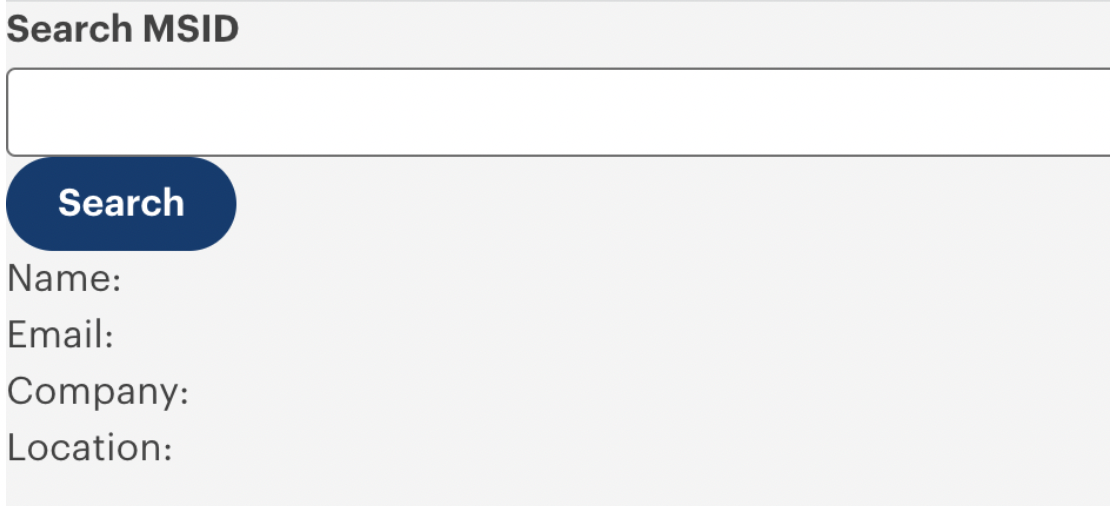
Great job, you have successfully connected to a GraphQL API!
Congratulations! You have completed all the tutorials and are an Abyss expert. You are ready to venture off on your own Abyss path and start your journey!